
Workflows and stages
A workflow is the shape of the work in your shop, written down once. Every ticket you take in follows one, and the stage it has reached is what your customer reads on their tracking page. This page covers building one, setting up its stages, and keeping it tidy afterwards.
What a workflow is
A workflow is an ordered list of stages: "Received", "Diagnosis", "In progress", "Ready for pickup". A ticket sits on exactly one stage at a time and moves forward through the list. The stages are yours to name: HoopoTrack never invents one.
You need at least one workflow before you can take any work in. Until then the new-ticket form is replaced by a screen headed "Create a workflow first". Most shops end up with a few: one for repairs, one for alterations, one for warranty jobs. You choose which one a ticket follows when you create it.
Create a workflow
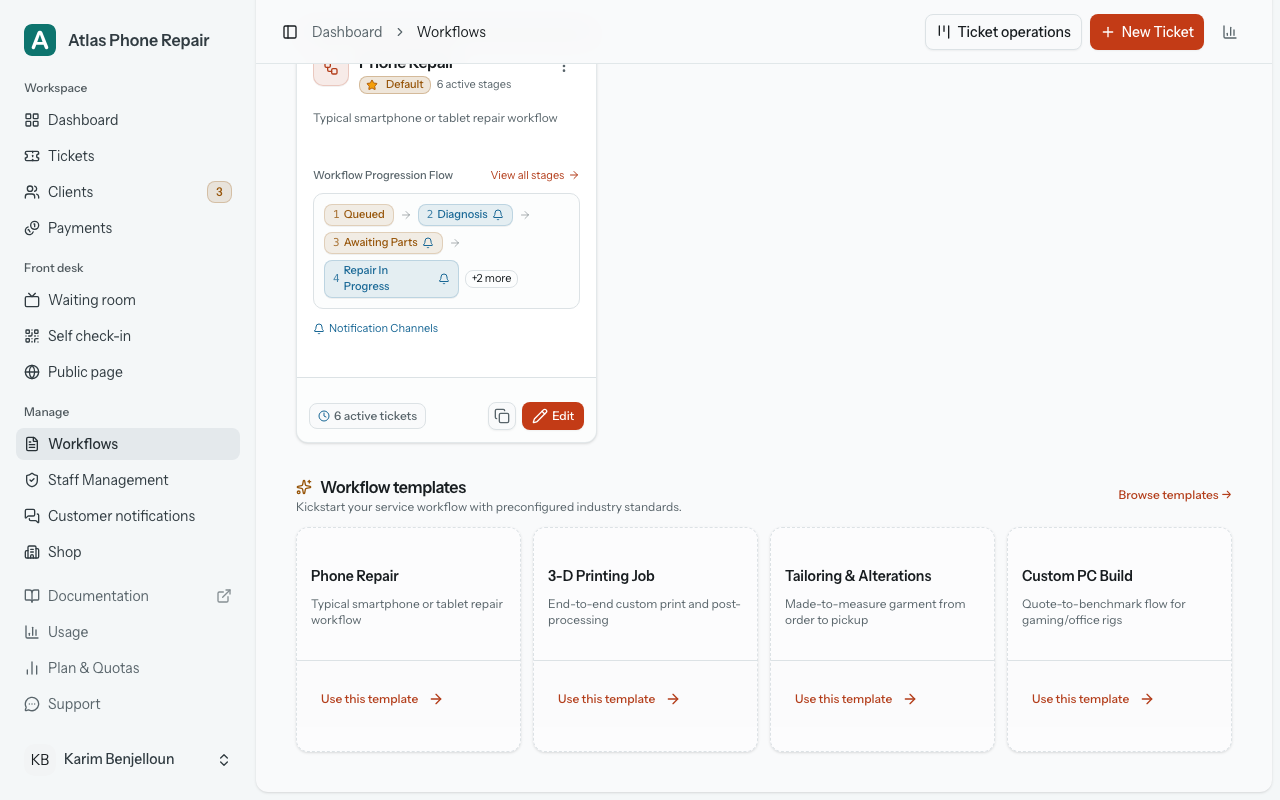
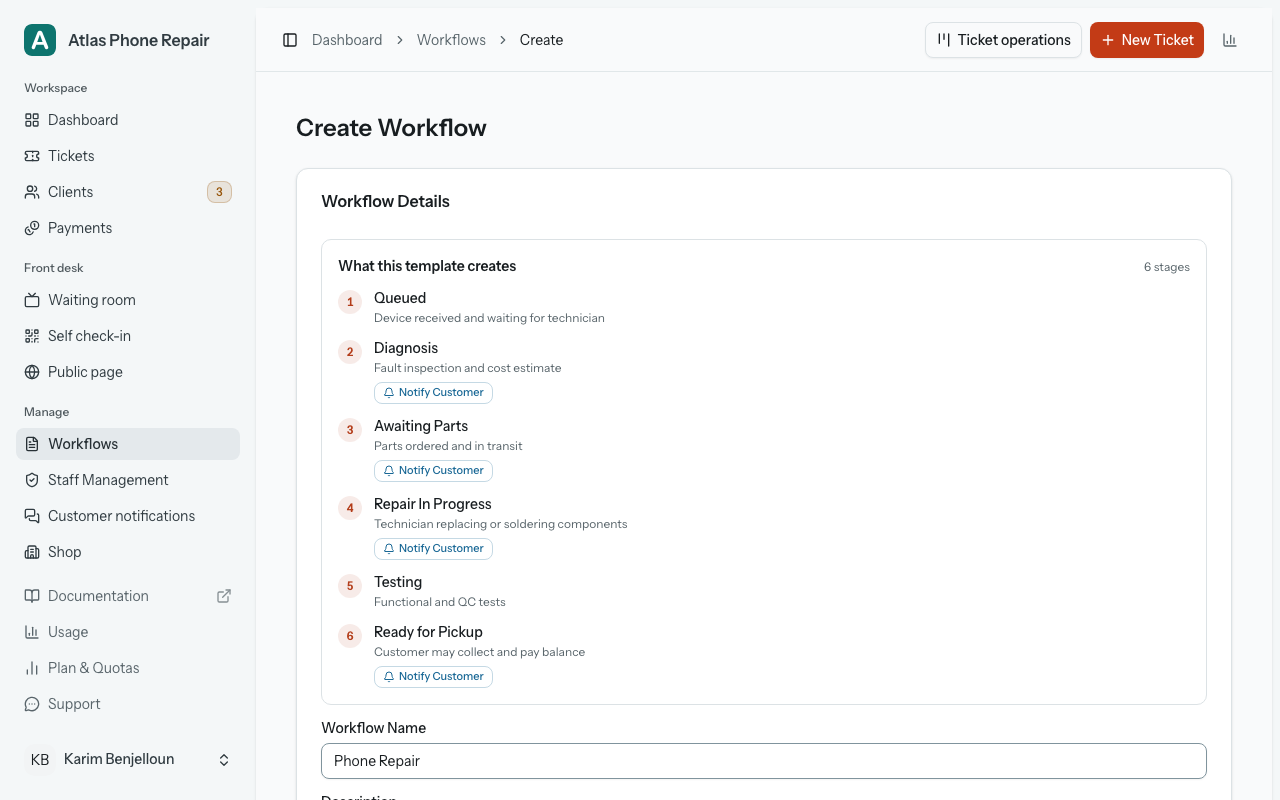
The Workflows page carries a rack of ready-made templates for common trades: the four most-used, as cards. Each card is one trade's stages, already timed and labelled. "Use this template" on a card opens the workflow form with that template chosen: the name and description are filled in, the "Choose Workflow Type" step is skipped, the button at the bottom reads "Apply template" rather than "Create Workflow", and the stages the template will create are listed on the form itself under "What this template creates": numbered, in order, each with its description, and carrying a "Notify Customer" badge where the template sets one. Templates ask for no customer approval on any stage: turn it on for the stages that need it. "Browse templates" opens the same picker with nothing chosen, so you can read through the whole list and search it, and "View template details" on a row lays a template out without applying it: that is how you compare two of them side by side, and it is the one place that also shows each stage's durations, which the summary on the apply step leaves out.
Applying a template creates the workflow and all of its stages in one go, and none of it is fixed. The form says as much above the button: "You can rename, reorder, add, or remove these stages after the workflow is created." Where a template marks a stage as notifying the customer, that stage is wired to email only if your shop already has the email channel connected; if it has not, the stage is created without notifications rather than with one that would go nowhere.
The other route is "Custom Workflow": give it a name and a description, press "Create Workflow", and you land on the editor with an empty stage list to fill in yourself. Both routes end up in the same place, so the choice is only about how much typing you would rather avoid.
Your first workflow becomes the default for new tickets automatically. On that first creation the "Set as default workflow" switch is on and cannot be moved, under the note "Your first workflow is automatically the default for new tickets." Nothing else exists yet for a ticket to fall back on. From your second workflow onwards the switch is yours to set.
Set up the stages
Editing a workflow opens on the "Workflow progression pipeline", a strip of its active stages in order, numbered and joined by arrows. Below it sit "Workflow Details" on one side and the "Stages" list on the other. "Add Stage" opens a dialog; "Edit" on any row opens the same dialog filled in. A stage carries five things:
- "Stage Name": what your team and your customer both see. Required.
- "Description": your own words for what happens at this stage. It shows under the name in the list.
- "Min duration" and "Max duration": how long this stage usually takes, each typed as a number with its unit (minutes, hours or days). The maximum cannot be less than the minimum; it sets when the ticket counts as overdue and feeds the promised date.
- "Stage Type (select one)": "Consider as waiting", "Consider as in progress", or "Consider as done (ready)".
- "Requires customer approval", with an optional "Approval question".
The durations are what produce the estimated-ready window your customer sees. Each time a ticket moves, HoopoTrack adds up the minimum durations of the stage it is now on and every active stage after it, does the same with the maximums, and counts both forward from that moment. An end that would land between 20:00 and 08:00 on your shop's clock moves to 09:00 the next morning, so the date printed on a customer's claim ticket is never the middle of the night. Leave the durations empty and the ticket simply has no estimate: no window on the tracking page, and no "Overdue" marking, which is judged against the late end of that window.
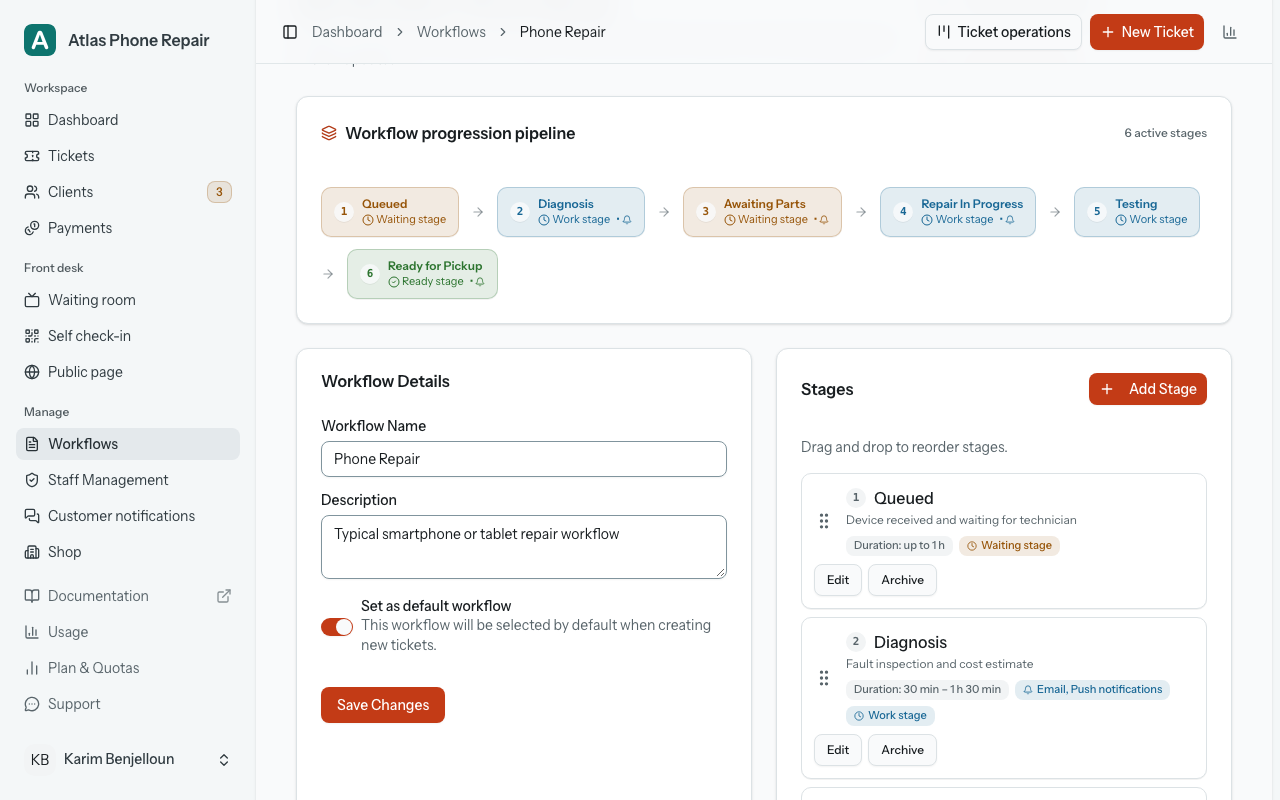
The stage type is not decoration. In the editor, it is the badge on the stage's own row: "Waiting stage", "Work stage" or "Ready stage" (a stage with none of the three carries no badge at all). On the waiting-room queue screen, waiting and work stages collect in the "In the shop" pane, a work stage's tickets listed first with their stage name highlighted; a stage marked done lands its tickets in "Ready for pickup" instead. It also decides when a job is finished: moving a ticket onto a stage set to "Consider as done (ready)" marks the ticket completed and stamps the time; moving it back off one re-opens it. So a workflow wants exactly one stage at the end marked done, and the ones before it marked waiting or a work stage. The app holds you to that: a stage that is the workflow's only done stage cannot be switched to another type or archived, and the reason is shown right at the field.
"Requires customer approval" marks a stage the customer has to answer. Tick it and an "Approval question" box appears: whatever you write there is the sentence the tracking page prints above "Approve" and "Decline" when a ticket reaches the stage. It does not have to be about money. "Total cost: $150. Do you approve?" is one kind of ask; "Do you agree to a full system reset?" is another, and the stage treats them the same way. The ticket page then tells you which of the three you are looking at: "Waiting for customer approval", "Approved by Customer", or "Declined by Customer". An answer is final (neither side can change it afterwards), and a decline stops the ticket being moved on from that stage. Keep the approval step for the moments where a no genuinely should halt the job.
If your shop serves more than one language (Manage › Shop › Languages), the workflow editor gains one tab per language, holding that language's name, description, approval note and approval question for every stage. A field left empty shows what customers get instead, "Customers see “{name}” until you fill this in.", and a tab is marked "Missing" while a live stage has no name there, or asks an approval question with no wording there. "Fill from templates" fills the stages that came from a HoopoTrack template. Staff keep seeing the shop language in the app: the other languages are what customers receive.
When you change the shop language, HoopoTrack offers to translate your stage names into it from the templates ("Translate … stage names into … from your templates?"). Nothing changes until you press "Translate"; "Keep as they are" leaves them. Turning on another language fills the names its templates cover straight away and says how many it filled, so check them. Under "Stage names" in Manage › Shop › Languages, each workflow says "Every stage name is filled in" or how many are "Missing" in each language, with a "Fix" link to the editor.
Choose which stages tell the customer
Every stage dialog has a "Notification Channels" box listing the channels your shop can use, each with its own switch. A stage sends on a channel only when that channel is switched on for the stage AND connected to your shop AND the customer can be reached on it: an address for email, a number for WhatsApp, a device where they turned on updates for push. Miss any one of the three and nothing is sent.
A new stage starts with every channel your shop has connected already switched on, because silence is the wrong default: a workflow built by hand would otherwise tell nobody anything until you found this box and ticked it once per stage. A channel your shop has not connected shows as "(not enabled for this shop)" and its switch cannot be moved.
If any stage of the workflow is set to notify while your shop has no channel connected at all, a band across the top of the editor says "No notification channel is connected", names how many stages are affected, warns that nothing will be sent, and offers a "Set up notification channels" button that takes you straight to Manage › Customer notifications. The same link sits inside the dialog. Which channels exist, how you connect them, and what each message contains are covered in the Notifications section.
Reorder and archive stages
Stages run in the order they appear in the list, and the list is draggable: "Drag and drop to reorder stages." Take hold of the grip at the start of a row and move it; the new order saves as soon as you let go, and the strip at the top of the page renumbers itself to match. Order matters for two things: the "Move to" button on a ticket always offers the next stage down the list, and the estimated-ready window is summed over the stages that come after the current one. If someone else reorders or adds a stage while your page is open, your save is refused and the editor shows the order that stands: "The stages changed while this page was open. It now shows their current order, so check it before you move a stage again."
A stage you no longer use is archived rather than deleted. "Archive" on the row takes it out of the strip, out of the stage list offered on tickets, and out of the quick actions on the ticket page, but it stays in the history of every ticket that already passed through it, so old jobs still read correctly. The row itself remains in the editor marked "Archived", and "Unarchive" brings it back into service.
The default workflow
One workflow at a time is the default, and it is the one already selected when you open the new-ticket form, marked "(Default)" in the dropdown. Marking another one as default clears the flag from the old one; there is never more than one. You can set it from the switch on the workflow's own edit page, or from "Set as default" in a row's menu on the Workflows list, which asks you to confirm first.
The "Default Workflow" card at the top of the Workflows page names the current default, or reads "None set" when nothing is flagged. That can happen to workflows created before the first-workflow rule existed. If you only have one workflow, the ticket form selects it anyway, flagged or not.
Duplicate and delete
"Duplicate Workflow" copies the workflow along with every one of its stages and their settings, and names the copy after the original with "(Copy)" on the end. The copy is never the default, whatever the original was. It is the quickest way to build a variant (a rush version of your usual run, say) without rebuilding the stages by hand. A duplicate counts as a new workflow against your plan's allowance.
"Delete Workflow" sits at the top of the edit page and asks you to confirm, because it cannot be undone. A workflow with tickets still moving through it cannot be deleted at all: the dialog says so before you confirm, for example "This workflow is used by 2 active tickets.", counting tickets you have deleted, and offers "View active tickets" in place of the delete. The stages belong to the workflow and go with it, and a ticket left without its stages has no move to make and no way to be finished, so finish or move those tickets first. Completed tickets never stand in the way; they keep their history and stay readable. From the Workflows list the delete in a row's menu refuses on the default workflow and tells you to make another one the default first. Deleting returns one workflow to your allowance.