
Shop settings
Everything the public sees about your shop (its name and logo, how to reach you, its opening hours, the board in the waiting room, the review link, what customers see about money) is edited in four places, each under the part of the menu where you would look for it: Manage › Shop, Manage › Customer notifications, Front desk › Waiting room and Payments › Settings. Front desk also holds Self check-in and Public page, which have sections of their own. Old links and bookmarks to the one long settings page still land on the right one. Only the owner can change them (anyone else who opens Shop reads it), except that a staff member with the "Manage Waiting Room" permission can open Waiting room too.
How saving works here
Shop, Waiting room and Payments › Settings have no Save button and nothing to submit. A text box saves when you leave it, or when you press Enter; a switch and a menu save the moment they move. Each field shows its own small state beside its label (saving, then saved), so you can see which one went through rather than trusting that all of them did. Two places are the exception and have a Save button: Customer notifications, and the Opening hours tab of Shop, which confirm the save as a whole.
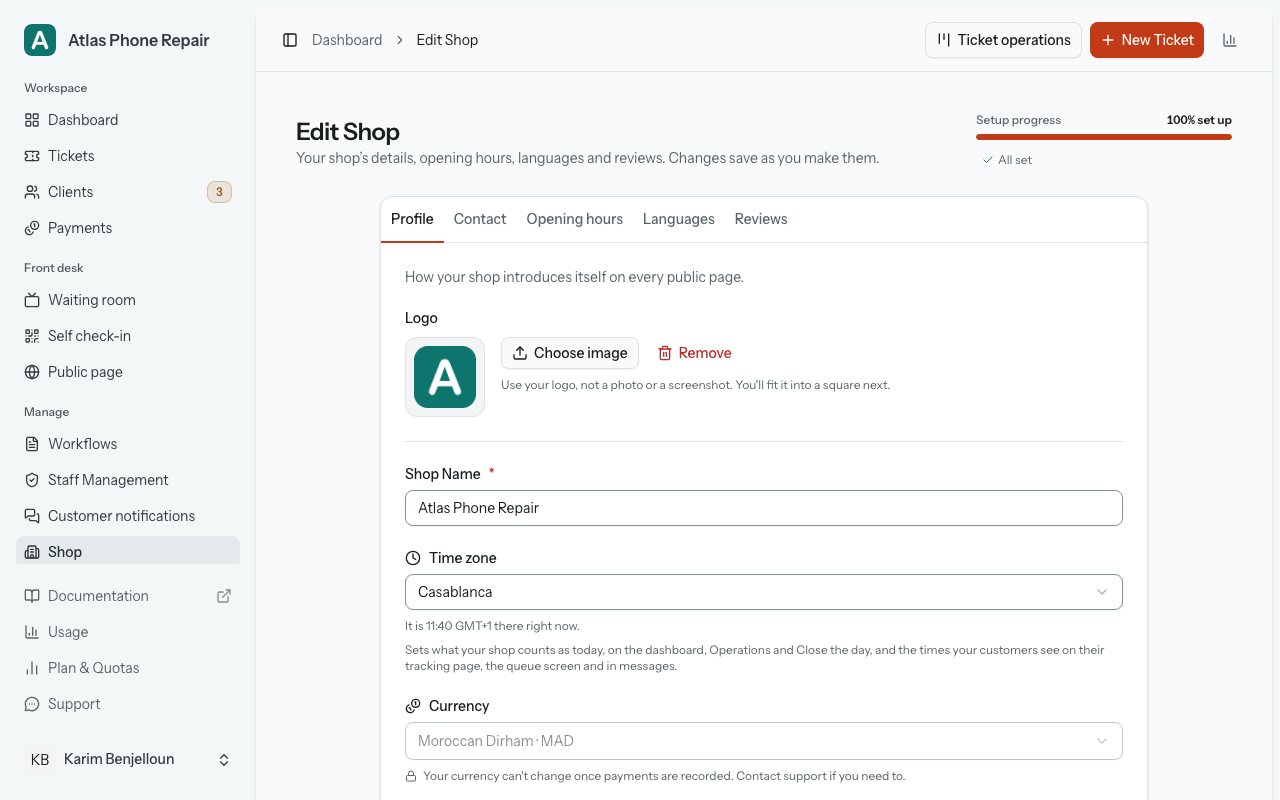
When the server refuses something, the message appears under that field and your typing stays exactly where it is. Nothing is rewritten behind you, and nothing else in the same request is saved either: one change applies whole or not at all.
Along the bottom of the card sits the one line that answers "did that save?": "All changes saved", with how long ago the last one was, or a warning that something did not. Beside it, "Undo" puts back the change you just made. One step, not a history.
On Shop, the tab you are on travels in the address, so "open the Languages tab" is a link you can send somebody. At the top, a "Setup progress" meter counts what is left: the three things you need to take jobs ("set up a workflow with its stages", "add a contact detail" and "create your first ticket") and four recommended ones ("set your timezone", "turn on a notification channel", "add your logo" and "add your Google review link"), which "Not now" on the dashboard card can skip.
Profile
Manage › Shop opens on Profile: your shop's name, its logo, its time zone, its currency and its address. The name and the logo are what a customer sees at the top of a tracking page and on the waiting-room board, so treat this as your shop introducing itself rather than as an internal label.
A logo uploads the moment you pick it: there is no separate save for a file. Any image will do, up to 2 MB; the screen suggests 512 by 512 pixels, because it is drawn small and square. Replacing one throws the old file away.
The shop language, chosen on the Languages tab, applies to the whole shop, not just your own view of it: your tracking pages, your queue screen and the messages sent to customers all follow it. The app around you switches over on your next page load.
Further down the tab is "PIN-protect new tracking links", on by default: every ticket you create is given a 10-digit PIN and its tracking page asks for it. Turning it off asks you to confirm, and the confirmation is written from your own shop: it names the workflows of yours that ask customers to approve costs, mentions your ticket photos if you have any, and says that whoever holds the link can leave the review on a finished job. Whichever way you set it, tickets that already exist are untouched, and any single ticket can still be unlocked from the ticket itself.
The time zone sets what your shop counts as today, on the dashboard, the counter board and Close the day, and the times your customers see; pick your city and the page says what time it is there. Changing it later asks first ("Change the time zone to {city}?"). Times use the 24-hour clock in English and French, on screen and on printed receipts, slips and forms; Arabic keeps its 12-hour clock with ص and م. The currency is chosen here too, from every current currency, searchable by code or name, with your country's first.
Contact
An email address and a phone number. Both are optional, and both are shown to the customer on the tracking page of every ticket. This is how somebody reaches you after reading that their job is waiting on a part. Filling in either one also ticks "add a contact detail" on the progress meter.
Your contact email is also where customers' replies to your ticket emails go. HoopoTrack's own emails (account and sign-in emails, getting-started emails, shop alerts, the weekly digest and billing emails) reply to HoopoTrack support instead.
"City" and "Country" sit under the phone number; the street address itself stays on Profile. The app works without them, but your public page needs a city before it can go online; it shows the city with your address, and gives the city and country to Google. On the public page your phone number is grouped the way your country writes it, +212 5 22 00 00 00 rather than +212522000000; a number it cannot read is shown as saved.
Once your public page is online, a change to your shop's name, logo, address, city, country, phone or email applies at once to your team, your tracking pages, your messages and your public page. Only a shop that HoopoTrack reviews for every change waits: its public page shows the change after review, and the message after saving says so. Public page explains the review.
Opening hours
Manage › Shop › Opening hours is the one place your shop's hours are kept: self check-in can follow them, and your public page shows them. Days that share the same hours are set together, as a group. A shop with no hours yet starts with no group, and "Add hours for other days" creates the first. Tap the days that belong in it (Monday to Friday, say), then set when you open and when you close. "Add a break" adds a lunch break to that group; "Remove break" takes it away.
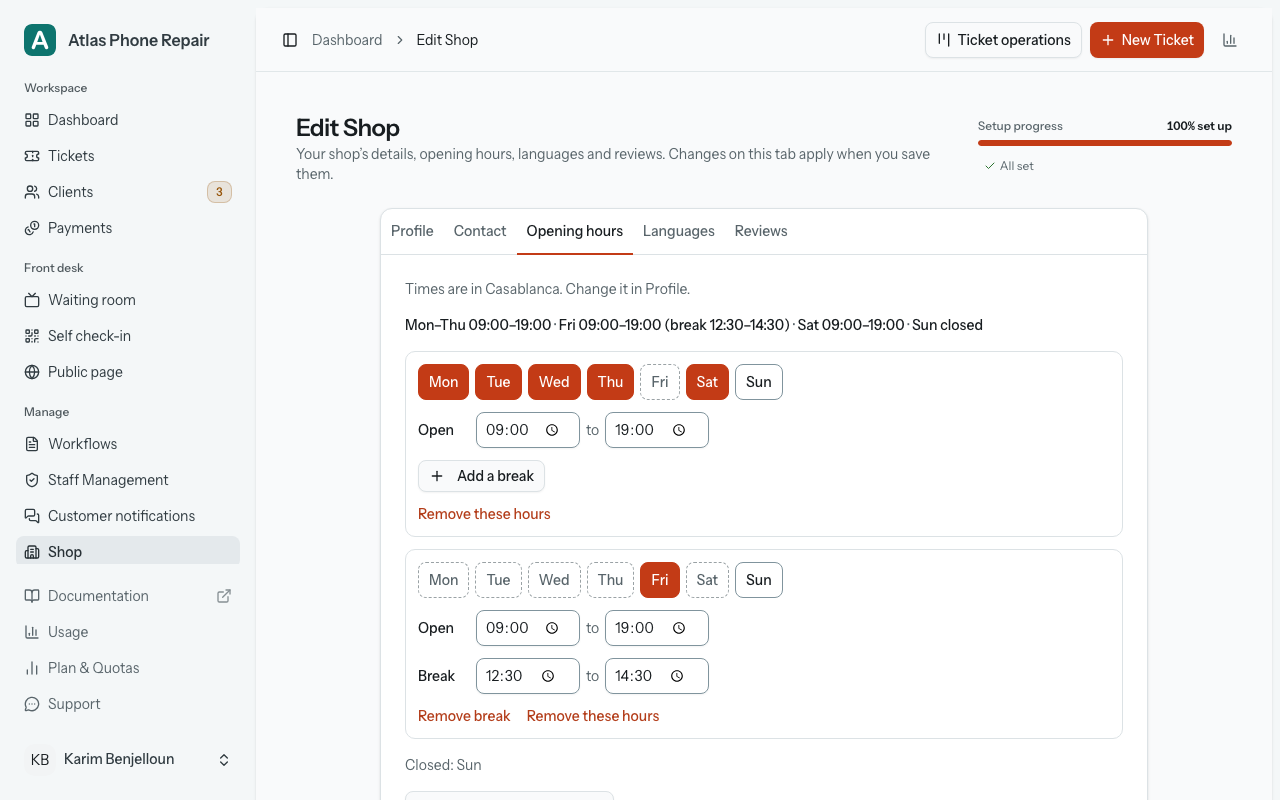
For days with other hours, "Add hours for other days" starts another group. A day belongs to one group at most: tapping a day that another group holds moves it here, and a day in no group is closed. Once there are two groups or more, each has "Remove these hours", which deletes it and closes its days. Above the groups, one line reads the week back, for example "Mon–Fri 09:00–19:00 (break 13:00–15:00) · Sat 10:00–14:00 · Sun closed", and under them another names the closed days ("Closed: Sun") or says "Open every day".
Unlike the rest of Shop, this tab has its own "Save" button, which saves the whole week at once, and the page header says so while the tab is open. A group that cannot be right says why under it, such as "The break must be inside the opening hours.", and Save stays unavailable until it is fixed. A line at the top names the time zone the hours are in ("Times are in {city}. Change it in Profile."); a shop with no time zone yet is asked to set one first.
Languages
Manage › Shop › Languages holds the "Shop language" and the "Languages you serve". Your shop language is always served; tick the others you want customers to read. Customers get the shop language unless they choose another, and the waiting-room screen always uses it. A shop that serves only one language sees no language fields, hints or switcher anywhere.
Turning a language on fills what the HoopoTrack templates cover and says how many stage names it filled, so check them. "Stop serving" asks first and says how many customers chose that language; their choice is kept, in case you serve it again. Changing the shop language asks first ("Change the shop language to …?") and then offers to translate your stage names. Workflows and stages covers the per-language stage tabs, and Team and clients covers each customer's own language.
Waiting room
Front desk › Waiting room: the waiting-room board and everything about it. "Queue is live" is the master switch (while it is off it reads "Queue is off"): with it off, your linked screens show only your shop's name and a line asking customers to ask at the counter, whatever else is set on this page.
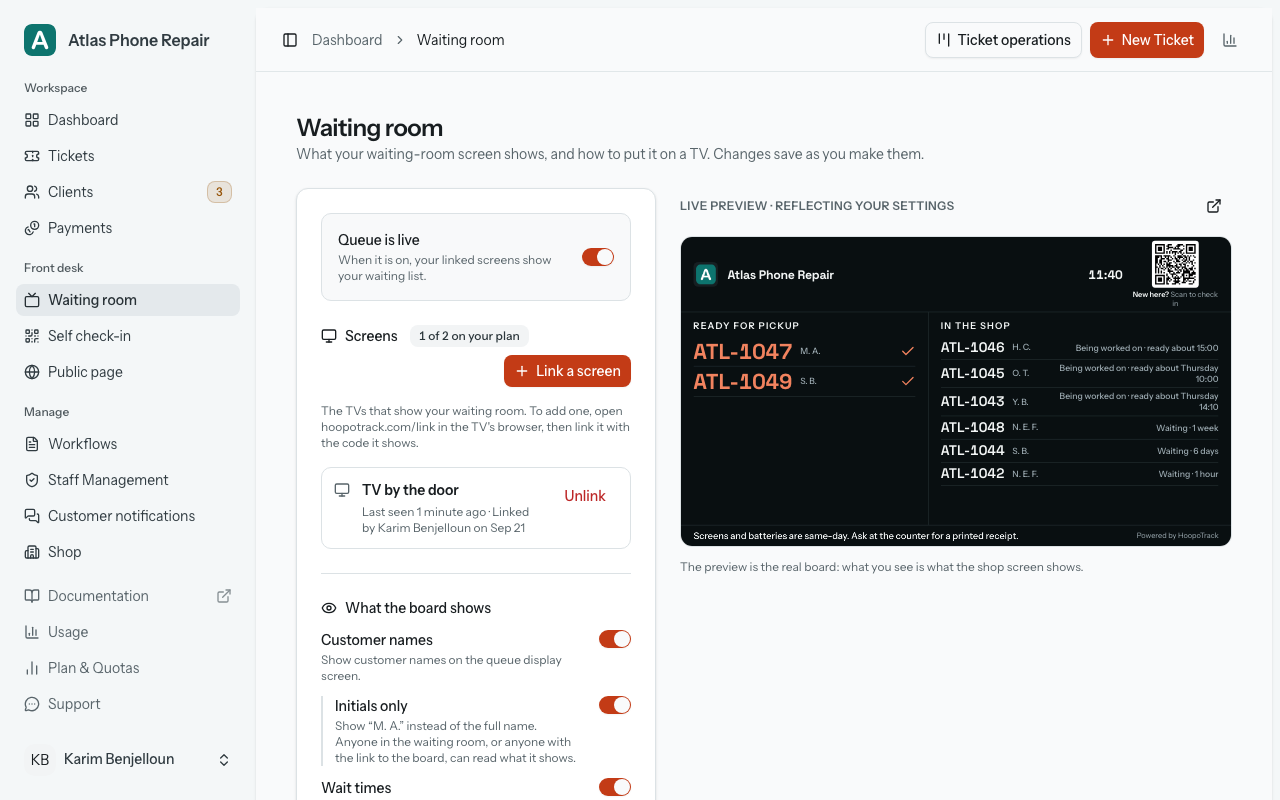
Three switches decide what each row of the board gives away: customer names (with an "Initials only" option), how long people have been waiting, and estimated completion times. An announcement, if you write one, sits across the top of the board.
Under "Screens" are the TVs and tablets that show the board, each with its name and when it was last seen ("Not seen yet" until it first loads the board), with how many are linked against your plan's limit. Only a linked screen shows the board: there is no public address and no PIN. Your plan sets how many screens you can link, one unless it says otherwise. After a move to a smaller plan, the screens linked first keep working, and any beyond the limit are marked as over it: they show a notice instead of the queue until you unlink another screen or the plan allows more. Nothing is unlinked for you.
Beside these settings, on the owner's page, is a live preview. It is not a drawing of the board: it is the board as your linked screens show it, built from the same data.
A linked screen opens the board in TV mode by itself. Customer pages describes what the TV screen shows, and what a screen shows while the waiting room is off or when it is over your plan's limit.
The owner sees everything on this page. A staff member with the "Manage Waiting Room" permission sees a smaller page, with the on and off switch, the announcement and the list of screens; what the board shows stays with the owner, and linking or unlinking a screen also takes "Link screens". The audit log names who switched the board, changed its announcement, or linked or unlinked a screen.
Link a screen
A screen shows your board once someone on your team links it. It takes a minute, with the TV and your phone side by side:
- On the TV or tablet, open hoopotrack.com/link in its web browser. It shows "Link this screen" with a six-character code, such as K7P-3QX, and a QR code. The code changes every 10 minutes, and the screen fetches a new one by itself. In a browser signed in to HoopoTrack, the same address opens the page for linking a screen instead: press "Use this device as a screen" at the foot of the page to show the code.
- On your phone, scan that QR code, or press "Link a screen" under "Screens" on Front desk › Waiting room and type the code into "Code on the screen" in the window that opens. Scanning only opens the page, with the code filled in, and links nothing. If you are not signed in, HoopoTrack asks you to sign in first ("Sign in to link the screen. You'll come straight back to it.") and brings you back.
- Give the screen a name in "Screen name", such as the TV by the door, so you can tell your screens apart, then press "Link screen".
- The TV picks it up by itself within a few seconds and opens the board. Click or tap the screen once so it can play sounds.
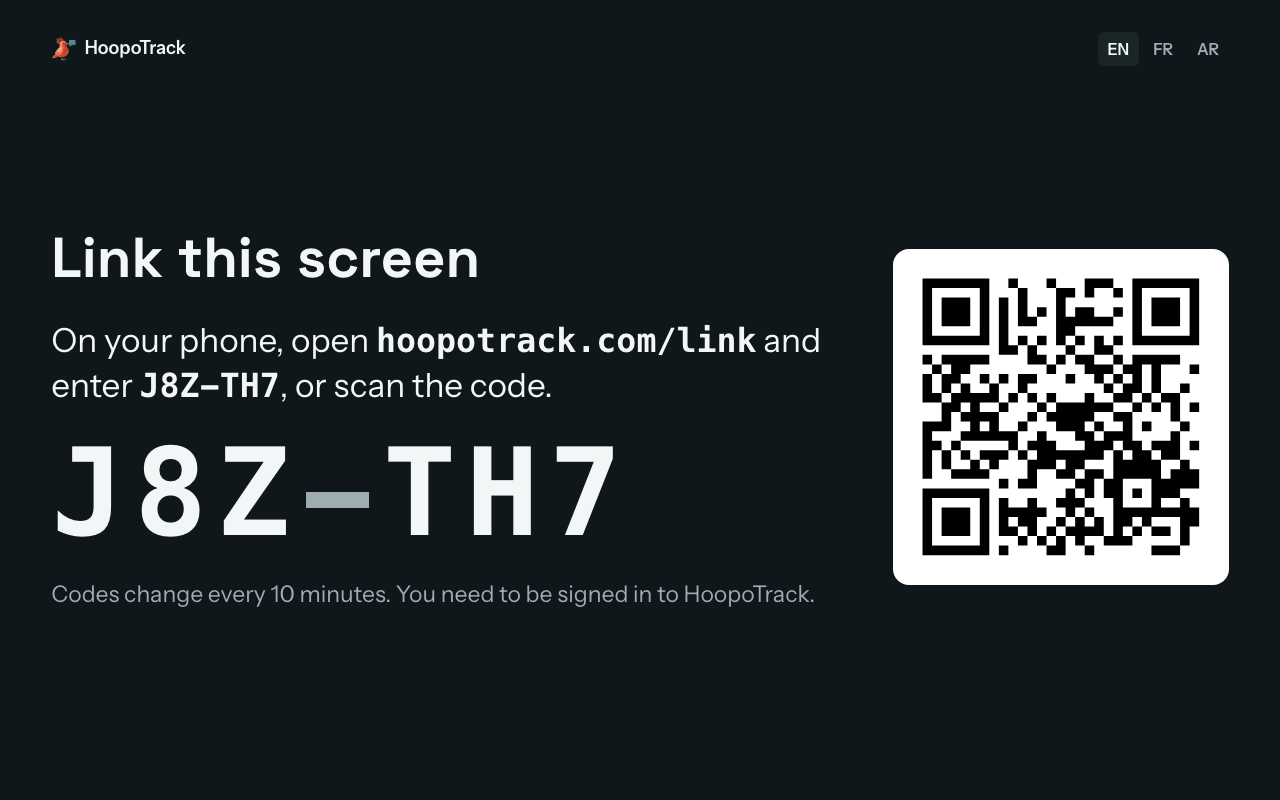
A code works once, and only for the screen that showed it, so a photo of it is no use on any other device. Too many wrong codes pause linking for a few minutes. A linked screen stays linked when it is switched off overnight or loses its connection, until you unlink it. If the TV never picks the link up (switched off, say, or its page closed) within 15 minutes of "Link screen", the link lapses and its place on your plan is free again; link it with a new code.
To take a screen off, press "Unlink" beside it under "Screens", then "Unlink screen" to confirm. It stops showing the board at its next refresh and goes back to showing a code; using it again takes a new code. Unlinking frees its place on your plan.
Linking and unlinking need the "Link screens" permission together with "Manage Waiting Room". The owner always has both; staff have neither until you tick them, as Team and clients explains. Without "Link screens", Waiting room shows no "Link a screen" and no "Unlink", only "Only people with the Link screens permission can link or unlink screens." When it is the shop that stands in the way (a plan with no screens, every screen on the plan already linked, or a subscription that is not active), "Link a screen" stays greyed out and a line under "Screens" says why, such as "All your plan's screens are in use. Unlink one, or move up a plan.", with "See plans" for the owner. On a phone, the page a scanned code opens gives the same reason instead of the form. While your subscription is not active, screens already linked keep showing the board and you can still unlink one, but no new screen can be linked.
A code typed by mistake in another shop links the TV to that shop instead, so a screen can always be taken back from the screen itself. For 10 minutes after it is linked, a bar along the bottom of the board reads "Linked to {shop}. Not your shop?", with "Unlink this screen". At any time, hoopotrack.com/link/unlink, opened on the TV, names the shop the screen shows, with "Unlink this screen" and "Back to the waiting room". Either way it asks first ("Unlink this screen?", with "Keep it" and "Unlink"). Unlinked this way, the TV goes back to its code with "This screen was unlinked. Link it again to show your waiting room.", and Manage › Audit Log reads "Screen unlinked from the screen itself". HoopoTrack support can also take a screen back from the shop it was linked to: it then leaves your "Screens" list, and your audit log reads "Screen revoked by HoopoTrack support".
Customer notifications
One switch per channel your shop can send on: email, WhatsApp and push notifications. This is the page that does have a Save button. Channels are kept off the save-as-you-go path on purpose: "the owner turned every channel off" and "this request was not about channels" look identical from the server's side, and a shop that quietly stopped notifying anybody is the worst possible thing to discover a week later. The line at the top of the page links to Settings › My notifications, where your own alerts are set.
So set your switches, then press "Save notification settings". A channel that has been turned off across the whole platform cannot be switched on here and says why. And switching one on is only the first of the conditions a message has to pass: the stage it would fire from has to be set to notify on that channel too, and the customer needs the matching email address or phone number.
Two more lines sit at the top of the page. One says where customers' replies go ("Customer replies go to …", with a link to Contact), or asks you to add your shop's email so replies reach you. The other, "Customers get messages in their own language when you serve it", links to Manage › Shop › Languages.
Reviews
One setting: the link a customer follows to review you on Google. After somebody leaves feedback on a finished ticket, they are invited to leave that review, whatever they rated you.
To find the link, open your Google Business Profile, choose "Ask for reviews" (or "Get more reviews"), and copy the link it gives you. Only Google's own review links are accepted, one that looks like https://g.page/r/AbC123/review; any other address is refused. A link saved earlier in another format no longer shows a review button to customers until you enter the Google one.
Under the link, one line explains that every customer who leaves feedback is invited, whatever their rating, because Google's rules require it.
No Google profile yet? The field says so, with "Create one for free", which opens Google's own page for making one. Once the link is in, your public page can show it too.
Printing
The Printing section at the foot of the Profile tab sets the item label. "Label format" is "50 × 25 mm label printer" or "A4 sticker sheet (24 per page)". "Show item on labels" adds the first words of the description and is off by default, because it can reveal what is inside a bag; "Print a label after each new ticket" is off by default too. Each saves as it moves. Tickets and the board describes printing a label from a ticket.
Prices & payments
Payments › Settings, the Settings tab of the Payments page, appears only on a plan that includes prices and payments, and its line says what it is for: "What customers see about money, and how your counter records it." It saves as you go, like the other settings pages. At the top sits the switch that turns the whole feature on or off for your shop: off, there is no price row on the intake form, no chip, no column and no Payments page, and any record already made is kept read-only.
"Show prices to customers" is on by default, and its line says exactly what it governs: "Payments and the balance appear on the tracking page and on customer receipts, and the balance in the ready-to-collect message. A quote you send is always shown to the customer." Turn it off and customers see nothing about money that you did not send them on purpose; a quote is an explicit act about one ticket, so it still reaches them.
"Payment methods you accept" lists the five methods in a fixed order, "Cash", "Card", "Bank transfer", "Mobile wallet" and "Other", with Cash and Card ticked for a new shop. "Only these appear when you record a payment. Payments already recorded keep their method." That list drives every method chip in the app: the intake form's deposit, "Record payment" on a ticket, and the hand-over sheet on the board, with the first ticked method preselected. A shop that ticks one method sees no chips at all, only its name. Unticking the last one is refused, with "Tick at least one method." under the list, because a payment has to be recorded as something.
The currency itself stays on the Profile tab, where it always was. Once your shop has recorded a single payment it can no longer be changed there, and the field says why: "Your currency can't change once payments are recorded. Contact support if you need to." Prices and payments explains what the setting protects.