
Team and clients
Two lists your shop keeps: the people who work it, and the customers whose jobs you take in. Staff get an account with a set of abilities you pick one by one; customers get a record, and the contact details on it decide who can be told anything.
Invite a team member
Staff Management belongs to the owner: only the account that opened the shop can reach it. "Add Staff Member" asks for two things, a name and an email address, plus the tick boxes covered below. You never choose their password.
Saving creates the account, already enabled, and emails the person: a welcome message naming your shop, the email address they sign in with, and a button to set their password. Nobody is ever sent a password: not them, not you. The button opens a page that welcomes them by your shop's name and asks for one password; "Start" signs them in and lands them on the dashboard. The link works for seven days and only once. If it has run out, opening it offers "Send me a new link", as long as they have not signed in since.
Each member takes one of your plan's staff places. When they are all taken, the form says so beside its own save button before you have filled anything in, and points at the plan page. Pause one to free a place.
What each ability unlocks
The tick boxes are not decoration on a job title. Each one switches on a specific set of actions and the server refuses everything outside them, so the sentence you read next to the box is the same rule that answers the request:
- Create Tickets: "Open new tickets, search existing customers to attach one to, or add a new customer for the ticket."
- Assign Tickets: "Choose which team member is handling a ticket."
- Update Stages: "Move a ticket through its workflow, add notes, edit its description, and set its PIN and queue visibility."
- Manage Clients: "Add customers without opening a ticket, edit customer records, and open a customer profile from a ticket."
- Handle Payments: "Set prices, send quotes, and record or refund payments." Without it a member sees that a job has a balance due or is paid in full, never the amount, and no money control. It also covers the board's hand-over payment and Close the day.
- See Balance Due: "See how much a customer still owes on a ticket, and nothing else: no prices, payments or totals." For the member who hands jobs back at a one-person counter and needs to say what is owed without being able to change it.
- Manage Waiting Room: "Turn the waiting-room screen on or off, and change its announcement. What it shows stays with you." It is off for everyone until you tick it, existing staff included. Staff who have it get a Waiting room page under Front desk, with the on and off switch, the announcement and the list of linked screens.
- Link screens: "Link and unlink the TVs that show your waiting room. Also needs Manage waiting room." It comes right after Manage Waiting Room, which it needs, and is off for everyone until you tick it. With both, a member can link a TV with the code it shows and unlink one, from Front desk › Waiting room. Shop settings explains how.
- Manage self check-in: "Open and close self check-in, choose whether it follows your opening hours, and print the poster. Turning it on, what it asks for and replacing the QR stay with you." It too is off for everyone until you tick it, existing staff included. Staff who have it get a Self check-in page under Front desk.
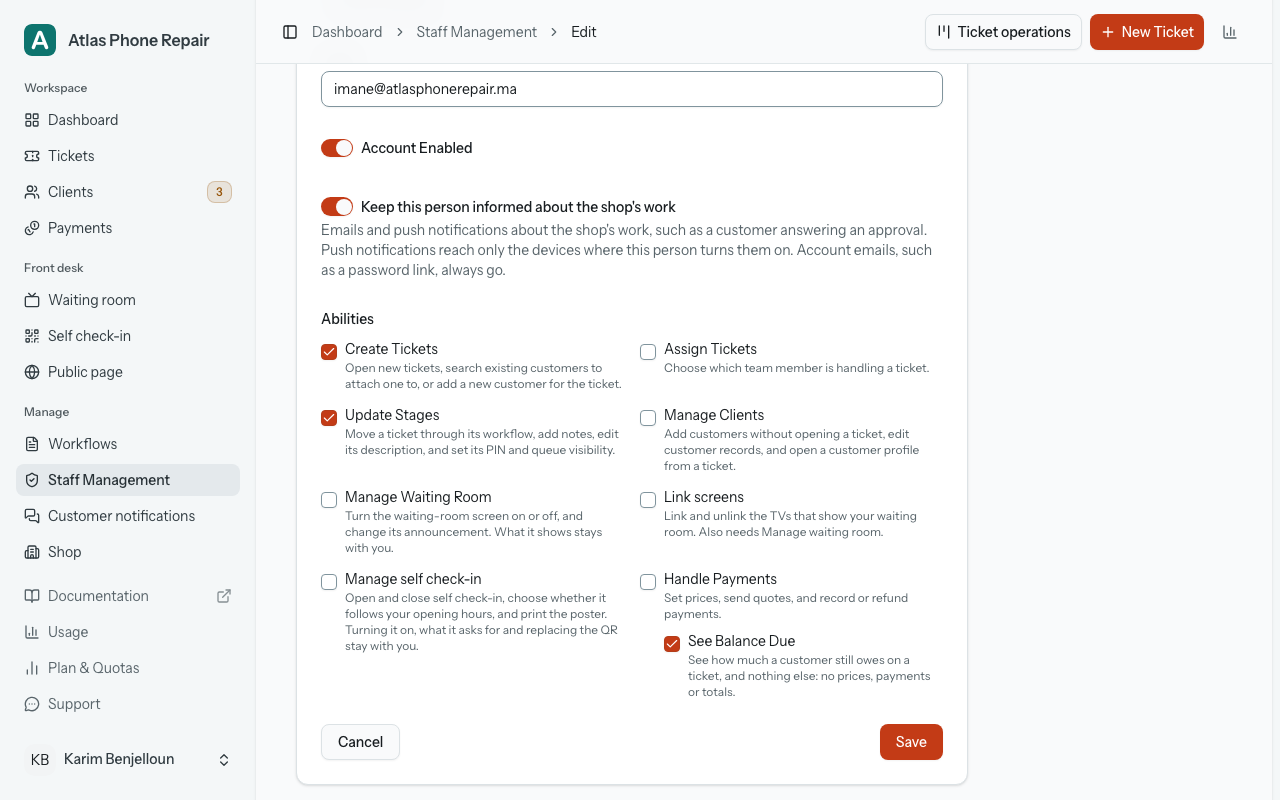
Two of those meet in one place worth knowing about. "Create Tickets" on its own lets somebody look a returning customer up from the ticket form, because every ticket has to belong to one, but it does not open the client book, and it does not let them rewrite a customer's name, email or phone number. That edit is "Manage Clients" wherever it is made from, the "Edit Customer" dialog on a ticket included.
Ticking nothing produces an account that can sign in and do nothing at all. The form warns you as you untick the last box, and the member's card on the staff list keeps saying it afterwards. As the owner you need none of these boxes yourself: the owner may do everything.
Two of them share one cell of the form, "See Balance Due" directly under "Handle Payments", because one implies the other. Tick "Handle Payments" and the box beneath it shows as ticked and cannot be changed, its line reading "Included with Handle Payments". Untick it and "See Balance Due" is an ordinary box again, showing whatever it held before and its own description; unticking the parent never changes what the child had. Both appear only on a plan that includes prices and payments.
Turn an account on, off, or over
"Account Enabled" on a member's form is the switch that matters most. Turn it off and they are refused at the sign-in screen: not shown a smaller version of the app, refused, with a message telling them the account is awaiting approval. Turn it back on and they carry on where they left off with their abilities intact. Use it for somebody who has left, or a device you have lost track of.
"Resend Welcome Email" does more than resend. It replaces their password with one nobody knows, signs them out wherever they are signed in, and sends the welcome message again with a new link, so whatever they had stops working, and any earlier link with it. The confirmation box says so before it sends. It is the way to help somebody who has lost their password, not a way to remind them the shop exists.
Removing a member (described just below) closes the account and hands their place back to your plan. Their name stays on the tickets and notes they left behind; the history is not theirs to take with them.
"Pause" on a staff card frees a staff seat without losing anyone. A paused person cannot sign in, their name stays on every ticket, payment and note they recorded, and they move to a "Paused" group at the bottom of the list. "Resume" brings them straight back with their history intact, as long as a staff seat is free.
"Remove from the team", offered on a paused person, closes the account for good: their sign-in and email address are released, but their name stays on everything they recorded. It cannot be undone, and inviting the same email again creates a new person. It also cancels any email change they had pending. When you change a staff member's email on their page, the new address counts as unconfirmed until they follow the link, and the banner on their screen asks them to confirm it.
Alerts and devices
Under the abilities, "Keep this person informed about the shop's work" decides whether a staff member hears about the shop's work: by email (for now, a customer answering an approval) and by push notifications on the devices where they turn them on. It is off for every new member, and it is yours to switch on. Account emails, such as a password link, always go whatever it says. On the staff list, each card reads "Gets work notifications" or "No work notifications".
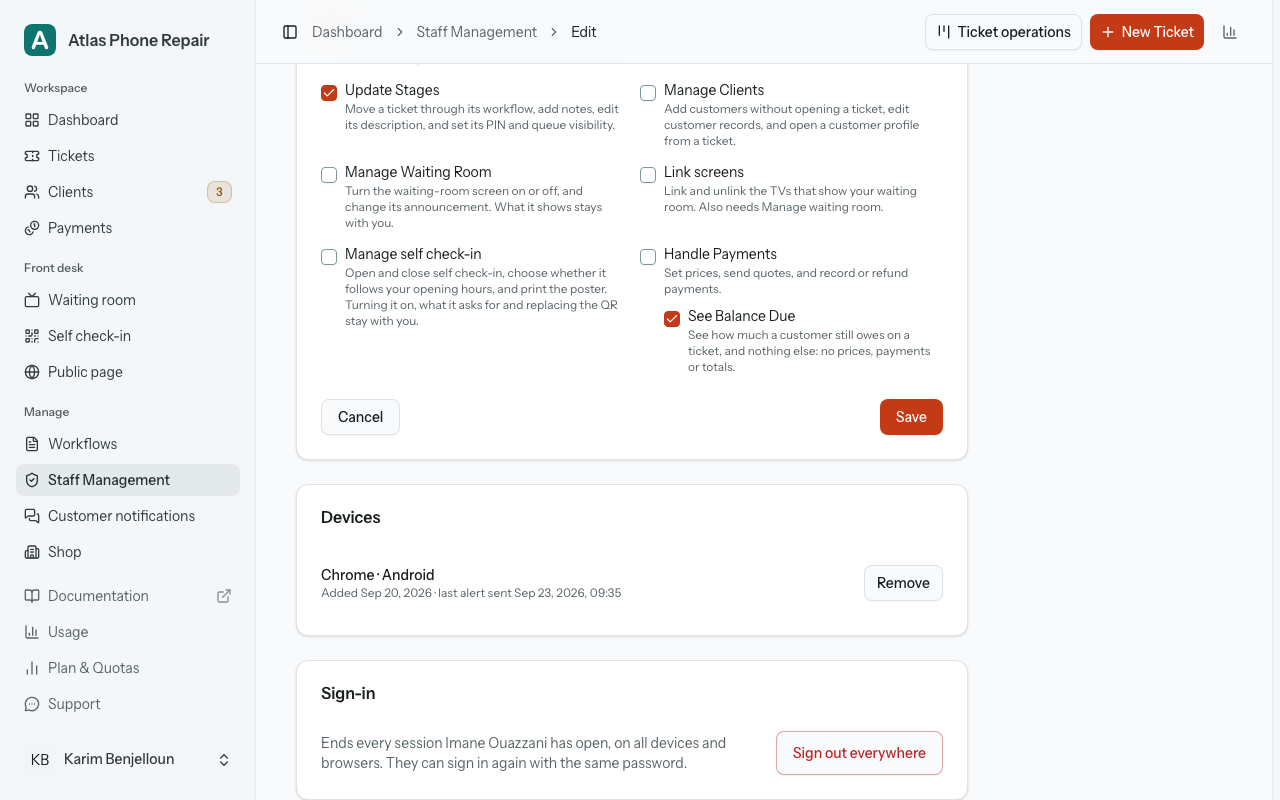
Below the form, Devices lists each phone or computer where the member turned on notifications, with when it was added and when it was last sent an alert. Remove stops alerts to one device; "Remove all devices" stops them all. When your plan does not include push notifications, the card says so, and nothing is sent to these devices.
Sign-in, the last card, holds "Sign out everywhere": it ends every session the member has open, on every device and browser. They can sign in again with the same password, so it is for a lost phone, not for someone who has left; for that, turn "Account Enabled" off. Every member, you included, also has "Sign out of all other devices" in Settings › Password, which ends every session except the one you are using. Changing your password does the same.
Devices are also removed without anyone asking: when a member is deleted or disabled, when they sign out on that device, and when they use either sign-out above.
The client book
A customer record is three fields: a name, which is required, and an email address and a phone number, which are not. Each of the optional two has to be unique within your shop, so the same person cannot quietly be entered twice.
Those two fields decide who can be told anything. Email updates need an email address, WhatsApp updates need a phone number, and a customer with neither will never hear from the shop automatically, however carefully the workflow is set up. It is worth asking for one at the counter.
In a shop that serves more than one language, every customer also has a language: set it on Clients, on New ticket, or on the customer's own page, where it shows "Reads: {language}", a menu you can change in place. It starts as your shop language, and what a customer chooses on the tracking page is kept. Messages, push notifications, emails, ticket slips and payment receipts follow it. Anonymizing a customer clears it.
The Clients page searches names, emails and phone numbers as you type. Each row shows the contact line, how many tickets that customer has and how many are still open, and, where there is a phone number, a button that calls them and a button that opens WhatsApp with them. The "Ticket" button on the same row opens the ticket form with that customer already chosen.
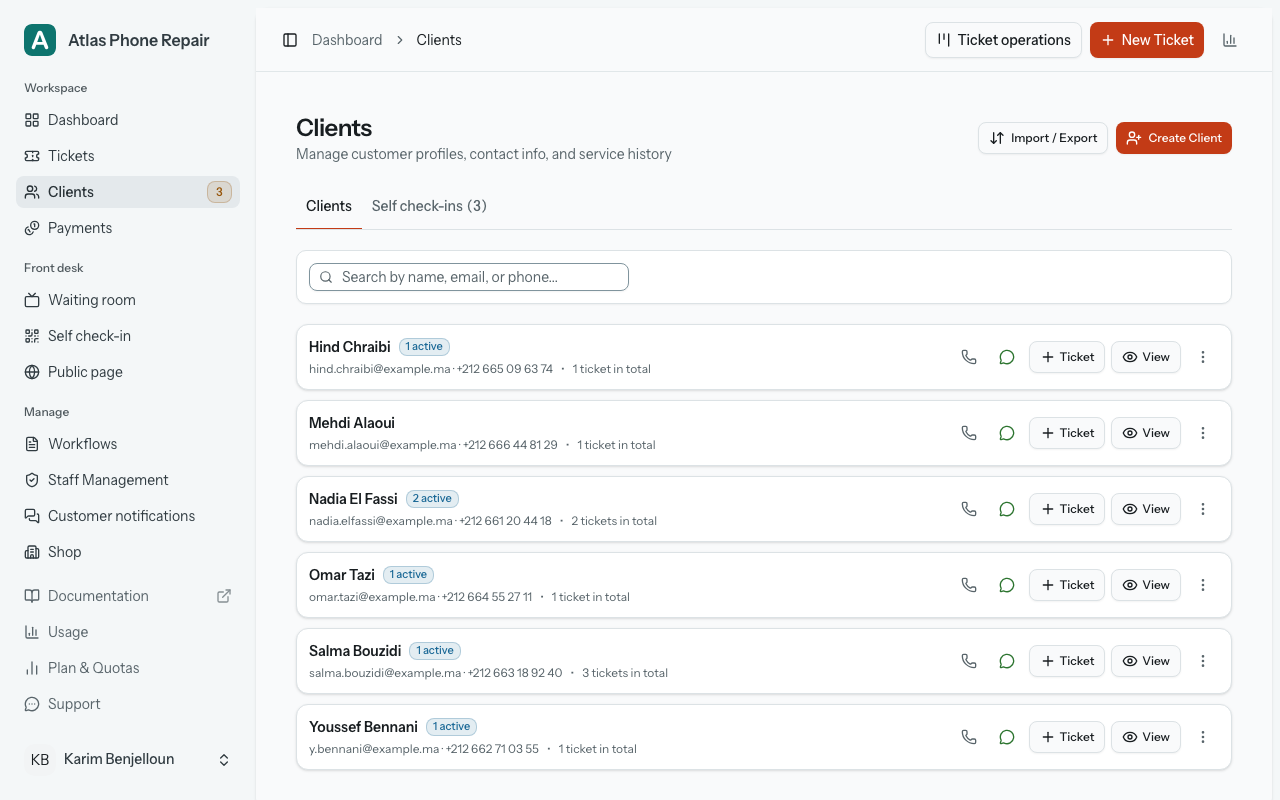
Once you have turned on self check-in, the Clients page has a second tab, "Self check-ins", with the number of people waiting. It lists everyone who checked in from your poster and has not been dealt with yet, each with "Create ticket", "Save as customer" and "Not a customer". Seeing it takes "Manage Clients", and "Create ticket" also takes "Create Tickets". Self check-in explains each one.
One customer's page
Opening a customer shows their contact details, their ticket counts, and every job you have done for them, newest first: the ticket number, the workflow it followed, where it is now, the date, and the stars if they rated a finished job.
From here you can edit the record, start another ticket for them, open any of their tickets, or open the public tracking page for one and read it exactly as the customer does.
Adding a customer draws on your plan's client allowance for the month, and deleting one gives it back. Deleting is the owner's to do and only while that customer has no tickets: the work you did for somebody is not something a delete on this screen may quietly take with it.
When the customer does have tickets, the screen says so and offers the way through: "You can still remove the person while keeping the work." "Anonymize this client" permanently erases their name, email address and phone number and puts "Anonymized client" in their place everywhere: the client book, every one of their tickets, the public tracking page, and any receipt you print from then on. Their tickets are kept. Any question still waiting on their answer is withdrawn; everything else on them stays as it is. They can no longer be notified, matched as a duplicate, or edited back in, and it cannot be undone. This is the answer to a customer who asks to be forgotten by a shop that still has to keep its service records.
When a customer turned on updates for a ticket, their devices are listed on this page, per ticket, with a Remove button beside each. A customer's devices go by themselves when you delete or anonymize the customer, and 30 days after their ticket is completed.
The customer's page is also where messages are stopped for them: "Customer asked to stop messages" stops every channel, and "Customer asked to receive updates again" undoes it. Notifications explains both that and a customer's own WhatsApp STOP.
Import your customer list
Customers you already keep in a spreadsheet or another app can come in all at once, instead of being typed one by one. Importing, like exporting below, is the owner's alone: staff never see the "Import / Export" menu at the top of the Clients page, whatever abilities you give them, and the server refuses them if they try. The menu holds "Import customers" and "Export customers". While your client book is still empty, "Import customers" also sits beside "Create Client".
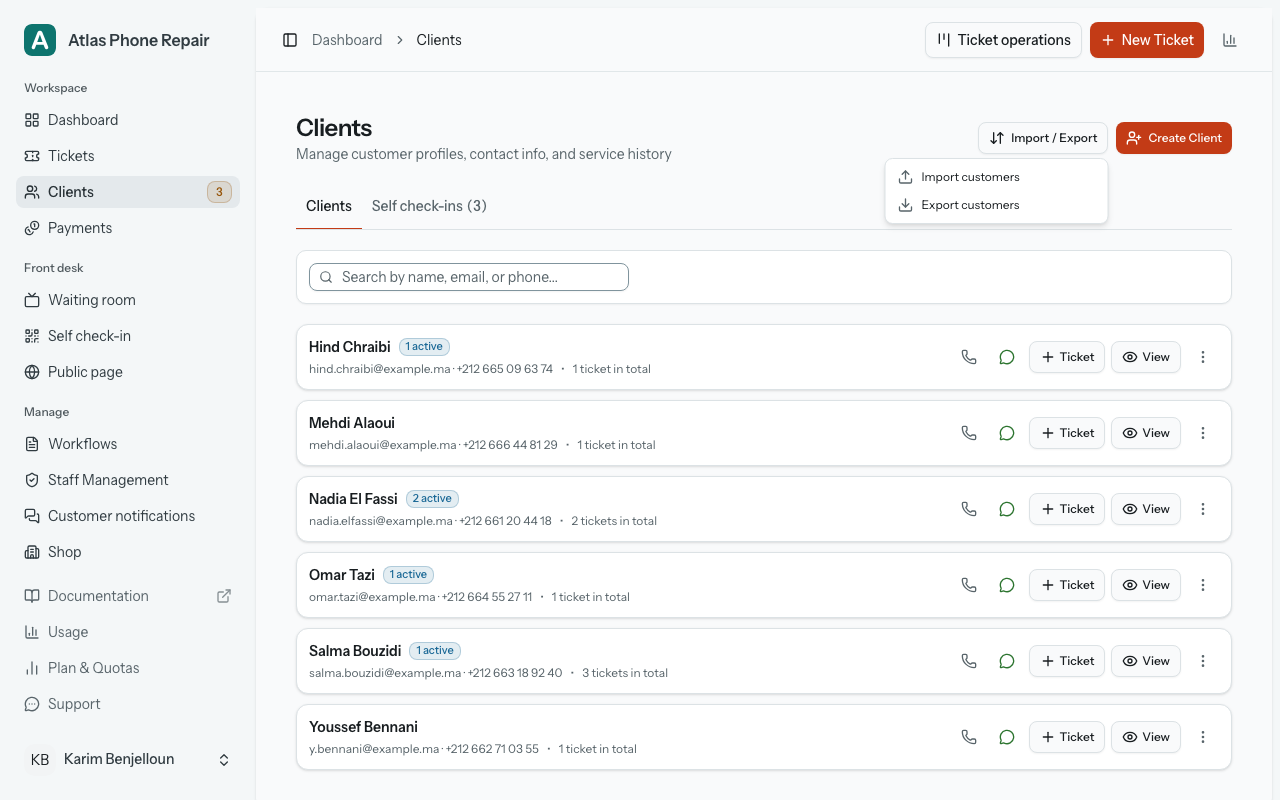
"Import customers" takes three steps: "Bring your list", "Match the columns" and "Check before importing". To bring it, choose "Upload a file", for an Excel file (.xlsx), a CSV or a text file of up to 5 MB and 5,000 customers, or "Paste from a spreadsheet": select the cells in Excel or Google Sheets, copy them, and paste them into the box. One customer per row; a header row helps but is not needed. An old Excel file (.xls) has to be saved as .xlsx in Excel first. A file with a password, or a sheet with more columns than we can read, is refused with a sentence saying how to fix it. Only your latest list waits between the steps, for an hour; after that, you bring it in again.
"Download a template" gives you an Excel file with the four columns the import reads, headed in your shop's language (Name, Phone, Email, Language), and one example row. An example row left in by mistake is recognised and skipped.
On "Match the columns", each column of your list is shown with its first values, and you say what it holds: Name, Phone, Email, Language or "Don't import". What we recognised is already filled in. A Name column is the one thing required; when your list keeps first and last names apart, set both to Name and they are joined in order. The switch "The first row holds column names" decides whether row 1 is read as column names or imported like the others. With no phone or email column the customers are still imported, but you cannot send them updates until you add one.
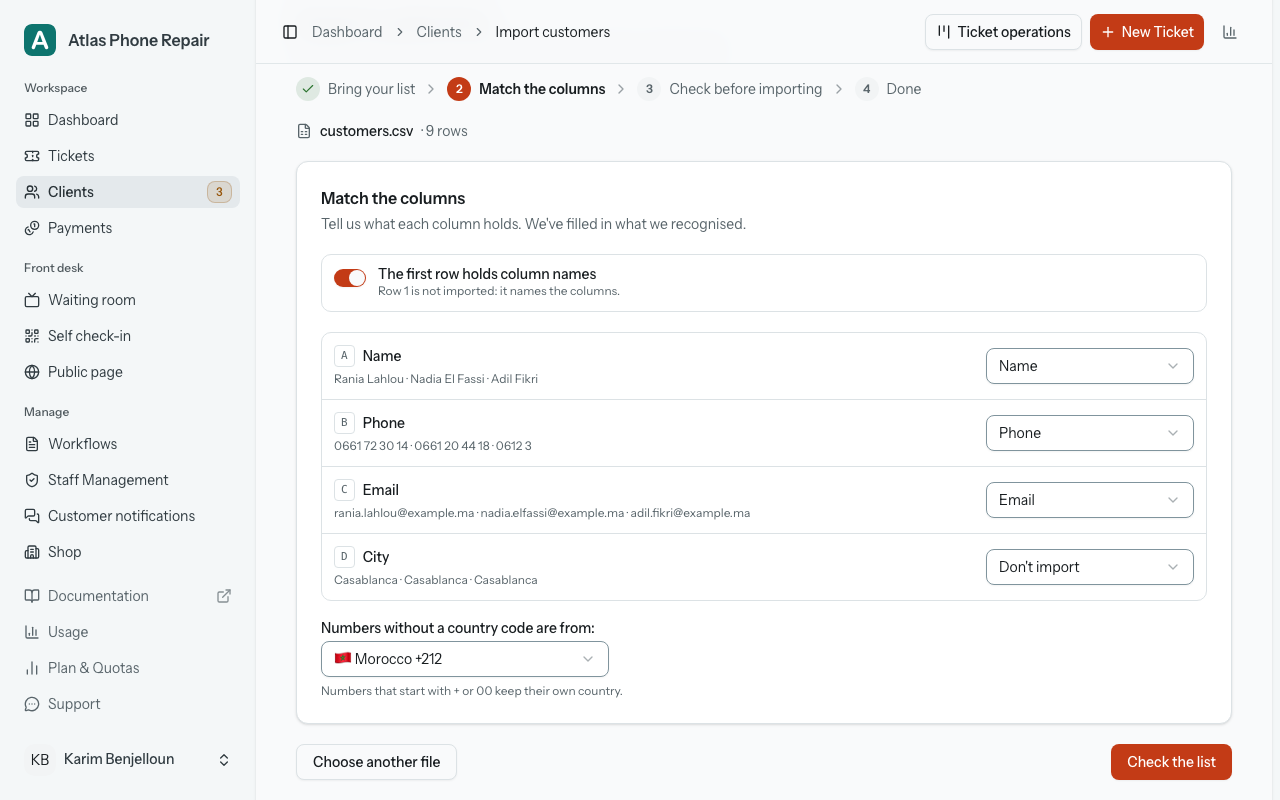
"Numbers without a country code are from:" sets the country for numbers written the local way, without + or 00 in front. It starts on your shop's country. A number that starts with + or 00 keeps its own country. A Language column may name the language in English, French or Arabic, or by a code such as fr; a language that is not recognised, or that your shop does not serve, leaves the customer on your shop's language.
Check every row before it goes in
Nothing is imported until you press the button at the bottom of "Check before importing". The page sorts every row of your list into one of five groups, each with a count you can press to see only those rows:
- "new": a customer your shop does not have yet. They will be imported.
- "already your customer": the same phone number or email as a customer already in your client book. You choose what happens to them, below.
- "duplicate in the file": the same phone number or email as an earlier row of the list. The first one is kept and the later ones are skipped.
- "can't be imported": a row with no name, the template's example row, or a phone number that is not valid when you chose to skip those rows.
- "over your plan's limit": new rows beyond what your plan still allows. The first new rows of the list are imported, up to that number, and the rest are skipped; the page says from which row, with "Show them".
A sixth count, "with a note", picks out the new customers who will be imported with something left out: a phone number or an email that is not valid, which they are imported without, or a language that is not recognised or that your shop does not serve, so they take your shop's language.
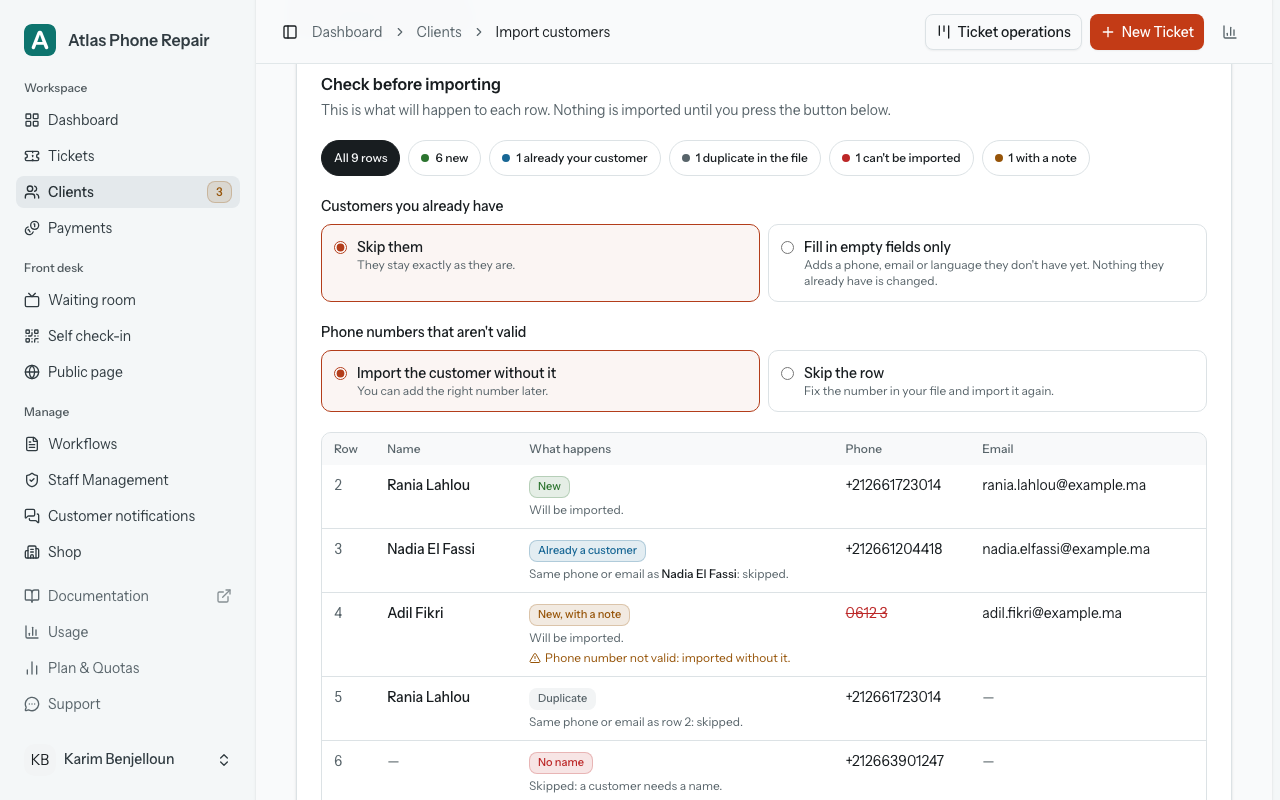
When some rows are already your customers, "Customers you already have" asks what to do with them. "Skip them" leaves them exactly as they are. "Fill in empty fields only" adds a phone number, email or language they do not have yet; nothing they already have is changed, and a number or email another customer holds is never given to them. When some phone numbers are not valid, "Phone numbers that aren't valid" offers "Import the customer without it", the default, or "Skip the row".
"Importing doesn't message anyone." No WhatsApp, email or notification goes out, and no ticket is opened: a customer you import hears from you only about the tickets you open for them. The button says what it will do, "Import 40 customers" for example, and the customers are added all in one go: if your client book changed since the page was worked out, nothing is imported and the check is shown again, worked out afresh.
After the import: skipped rows and Undo
"Import finished" says how many customers were imported, how many customers you already had got details filled in, and how many rows were skipped. "Download the skipped rows" gives you the skipped rows back in the format your list came in (a pasted list comes back as an Excel file), with the reason for each one in an extra column, so you can fix them and import them again. Only the rows that were not imported are in that file, so it has as many rows as the "skipped" count. A row imported without a phone number or email that was not valid is a customer already: the page counts those rows and sends you to each customer's page to fix them. The skipped rows are kept for 2 hours after the import.
"Undo import" is for the list you should not have imported. It lasts 30 minutes after the import, and only while none of the customers it added has a ticket, one you have since deleted included; once one has, the page says "Undo is no longer available: some imported customers now have tickets." Until then, the page shows the time Undo ends, and "Undo this import?" asks before anything is removed.
Undo takes back the import, never what was done since. It removes the customers the import added and gives back what they took from your plan's client allowance, but keeps each one it added that was, as the page puts it, "edited since, or with check-ins or stopped updates": removing a customer with check-ins or stopped updates would remove those consent records too. On the customers you already had, it empties again the fields the import filled in, except on one edited since or given a ticket since. The page then says how many customers were removed, on how many of the customers you already had the filled-in details were cleared, and how many were kept. Undo works even if your subscription ends within those 30 minutes; once it has run, the skipped rows can no longer be downloaded.
Export your customers
"Export customers", in the same "Import / Export" menu and just as owner-only, downloads your customers as a file. Under "File type", choose "Excel (.xlsx)", recommended because names in every language and dates open correctly, or "CSV", for other apps that ask for one.
Under "Columns", tick what goes in the file: Name, Phone, Email, Language, Customer since, Tickets, Last ticket and "Updates (on / stopped)", which says whether the customer still gets updates or you stopped them with "Customer asked to stop messages". "Select all" and "Clear" tick or untick them all, and "Quick choices" sets the usual ones in one press: "Names and phone numbers" (and only customers with a phone number), "Email list" (only those with an email) or "Everything". The headers are in your shop's language, the same words the import reads, so an exported file imports back already matched. The dialog remembers your columns and file type for next time, in that browser.
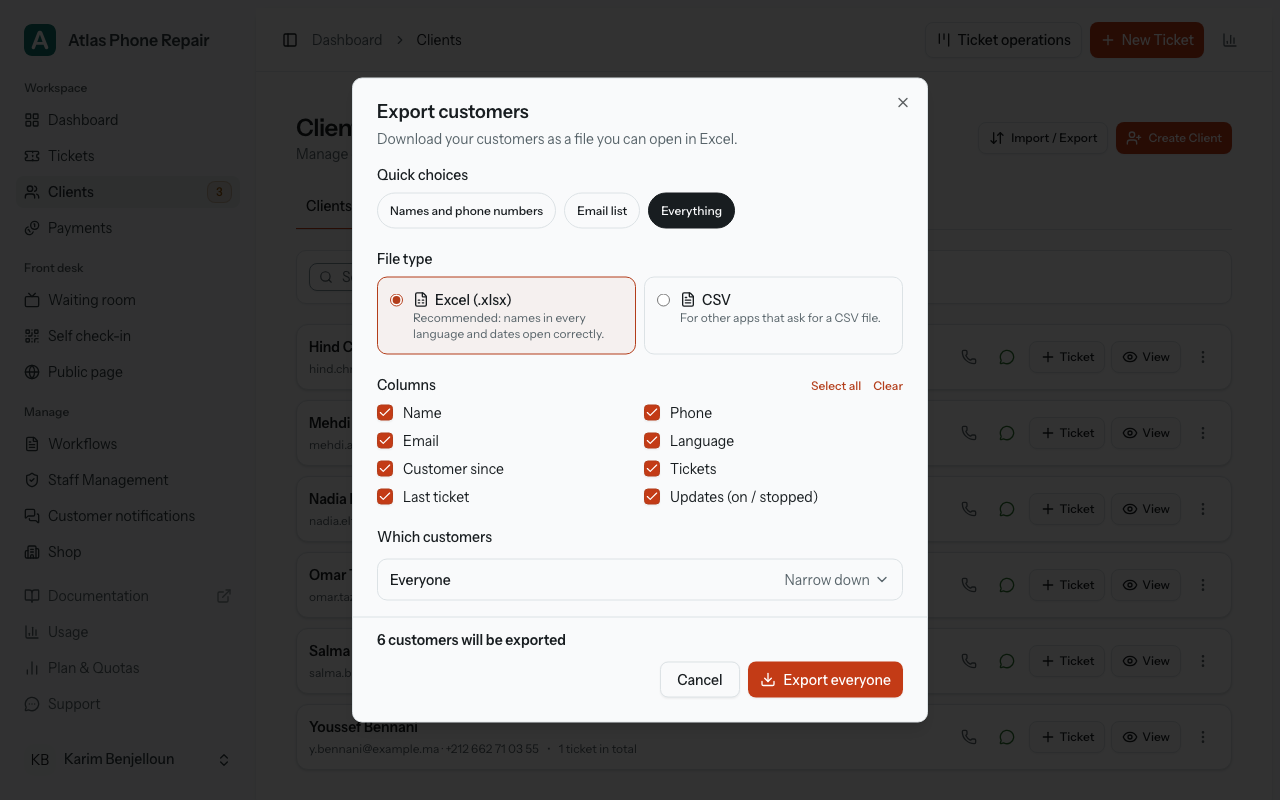
Under "Which customers", the file holds all your customers unless you open "Narrow down": "Customer since" and "Last ticket", any time or between two dates; "Tickets", any number, none, or at least the number you choose; "Has" a phone number or an email; and "Updates", "Still receiving" or "Stopped". Once a choice is on, the line reads "Only some customers", the button becomes "Export these customers" instead of "Export everyone", and "Reset these choices" clears them. A search typed on the Clients page before you opened the dialog is offered too: "Only the customers matching your search". Above the button, the number of customers who will be exported follows every change.
Anonymized customers are never exported: their name, phone number and email are gone, and keeping an erased person out of every list that leaves the shop is the point of erasing them. When you have any, the dialog says so: "Anonymized customers are never exported." Each import, undo and export is also one line in the Audit Log, so you can see later what came in and what left.