
Tickets and the board
A ticket is one job: this customer, this item, this workflow. This page covers taking one in, what every part of the ticket page does, what a delete really does and how to undo it, how the list tells you what needs you first, the counter board your staff will live in, and what comes out of the printer.
Take a job in
"New Ticket" opens the intake form. The workflow is chosen for you where there is nothing to choose: your default workflow is preselected and marked "(Default)", and if you only have one it is preselected too, flagged or not. If you have staff, an "Assigned To" picker sits beside it; leaving it on "Unassigned" is fine and you can assign the ticket later.
Every ticket belongs to a customer, and one field covers them: "Name, phone or email (existing or new)". Type two characters or more and it searches your client book as you go, listing each match with their contact line and how many tickets your shop has taken in for them, enough to tell two walk-ins of the same name apart. A search that matches nobody offers to create what you typed as a new customer, and carries the name into the field rather than making you type it a second time. "New client", beside the field, skips the search altogether for someone you already know is new; the fields it opens say "This customer will be added when the ticket is created." That is exactly when it happens: one save, no separate step. A shop with an empty client book opens on those fields, because a search across no records helps nobody. If the address or number you type there already belongs to someone in your book, the form says so while you are still typing and offers to use that customer instead; saving a second copy is refused.
If your shop uses self check-in, New ticket opens with "Waiting at the counter": a row of the people who checked themselves in from your poster and are still waiting. Tap one and the form fills in with their details and reads "Filled from {name}'s check-in · Clear"; "Clear" empties what it filled and leaves the check-in waiting. Creating the ticket confirms the check-in. Self check-in covers the rest.
A shop that serves more than one language gives every customer a language: a "Language" field sits with the customer on New ticket and on Clients, and the customer's page shows "Reads: {language}", a menu you can change in place. It starts as your shop language. Messages, push notifications and emails, ticket slips and payment receipts all follow it, and each delivery row says "Sent in {language}" so you can see what the customer actually received. A shop with one language sees none of this.
The "Ticket description" is the intake note: "Item, reported issue, special instructions. Not shown to the customer." It is for your team only: it never appears on the tracking page and it is never included in a message to the customer. Anything you want the customer to read goes in a note instead, which the next section covers.
Between the assignee and the description sits one collapsed row, "Price (optional)", and only if you handle payments; staff without that ability see the form as it always was. Opened, it takes a single amount in your shop's currency, a "Customer agreed at the counter" tick, and "Deposit taken now" for money received on the spot, and the "This ticket" panel gains a "Price" and a "Deposit" row as you type them. It is never required: a job with no price is taken in exactly as before. Prices and payments covers the whole of it.
Two switches sit at the bottom of the form. The first is on unless you turn it off; the second is off unless you turn it on:
- "PIN-protect tracking page": on by default. A 10-digit PIN is generated with the ticket, and the tracking page asks for it before showing anything. The link is unguessable, but a link gets forwarded, and the tracking page is not only something to read: a stage can ask whoever opens it to approve a cost, and a finished job can be rated there. Switch it off for a job you would rather leave open and the form says what that means, for that ticket only. If you want every new ticket open, the switch is on the Profile tab of Manage › Shop. A customer with no email address cannot be sent the PIN, and the form says so above the Create button: "No email, so the PIN isn't sent. Give it to the customer at the counter or on the receipt." Their WhatsApp updates still go, without the PIN. See Customer pages.
- "Show on queue": puts this ticket on your waiting-room board, the one your linked screens show, if you run one, and lets its tracking page tell the customer their place in line. Off means the job stays off that display entirely.
Beside the form (below it on a phone) sits a panel headed "This ticket". It fills in as you work: the customer, the workflow, the stage the job starts in and how many stages follow it, and who it is assigned to. "Show every stage" opens the workflow's stages in full, each one flagged where it "notifies the customer" or "waits for the customer’s answer", so you can check you picked the right workflow before saving. At the foot of the same panel is "Who will hear about this ticket", which tells you before you save which channels will actually reach this customer and what is blocking the rest. The Notifications section covers it in full.
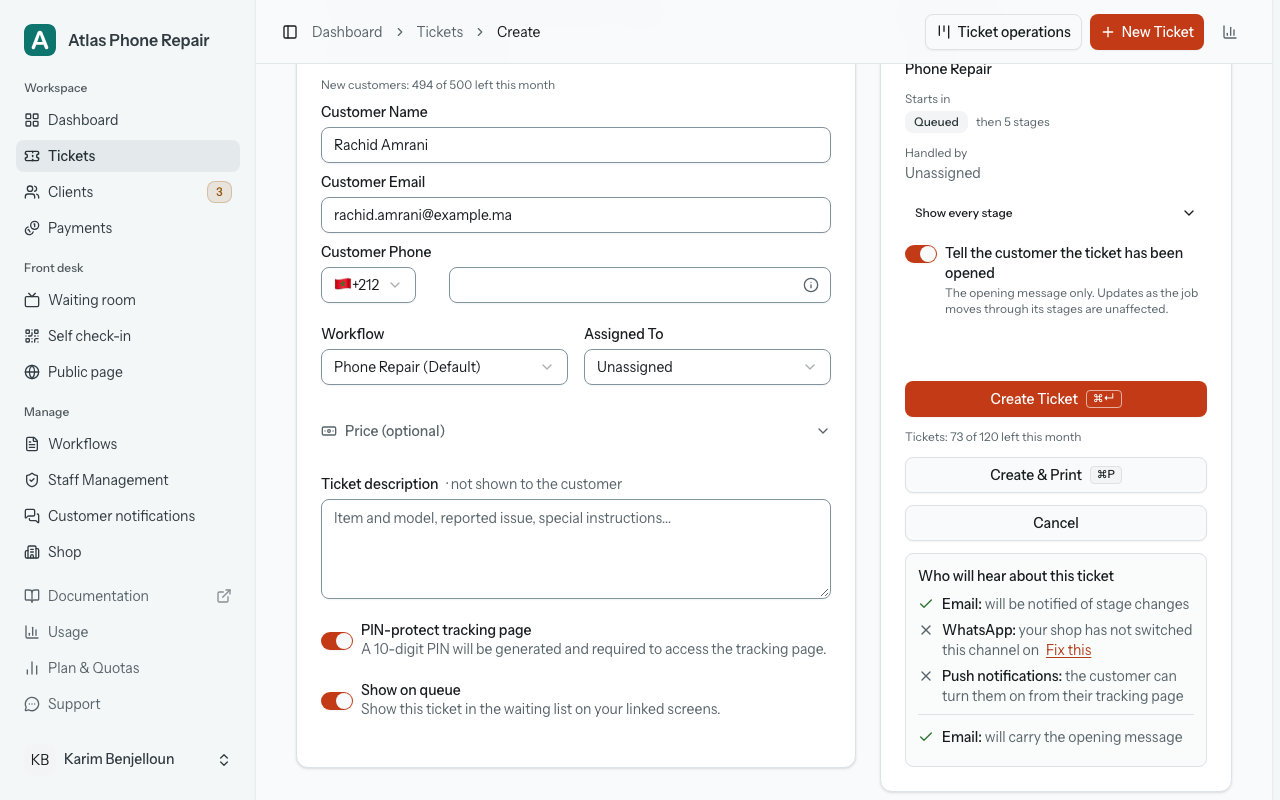
"Create Ticket" saves the ticket and opens it. "Create & Print" does the same and then opens the A4 intake form with the print dialog, ready to hand over. The receipt slips and everything else printable live on the print menu of the ticket page, described at the end of this page.
The ticket page
The ticket opens on its number and a chip naming the stage it has reached, plus any of "Completed", "Escalated" and "Overdue" that apply. "Overdue" means the ticket has passed the ready date the customer was promised; it appears only while the job is unfinished and only when the workflow's stages carry durations.
The "Current stage" card is where the job moves. It states the stage the ticket is "Currently in", and offers one large button: "Move to", followed by the name of the next stage in the workflow. That is the ordinary way through a job: one press per stage. Below it, "Quick Actions" lists every stage of the workflow as a chip, so you can jump straight to any of them; the stage the ticket is already on is shown as a label rather than a button. Jumping backwards re-opens a stage you had left and can send the customer another message, so it asks you to confirm first. Forward moves are a single press.
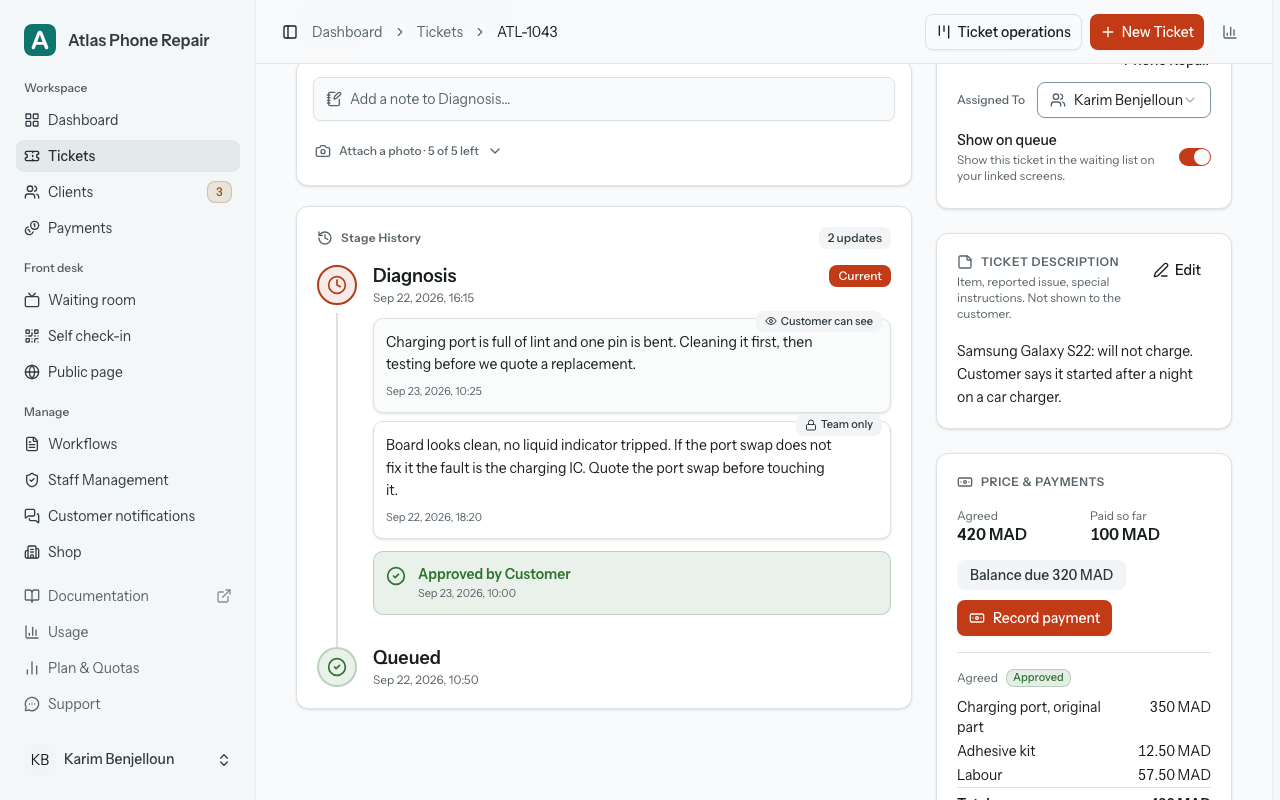
When the next stage is one that needs the customer's approval, a line under the button says so before you press it. When the ticket is already sitting on such a stage, a box at the top of the card reads "Waiting for customer approval", "Approved by Customer" or "Declined by Customer", and shows any note they left with their answer. On the last stage of the workflow the card says so, rather than leaving the space where a button would be empty.
You can also ask the customer something no stage asks. "Ask the customer" sits on the same card: press it, type the question in your own words (the box suggests the shape of one, "The zipper is worn through too: another 20 to replace it. Shall I?") and send. The customer finds the question on their tracking page with the same Approve and Decline they would answer a stage with, and can add a note to their answer. Nothing about your workflow changes, and the ticket stays exactly where it is.
You choose how they hear about it. Under the box, "Notify them on" lists the channels that can actually reach this customer right now (only those, so a chip never promises a message that would be refused), and all of them start ticked. Push is one of those channels when the customer has turned on updates for this ticket. Untick the ones you do not want. Untick them all and the button changes to "Ask without notifying", with a line saying what that leaves you: "The question will appear on their tracking page; you'll need to tell them yourself." That is the honest option for a customer standing at your counter, or one you are about to ring. Whichever you choose, the question itself is the same and the tracking page carries it either way; a question sent on no channel is marked "Not notified: no message went out for this question, so tell the customer yourself" on the card, so nobody later assumes the customer was written to.
While the question is out, the ticket waits on it: the stage buttons dim and a line explains that the customer has not answered yet, leaving only the stages marked as done, so you can always hand the job back. One question at a time: "Withdraw the question" takes it back if you rang them instead or thought better of it, and the ticket stops waiting. Withdrawing stops them answering; it does not unsend a message they have already had, so if one went out it is worth saying so when you speak to them. Finishing the job withdraws an unanswered question by itself, because completing it is your answer. The customer keeps the question on their page as a record but the buttons are gone. Once they answer, either way, nothing is held: an approval and a decline both simply tell you what to do next, and the question and their answer stay on the card and on their page as the record of what was agreed.
Money has one place on the page: the "Price & payments" card, directly under the ticket details in the side column, and a matching chip in the header beside the stage badge that reads "Balance due 320 MAD", "Paid in full" or "To refund 50 MAD". On a phone, tapping the chip takes you to the card. The card leads with the balance and "Record payment", then the quote and its status, the payments and a history; on a ticket with no price it is one "Add a price" link and nothing else. Staff who do not handle payments see the chip without a figure and the line "Balance due. Someone who handles payments can record it." in the card's place. Prices and payments describes every part of it.
A finished ticket's card leads with the balance too, "Balance due 320 MAD" and "Record payment" above the rating, because the customer coming back is when most payments happen. The same card carries "Hand over" while the job waits to be collected, for anyone who can update stages, on every plan: where the workflow has a done stage after the pickup one, it is the move into it; where it has none, it stamps the ticket as handed over and sends nothing. Afterwards the card reads "Handed over …" with the date and who did it, and "Undo hand-over" beside that line puts the ticket back in the Ready lane without messaging anyone. Hand over, and a move into a done stage after the pickup one, asks first whenever the ticket is not settled: a balance due reads "320 MAD is still due.", money to refund reads "50 MAD to refund.", and a quote the customer has not yet answered reads "A quote is still waiting for an answer." with a line warning that they can no longer answer it once handed over. Each offers the matching action, "Record 320 MAD & hand over" or "Refund 50 MAD", beside "Hand over anyway"; someone who cannot record a payment sees no figure, only "This ticket isn't settled yet." Moving into the pickup stage itself never prompts.
"Change promised date" sits in the ticket header. Pick the "New promised date": the optional "Time (optional)" field left empty means the end of that day, as before, and with a time the ticket, the counter board, the tracking page and the message to the customer all name it, for example "Ready by 12 Oct at 14:30". "Tell the customer" sends one short email or push message with the new date (not WhatsApp yet). If the customer asked to stop updates, or replied STOP on WhatsApp, and nothing could reach them, the dialog says so instead of offering it.
Notes, history and deliveries
"Add a note" opens under the quick actions. Write the note, then choose who it is for: "Customer can see" puts it on the public tracking page and "Team only" keeps it to your team. A new note opens on "Team only", and the box for a note the customer will read says which language that customer reads. Adding a note never moves the ticket: the note attaches itself to whatever stage the job is on at the moment it is saved, and the stage is unchanged. Notes and stage moves are two separate actions here on purpose. "Attach a photo" sits directly underneath and works the same way for pictures: the button of that name opens your device's picker (a phone offers its camera there), and a "Caption (optional)" lets you say what the picture shows. "Attach Photo" saves it against the stage the ticket is on, exactly as a note attaches itself, and the line under the picker says where it ends up: "The customer sees it on their tracking page, alongside the stage it was taken on." One picture at a time, and anything too big or not a picture is turned away before it leaves your machine, with "That photo is larger than 5 MB. Choose a smaller one." or "That file is not an image. Choose a JPEG, PNG, GIF or WebP."
The "Stage History" card below is the ticket's record: one entry for each stage it entered, newest first, five at a time with a button for the rest. Each entry carries the time the stage started, the notes left on it (each badged "Team only" or "Customer can see"), any photos with their captions underneath, and the customer's approval where the stage asked for one. Photos open full size when you click them, caption and all. Each one also carries a small remove button, which asks "Are you sure you want to delete this photo?" before anything happens; say yes and the picture is gone from the timeline and from the customer's tracking page for good.
Each entry also carries a "Customer notifications" line per message: the channel, where it went (an address, a number, or for push a count of devices), and what became of it, from Sending… to Delivered or Read, or the reason it was not sent. Delivered and Read always come with a line saying who reported them, and "View message" shows the exact text the customer received. Notifications explains every state. This is the answer to "did the customer actually hear from us", and it is worth reading before ringing a customer to ask.
The customer, the description and the tracking link
Three cards run down the side of the ticket. The first is "Customer": their name (a link to their record if you are allowed to manage clients), with their email address and phone number as links you can press to write or call. If they have neither, the card reads "No contact information" and warns that no notification can reach them, with "Edit Customer" right underneath as the way out. A collapsible "Ticket Details" section holds the workflow name, "Assigned To", and the "Show on queue" switch.
The second card is the "Ticket description" from the intake form. "Edit", change it, then "Save" or "Cancel"; nothing is written until you press "Save".
The third is "Tracking & Sharing": a QR code the customer can photograph at the counter, the "Public Link" in full, a button that copies it, and a button that opens it in a new tab so you can see exactly what your customer sees. Below them, the "PIN Protected" switch. Turn it on and the card shows the 10-digit PIN itself, with buttons to copy it, generate a new one, and email it to the customer. That last one is unavailable when the customer has no address on file.
Deleting a ticket, and getting it back
Deleting a ticket does not erase it. "Delete" asks "Delete this ticket? It moves to your deleted tickets, where you can restore it. Nothing else is deleted with it." That is exactly what happens. The ticket leaves your list with its whole record intact, and the message that follows says "Ticket moved to Deleted tickets. You can restore it from that page." Deleting, and everything on this section, is the shop owner's: staff who reach the page are sent back to the dashboard.
That page is "Deleted tickets", reached from the button of the same name at the top of your tickets list, which carries the number waiting there when there is one. Each row gives the ticket number, the customer, the stage the job had reached, the date you deleted it, and "Days left", how much of the keeping window is still to run. The page states the length of that window at the top, and the last day of it reads "Due for removal" in place of a figure.
"Restore" puts the ticket back exactly as it was: its stage history, its notes, its photos, the customer approvals and the notification records all come with it. It costs nothing: a deleted ticket keeps its place in your ticket allowance for as long as it sits there, so a restore is never refused. "Delete permanently" is the other button and the only one that erases anything: the ticket, its stage history, its notes, its photos, the customer approvals and the record of every message sent about it, with no way back. The one exception is its payments: they stay in your Payments view and in the CSV, labelled like "T-1042 (deleted) · Karim", so your books and any closed day never change. When the keeping window runs out, that is what happens on its own, which is why the countdown is on the row.
What needs you
Your ticket list opens on a row of four cards headed "What needs you". They sort every open job in your shop into one of four lanes, and each card is a button: press it and the list below shows only that lane, press it again and the filter clears. The numbers are for the whole shop, not for the page you are looking at, so typing in the search box never makes one of them shrink.
A job is in exactly one lane, and the one that most needs you wins:
- "Act now": "Late work, or an answer waiting on you." A job past the date you promised, or one where the customer has answered a question and nothing has been done about it since, or one where every message carrying your question died on the way. This is the only card that changes colour, and only when it is holding something.
- "Waiting on customer": "A question is out and unanswered." The ball is with them; there is nothing here for you to do but wait.
- "In progress": "On the bench, nobody blocked." Open work, running normally.
- "Finished today": "Reached a finished stage today, collected or not." Jobs that reached a stage marked as done today, on your shop's own clock. A job waiting on the pickup shelf counts, because it is finished even though nobody has come for it yet. Yesterday's finished work is off this row entirely.
Press a lane that is holding nothing and the list says so in words rather than showing you an empty table: "Nothing needs you", "Nobody owes you an answer", and so on. An empty "Act now" is a real answer to the question the row is asking.
Individual rows carry at most one small chip, for the same reasons in short form: "Answered: nothing done yet", "The customer was never asked", or "Waiting on approval" with the channel and what became of the message beside it: "Email · delivered", "WhatsApp · failed". A late job is not chipped, because the row already carries its own "Overdue" badge.
Once your shop has recorded its first price, the list gains a "Payment" column carrying the same chip the ticket page shows, "Balance due 320 MAD", "Paid in full" or "To refund 50 MAD", with the figure only for people who handle payments or may see the balance, and two filters, "Balance due" and "Paid in full". A quote the customer has not answered is not a money state: it shows through the "Waiting on customer" lane and chip, the same way a question does. A shop that never enters a price never sees the column.
The counter board
"Ticket operations" is the screen to leave open on the counter tablet or the phone in your apron. It draws a column for each stage of one workflow and puts every open job in the column it is standing in, so the board is a picture of the bench rather than a list. If you run more than one workflow a picker at the top chooses which; a shop with one workflow never sees it. Jobs sitting on no live stage (nothing at all, or a stage you have since archived) collect in an "Other stages" column at the end of the board instead of quietly disappearing, each one naming its archived stage and offering "Move to…" onto a current one.
The screen does not scroll as a page; each column scrolls on its own, so a long column never pushes the others off. The board opens on every stage that has work in it; a stage with nothing in it stays off until you ask for it, and beside the ticket count a line such as "Showing 5 of 6 stages" says so, with "Show all" next to it. The stage chips above the columns put a stage on the board or take it off, and when there are more columns than the width holds the row of columns scrolls sideways inside the board. On a phone you see one column at a time and the stage name at the top is the switcher, with a button either side of it. Your ready-to-collect stage is on the board by default, as the Ready lane; "Include completed tickets" brings in the rest of the finished work, tickets on a done stage after the pickup one and tickets already handed over. The search box matches a ticket number, a tracking link, or a customer's name, phone number or email address. A column header shows the real size of the stage, not the number of cards painted so far, and a "Show more" row at the foot of a column brings the rest in.
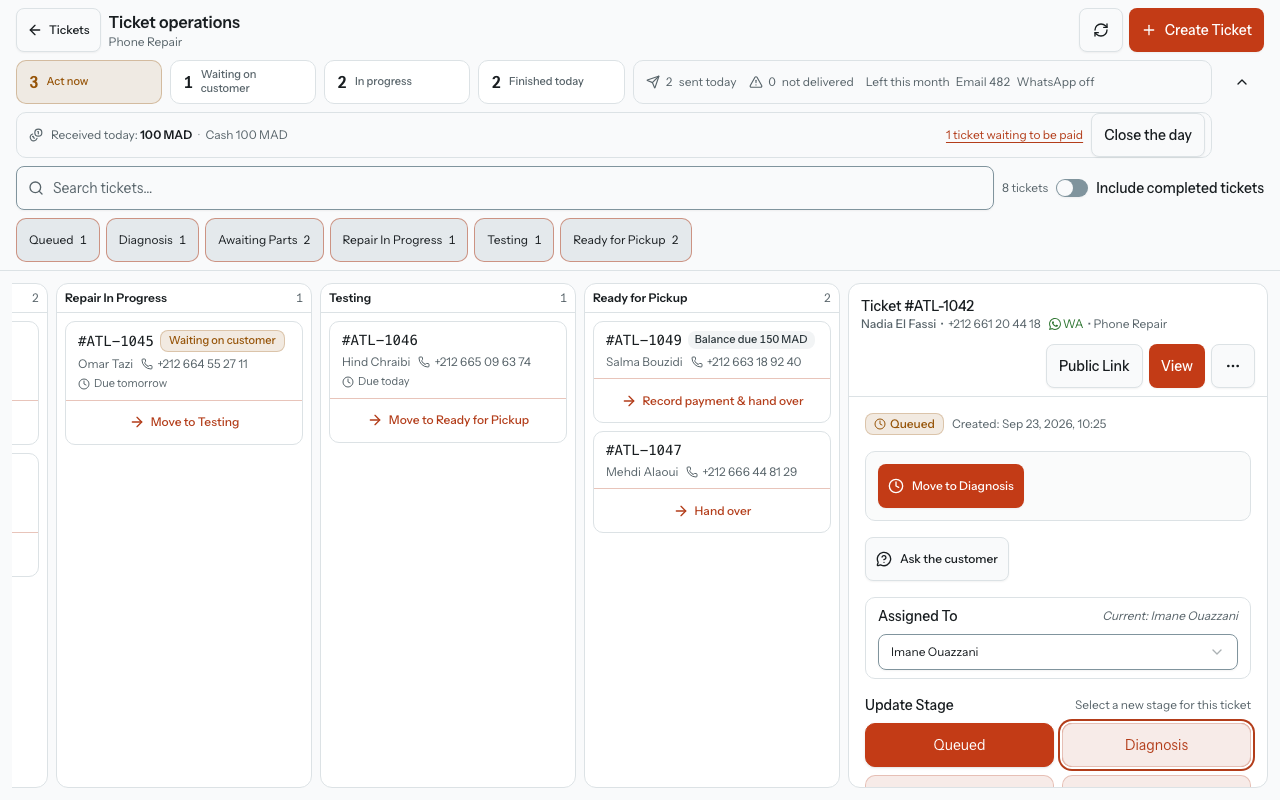
The point of the board is one tap. Each card carries the move to its next stage, and pressing it moves the card at once, but nothing is sent yet. A message appears at the bottom of the screen naming where the job is going and what will go out with it, with "Undo" beside it for four seconds. Leave it and the move is made for real; press Undo and it is as if you never touched it, because nothing had been posted. That is why the undo comes before the move rather than after: a customer message cannot be unsent, so the pause happens while there is still nothing to take back.
A waiting move is never quietly lost. Walking away from the screen, hiding the tab, opening that ticket or pressing something else all commit the move you were waiting on rather than dropping it. And a card whose job is held (an unanswered question, most often) offers no move button at all and prints the reason in the same words the ticket page uses, while still leaving the closing stage available so you can always hand the work back.
Tapping a card opens the whole ticket: on a phone it rises as a sheet from the bottom, on a wide screen it sits in a pane beside the board, and it is the same thing either way: every stage as a chip, notes, the question to the customer, assignment, printing and the QR code. A whole day of counter work can be done without leaving this screen.
Along the top runs a strip headed "What needs you, and what is going out". On the left, the same four lanes as the ticket list, each with its count and the same name at every width. On a phone the count sits above the name. A channel your shop has not switched on reads "off" rather than an allowance, since nothing is sent on it. They are buttons, not links: press one and the board itself narrows to that lane, with the count beside the search box reading "3 of 7 shown" and "Show all" beside it to clear every filter at once; press the lane again to clear just that one. On the right, today in one line: how many messages your shop has sent, how many did not arrive, and how much of this month's allowance is left on each channel. On a phone the long wording moves into a "Today's messages" panel one tap away. Only two things are ever coloured ("Act now" when it is holding something, and the count of messages that did not arrive), so a quiet strip means a quiet day. If any open job belongs to a customer whose email address has stopped working, the strip says how many and takes you straight to them.
A customer whose job has run past its promised ready date can escalate it once from their own tracking page. Nothing is deleted or changed by that: it is a flag saying "I am still waiting". Escalated tickets are tinted and badged "Escalated" in the list so they cannot be missed, and the ticket page carries a red card naming the date it happened, with "Resolve Escalation" to clear the flag once you have dealt with the customer.
The Ready lane is where jobs are handed back, so that is where the money meets the board. A card with a balance due carries the "Balance due 320 MAD" chip and "Record payment & hand over", which opens a sheet that records the payment and moves the job in one action, with its own ten-second "Undo" and "Print receipt"; a card with nothing to pay carries plain "Hand over", one tap with the usual four-second Undo. The strip along the top gains "Received today: 2,050 MAD" and the "Close the day" cash count, and its dialog counts the tickets waiting to be paid. Prices and payments has the full account, including which button each member of your team sees.
Printing
The print menu at the top of the ticket page offers three documents, all built from the ticket in front of you and all opening in a new window with the print dialog:
- "Print Intake Form": a single A4 sheet with your worksheet at the top and a tear-off customer ticket at the bottom carrying the QR code and the tracking link.
- "Print Customer Receipt": a receipt-roll slip (80mm) for the customer, with the QR code and the link on it.
- "Print Internal Receipt": the shop's own copy, with the working detail on it and no QR code.
When the ticket is PIN-protected, the PIN is printed on both of the customer's documents and on neither of yours. On the tear-off half of the A4 sheet it is the largest thing on the slip, under the words "Tracking PIN", with "Enter your PIN code if prompted" among the three lines telling the customer what to do; the 80mm receipt carries the same PIN in a boxed "Tracking PIN" panel above the QR code. The internal receipt has no PIN and no QR code on it at all. This is the reason a printed slip matters for a customer with no working email address: paper is the only other way the PIN reaches them.
The counter board offers the first two on whichever ticket you have open, so you can hand a customer their slip without opening the full page.
When a ticket carries money, the two customer documents print "Quote", "Paid" and "Balance due" lines, but only when "Show prices to customers" is on in Payments › Settings and the price was agreed or a payment was made; a draft price prints nothing, and a deposit prints either way as "Deposit received 100 MAD · Cash". The internal receipt and the worksheet half of the A4 sheet carry amounts only when the person printing handles payments. A fourth document, the "Payment receipt", is printed from the "Print receipt" button that follows each recorded payment rather than from this menu; Prices and payments describes it.
The same menu has "Print item label", which prints straight away in your shop's usual format: a "50 × 25 mm label printer" or an "A4 sticker sheet (24 per page)". "Label format…" in the menu switches format, and on an A4 sheet asks "How many copies?" and "Start at position" so a half-used sheet is not wasted. The label carries the ticket number, the received date, the customer's initials and a QR code, and never the customer's name, phone, PIN, price or tracking link. When someone from your shop scans the QR it opens the ticket; anyone else sees one neutral page that names the shop at most, with "Staff: sign in". The defaults, and the two switches "Show item on labels" and "Print a label after each new ticket" (both off until you turn them on), are set in Manage › Shop, under Printing.