
Public page
Your shop gets a page of its own, at hoopo.app/s/your-shop: your trade line, services and prices, opening hours, photos, location and buttons to message, call or find you. Google can find it, and it works on any phone. You build it in Front desk › Public page. HoopoTrack's team checks your first version before it goes online; after that, your changes go online as soon as you publish them.
Open the studio
Only the shop owner sees Front desk › Public page; your staff don't. On your first visit it opens with "Your shop, on one page" and what the page is for. Every plan includes the public page, the free plan too. If yours ever doesn't, the screen says "Your plan doesn't include a public page." and shows how your page would look.
The top of the studio says where your page stands, for example "Draft: only you can see it", "Waiting for review. Your page isn't online yet.", "Online" or "Online · Changes waiting for review", and shows its address. The last part of the address is the "Web address" you choose in step 1. Once the page is online, "Copy link" and "Open" sit beside it. The "More actions" menu holds "Take offline" while the page is online, and "Discard changes" when an approved page has changes you haven't sent yet.
The steps and the action bar
The page is built in six numbered steps: "Your page", "Look and buttons", "Your words", "Services & prices", "Photos" and "How you appear on Google". "Sections" sits between "Photos" and "How you appear on Google" with no number, marked "Optional". A step ticks once its part of the page has content, so "Look and buttons" is ticked from the start ("Call" and "Directions" are chosen for you), and "Your words" needs both the trade line and the few words about your shop. Below the steps, "From your shop settings" lists what the page takes from Shop.
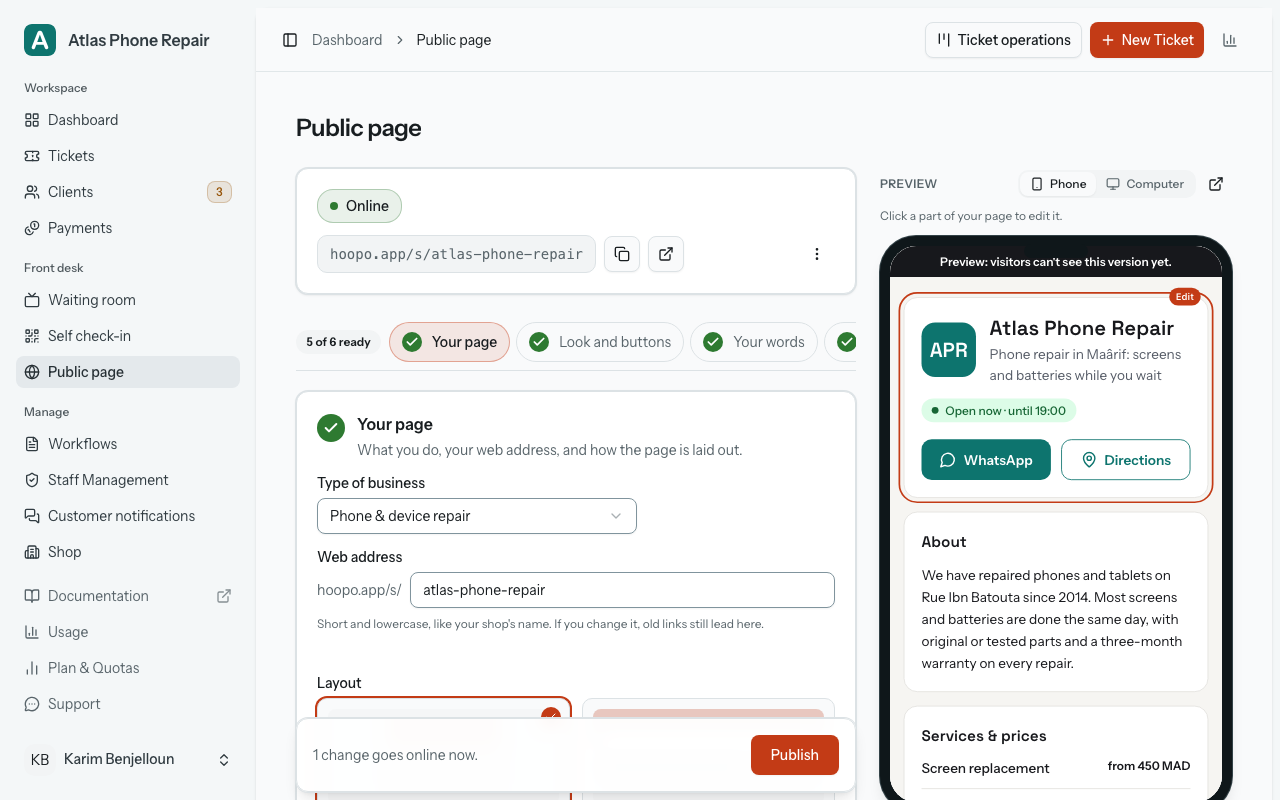
On a wide screen the steps sit in a rail of their own, with a count of the numbered steps, such as "4 of 6 ready". On a narrower screen they become a strip of chips above the steps. Click one to jump to it.
Everything you type is a draft and saves by itself a second after you stop. One bar at the bottom of the steps does the rest: it says whether your draft is "Saved", counts how many changes go online now and how many wait for review, and holds the one button that sends your page. It reads "Submit for review" when something will wait, and "Publish" when everything goes online at once. Only your first version waits, so once your page is online the button reads "Publish", unless HoopoTrack reviews every change your shop makes (see below). When something waits, "Why?" explains the review. When your page is online and nothing is left to send, the bar says "Everything is online."
Edit from the preview
Beside the steps, the preview shows your page in a phone frame; switch it to "Computer" to see the wide version. "Click a part of your page to edit it." Click the about text, the services, the trade line or the buttons, and the studio jumps to the step that changes them. For steps 1 to 5, the part the current step edits is outlined in the preview.
Hours, contact details, location and reviews belong to Shop, so clicking them takes you to "From your shop settings". On a phone, a "Preview" button opens the preview full screen.
Layout, colour and buttons
Step 1, "Your page", asks for your "Type of business", your "Web address" and the "Layout". "Card": One column, made for phones. Works well with little content. "Storefront": A wide cover photo, and two columns on a computer. Best with a good cover photo. Under the address, the studio adds: "Short and lowercase, like your shop's name. If you change it, old links still lead here."
Step 2, "Look and buttons", sets the "Page colour": "From my logo", one of the ready-made colours, or "Custom". If a "Custom" colour is too light for white text, the page darkens it and the step says "Adjusted for readability."
"Main buttons": pick up to two of "WhatsApp", "Call" and "Directions". They sit under your shop's name; on a computer, the "Storefront" layout puts them at the end of the same row. Call and WhatsApp need your shop's phone number, and WhatsApp also needs "This number takes WhatsApp messages"; a button that can't work yet says why under it. "Directions" needs your address; without one, the button is simply left off the page. Below the buttons, "Show the shop's email" puts your shop's email in the page's Contact section. It is the email saved in Shop › Contact, not the one you sign in with, and the switch is off until you turn it on. Under it, the studio shows that email and where it comes from, "…, from Shop › Contact"; if your shop has no email yet, the switch can't be turned on and the line reads "Add an email in Shop › Contact to show it here."
Text and languages
Step 3, "Your words", holds the "Trade line" (one line that says what you do) and a few words about your shop. Your shop language comes first. Each other language you serve has its own tab with a count of what is left to fill; until you fill it, visitors in that language read your shop-language text.
A language gets its own address, such as hoopo.app/s/your-shop/fr, once its trade line, "Title on Google" and "Description on Google" are filled in and published. The languages you serve are set in Manage › Shop › Languages.
Services and photos
Step 4, "Services & prices": up to 20 services, one compact row each, with the name, the price and a "from" box. Leave the price empty and the page shows "Price on request". A price can be typed in Arabic digits too. The menu at the end of each row holds "Add a note", moving the service up or down, and removing it. The services are typed here, never taken from your tickets.
Step 5, "Photos": one "Cover photo", shown across the top of the page in the "Storefront" layout ("Card" doesn't show it), and a "Gallery" of up to 12, which appears once the Gallery section is on in "Sections". Drop photos straight onto the cover or gallery frame, or pick them with the button. A new photo is on your page only once you publish: until then it shows "Not online yet", and a changed caption shows "New caption not online yet". When a review is needed (by default, only for your first version), they read "Waiting for review" and "New caption waiting for review" instead, until they are approved. Removing a photo takes it off your page at once, so the studio asks first.
Sections
"Sections" has no number: it is marked "Optional", and nothing in it is needed to send your page. Turn each section on or off, and drag it to change the order; the Up and Down buttons do the same from the keyboard or a screen reader. The top of the page and the footer stay in place. A section that is on but has nothing to show yet reads "Hidden until it has content".
The sections are "About", "Services & prices", "Opening hours", "Gallery", "Contact", "Location", "Reviews" and "Track your job". On a new page they all start on, except "Gallery".
How you appear on Google
Step 6 sets the "Title on Google" and the "Description on Google" for each language, and shows how your result will look in Google. Google usually shows about 60 characters of the title and 155 of the description. Left empty, the title shows a grey suggestion built from your type of business, your city and your shop's name, and the page uses it. An empty description shows a suggestion built from your trade line and your first services, but the page itself then uses your trade line.
What comes from Shop
Some of the page is not typed in the studio. The "From your shop settings" card says which: "Your name, logo, contact details and hours come from Shop. Changes you save there show on your page at once." When a review is needed (by default, only for your first version), it says instead: "Your name, logo, contact details and hours come from Shop. Hours show on your page as soon as you save them. A new name, logo or contact detail shows after review." Its buttons open four of the tabs of Manage › Shop: Profile, Contact, Opening hours and Reviews.
Shop › Contact has a "City" and a "Country". Your page shows the city with your address, and both go into what your page tells Google.
The page's reviews button needs a link from Google, set in Shop › Reviews: your review link, like https://g.page/r/…/review, or your shop's place on Google Maps. If you don't have one yet, the field says "No Google profile yet? Create one for free". Shop settings covers the link in detail.
Before you go online
Until your page is online, the "Before you go online" list shows what is still missing; on a page already online, it comes back if one of these stops being ready. All of it is needed before you can send the page:
- "Verify your email address": an owner of the shop has confirmed their email address;
- "Add your shop's phone number, address and city": the phone and city in Shop › Contact, the address in Shop › Profile;
- "Choose your type of business", in step 1;
- a trade line in your shop language, in step 3.
A fifth row, your web address, appears only when the address can't be used, with the reason ("Use 3 to 40 lowercase letters, numbers and hyphens." or "This address can't be used. Choose another."). Each missing item has a "Fix" link to the right place. Under "Recommended", "Add your opening hours" and "Add at least one service" help, but don't block. While your first version waits for review, the list stays open if an item stops being ready, so you can see what to fix.
When HoopoTrack reviews your page
HoopoTrack's team checks your first version before it goes online: the button reads "Submit for review", and the top of the studio says "Waiting for review. Your page isn't online yet." Once that version is approved, every later change goes online as soon as you press "Publish", with no review, and a new name, logo or contact detail saved in Shop shows on your page at once, without pressing anything here.
HoopoTrack may set a shop to review every change, and a plan can be set to do the same; this is off unless HoopoTrack turns it on. Your studio then shows it: after your first version, a change to your shop's name, web address, phone or WhatsApp number, email, address, logo or any text, a new service (with its price) or a new photo waits for review, and the button reads "Submit for review" again. The price of a service already approved, opening hours, the layout and colour, the type of business, the main buttons and the sections (on, off and their order) still go online at once. So one change can split in two: the bar counts what goes online now and what waits, and the page keeps showing the approved version of the rest. A name, phone, email, address or logo changed in Shop is then used in the app at once and sent for review on its own. HoopoTrack may instead trust a shop: then nothing waits, not even the first version, and the button always reads "Publish".
Two more things follow from these settings. If HoopoTrack stops trusting your shop and puts it back on its plan's setting, your page stays online: the version you published while trusted counts as your reviewed first version. And when your page comes back online, whatever took it offline, it shows your shop's current name, logo and contact details, because a change saved in Shop goes into your page at once, even while it is offline. On a shop reviewed for every change, details changed in the meantime wait for review instead, and the page shows the approved ones until then.
While something waits, a card lists it under "Waiting for review (since …)". "Withdraw changes" takes it back: your page keeps the approved version, and your changes stay in the editor. Withdrawing your first submission takes the page back to a draft. If a change is still waiting when your page no longer needs a review, the card adds: "These changes don't need review any more. Publish puts them online now."
The answer appears at the top of the studio, and Public page in the menu gets a small amber "1" (a dot when the menu is folded to icons), which a screen reader announces as "There's an answer about your page". A refusal gives the reason; edit and submit again, or contact support. In Manage › Audit Log, these decisions are signed "HoopoTrack team".
Your page online
Customers open your page at hoopo.app/s/your-shop. When the Opening hours section is on and your hours are set, it says whether you're open ("Open now · until 19:00") or when you open next ("Closed · opens tomorrow at 10:00"). It shows your main buttons and offers "Open in Maps" under your location. There are no cookies and no tracking on it.
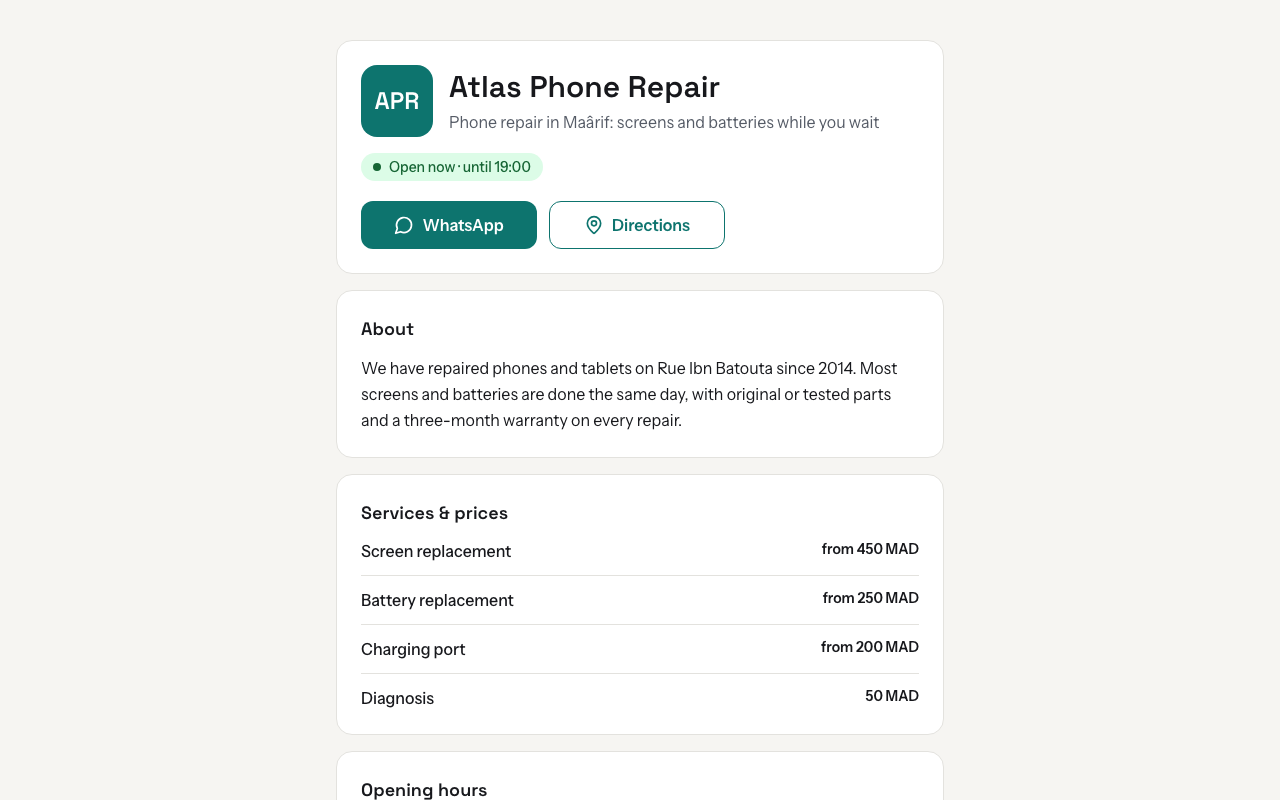
Phone numbers are grouped the way their country writes them: +212 5 22 00 00 00 rather than +212522000000. Tapping to call or to open WhatsApp works as before, and a number that can't be recognised is shown as saved.
If your subscription stops being active, the page goes offline and comes back when it is active again. To take it down yourself, use "Take offline" under "More actions".