
Self check-in
A poster with a QR code on your counter. A customer scans it, fills in a short form on their phone, and waits. Their details are ready when you create the ticket, so nobody types a name twice. Nothing is sent to them and nothing is created until you act.
What self check-in does
You find it under "Front desk › Self check-in". It works in three steps, as the page itself puts them: "Customers scan the poster at your counter." "They fill in a short form on their phone." "You confirm them when you create their ticket."
Until you confirm it, a check-in is only a name waiting in a list. It does not use your customer allowance, it creates no ticket, and the customer gets no message. The first message they get is the one their new ticket sends, as with any other ticket.
If your plan does not include self check-in, the page says so and points you to your plan.
Turn it on and choose the questions
Only the owner turns self check-in on or off. While it is off, the page opens on "Let customers check themselves in" and its button, "Turn on self check-in". Staff see the same page with "Only the owner can turn self check-in on or off." in place of the button.
Turning it on creates your shop's check-in link and its QR code. Turning it off later keeps both: the printed poster's link then says that you aren't using self check-in, and works again the day you turn it back on.
Under "What customers fill in", the owner chooses what the form asks for. Each change saves as you make it:
- A name, always.
- "Customers must give": "Phone", "Email", "Phone and email" or "Neither". The phone and email fields are always on the form; this decides which ones are required. "Neither" asks you to confirm first: "You won't be able to send updates to customers who leave both empty." The form then invites customers to leave one anyway.
- "Ask what they brought in" adds an optional field. What the customer writes there fills in the new ticket's description.
- "Unconfirmed check-ins are removed after": "24 hours" or "48 hours".
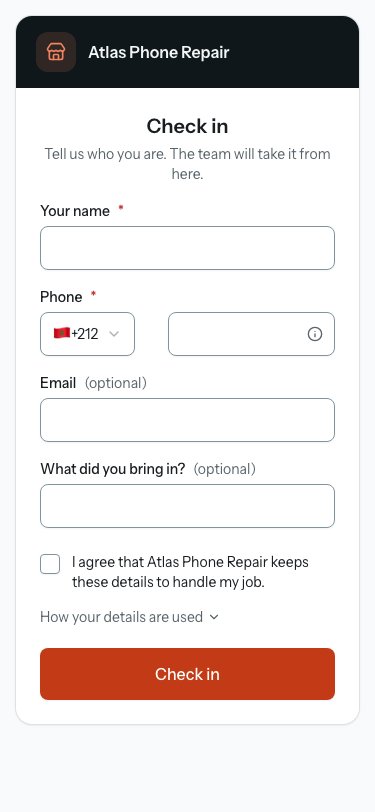
The form also has a consent box the customer must tick, a "How your details are used" link, a spam check, and a language picker when your shop serves more than one language.
The Self check-in page
Once check-in is on, the top of the page says where it stands, in a sentence such as "Open: customers can check in now.", with the one button that fits beside it and "See who's waiting" (for anyone who can manage clients), which opens "Clients › Self check-ins". Under them sit the "Self check-in" switch and Availability (next section). "How it works" is folded away below, for when you need it.
Beside the form settings, "What customers see" shows the form on a phone and follows your settings as you change them. While check-in is closed, it says that this is the form customers get when it is open ("When self check-in is open.").
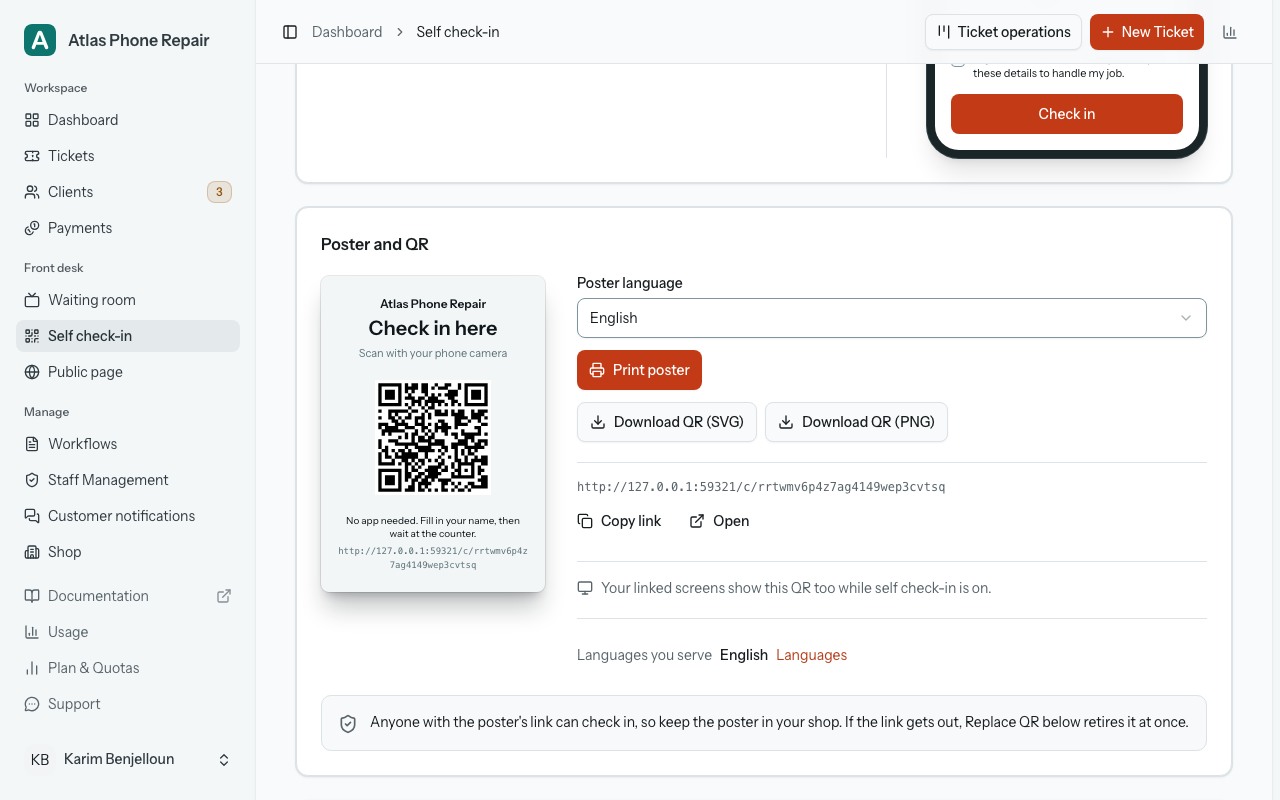
"Poster and QR" shows the poster as the sheet it prints. Pick a "Poster language": one of the languages you serve or, when you serve more than one, "All languages (…)", which puts them all on one poster. The preview stays in your own language and says so; the printout follows your choice. "Print poster" opens the poster ready to print. "Download QR (SVG)" and "Download QR (PNG)" give you the code alone, for your own design.
Under it is the link itself, with "Copy link" and "Open": paste it on your website or in a message, or open it to see the form as your customers do.
Last, on its own, "If the link has spread" holds "Replace QR", for a link that has spread beyond your shop. "Replace QR" asks you to confirm first: "Every printed poster stops working at once. You'll need to print and put up the new one." Anyone who opens the old link reads "This check-in link isn't active." People already waiting stay in your list. Only the owner can replace the QR.
When it is open
"Availability" has two choices, and "Follow opening hours" is selected to start with. It opens the form during the hours set in "Shop › Opening hours" and closes it outside them. Until you have set hours, check-in stays closed ("Closed: add your opening hours, or choose Always open.") and the page links you there. "Always open" keeps the form open whenever check-in is on.
The button beside the status sentence overrides that for now. "Close for now" closes the form while it is open; "Open now" opens it while it is closed, by hand or by your hours. With "Follow opening hours", either one lasts until your hours next open or close; with "Always open", until someone changes it. With no opening hours set, "Open now" also lasts until someone changes it. Switching between the two choices cancels it.
A customer who scans while check-in is closed reads "Check-in is closed right now." and, when your hours say, when it opens again. In TV mode, every linked waiting-room screen shows the same QR code, "New here? Scan to check in", while check-in is open.
Who can check in
There is no PIN step. Anyone who has the poster's link can check in, from anywhere, so the link is the key: keep the poster in your shop. At the foot of "Poster and QR", the page says so: "Anyone with the poster's link can check in, so keep the poster in your shop. If the link gets out, Replace QR below retires it at once." While check-in is on and you have linked waiting-room screens, the card also says "Your linked screens show this QR too while self check-in is on." They show it in TV mode whenever check-in is open.
If the link gets out (a photo of the poster shared online, say), "Replace QR" retires it at once, as described above, and the old link stops working. Until then, the form limits how many check-ins one connection can send in a few minutes, and the list stops taking new ones once 50 people are waiting (next section).
When it closes by itself
Whatever Availability says, check-in closes when your shop couldn't take the person on anyway: your customer allowance or ticket allowance is used up, your subscription isn't active, or new tickets are blocked until you choose what to keep. The status sentence names the reason, and "Open now" isn't offered.
When check-in has closed because the customer allowance is used up, "New Ticket" and "Clients › Self check-ins" say so too, with a link to your plan: "Your customer allowance is used up. Self check-in is closed to new people, and people waiting who aren't customers yet can't be confirmed." People waiting who are already your customers can still be confirmed.
The list has a ceiling too: with 50 people waiting, new check-ins aren't taken until you create tickets for some of them or remove them. "New Ticket" and the list both say so. The customer still sees the thank-you page, so check with anyone who says they checked in but isn't listed.
Turn a check-in into a ticket
On "New Ticket", "Waiting at the counter" lists everyone waiting, oldest first, by first name and initial (Youssef B.), so the list itself never spells out a stranger's full name. "Refresh" adds anyone who arrived since the page opened. Tap a name and the form fills in with what they gave.
Above the customer, the form then reads "Filled from Youssef Bennani's check-in · Clear". "Clear" empties what the check-in filled in and leaves the person waiting. If you had already typed something, the form asks before replacing it: "Replace what you typed?"
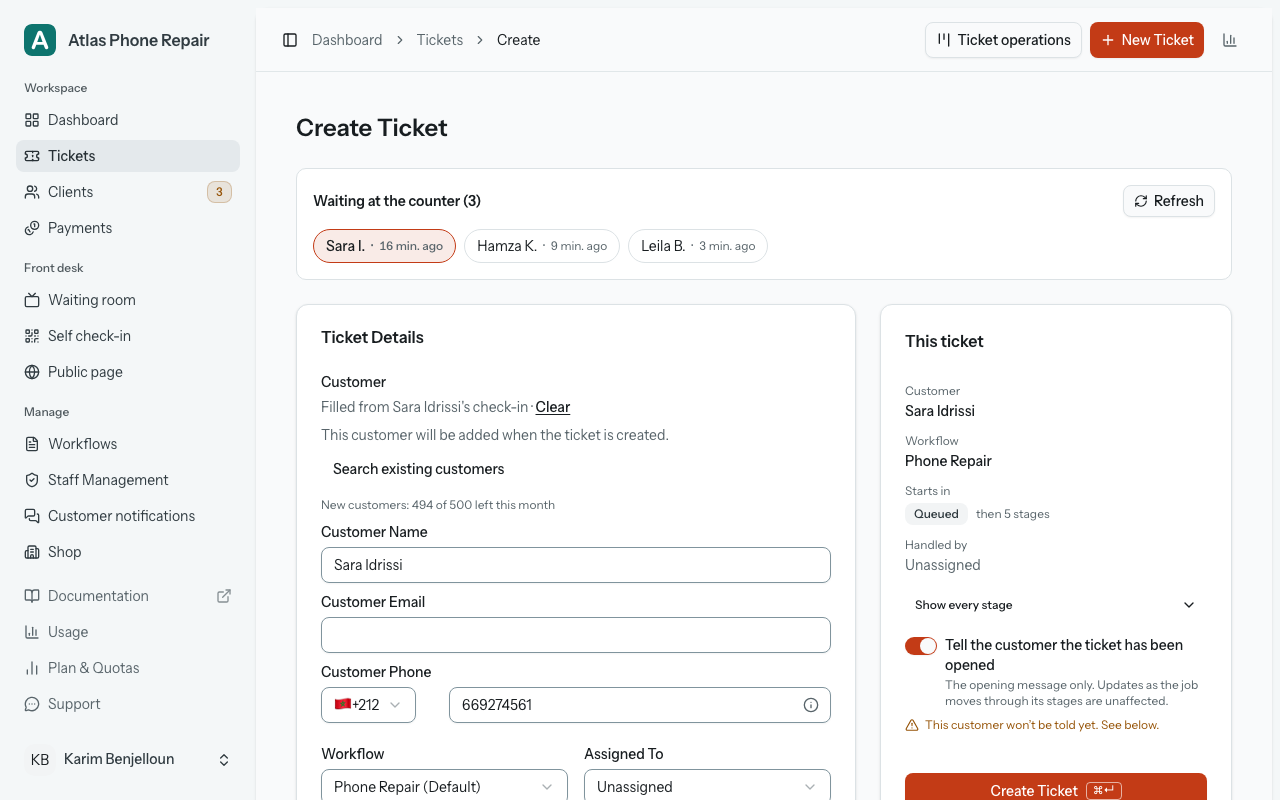
When the phone or email matches a customer you already have, the form picks that customer and says how it matched them. Their record stays as it is: if the person also gave a different phone or email, the form shows it ("The customer also gave …") for you to apply yourself, and a different name is never shown. In a shop that offers customers a choice of language, anyone who can manage clients also gets a box to switch the customer to the language they checked in with, when it differs from the one on their record.
Creating the ticket also creates the customer, if they are new, and the check-in leaves the list. From then on it is an ordinary ticket: its first message is the first thing the customer hears from you.
Clients › Self check-ins
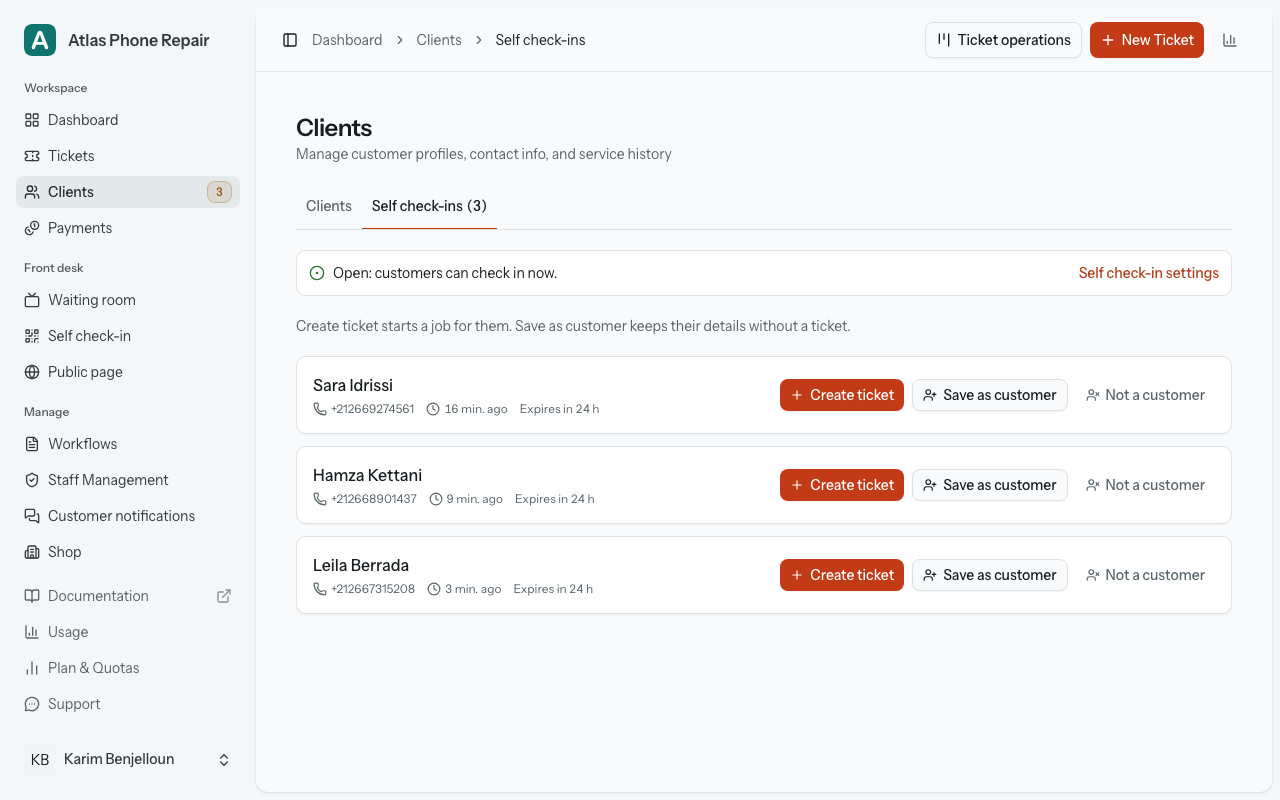
The "Self check-ins" tab on "Clients" lists the same people, with their full name, the phone or email they gave, how long they have waited and when the entry expires ("Expires in 5 h"). The tab shows how many are waiting. Each row has three buttons:
- "Create ticket" opens "New Ticket" filled in from that check-in, as above.
- "Save as customer" keeps the person as a customer without starting a job. A check-in that matches an existing customer is linked to them and only adds a phone or email they were missing; nothing on their record is overwritten. A new customer takes one place of your customer allowance, as one added from Clients does.
- "Not a customer" removes the check-in and deletes its details: "Their details are deleted. Nothing is sent to them."
If a colleague got there first, or the entry has run out, the page says "This check-in was already handled or has expired."
What the customer gets, and what is kept
Nothing is sent at check-in. The customer sees a thank-you page with their first name and the time they checked in ("Checked in at 14:05"), to show at the counter, and "Not you? Start over" for a shared tablet. Their first message comes from the ticket you create, through your usual notifications.
An unconfirmed check-in is kept only for the window you chose, 24 or 48 hours. When that time is up it leaves the list, and its details are deleted shortly after. "Not a customer" deletes them without waiting.
Confirming a check-in deletes the name, phone and email from the check-in itself. For a new customer, those details fill in their new record; a customer you already had keeps their record as it was ("Save as customer" only adds a missing phone or email). The check-in then keeps only the consent the customer gave, attached to that customer.
The form tells customers all this under "How your details are used": your shop keeps their details to handle their job, HoopoTrack runs the form for you, an unconfirmed check-in is removed after the window, and they can ask you to see, correct or delete their details. HoopoTrack's privacy policy lists check-in data too.
What your staff can do
To open the page, a staff member needs "Manage self check-in", ticked on their staff form: "Open and close self check-in, choose whether it follows your opening hours, and print the poster. Turning it on, what it asks for and replacing the QR stay with you." What stays with you is marked where they see it: "Only the owner can turn self check-in on or off." by the switch, "Only the owner can change these." under "What customers fill in", and "Only the owner can replace the QR." under Replace QR.
Confirming people is separate. "Waiting at the counter" on "New Ticket" is for anyone who can create tickets ("Create Tickets"). "Clients › Self check-ins", with "Save as customer" and "Not a customer", is for those with "Manage Clients". As the owner, you can do all of it.