
Notifications
HoopoTrack can tell a customer where their job is without you picking up the phone. This page covers the three channels it sends over, the switches that have to be on before anything goes out, how to see who will hear before you save a ticket, how to check afterwards whether the message actually arrived, and the alerts you and your team get on your own devices.
Three channels, one moment
There are three ways HoopoTrack reaches a customer: email, WhatsApp and push notifications. All three are sent for you. There is nothing to install and no account to connect at your end. Email and WhatsApp need an address or a phone number on the customer. Push needs neither: the customer turns it on from their tracking page, on the phone or computer they want updates on.
A message goes out at one moment only: when a ticket enters a stage. Moving a job from Diagnosis to Ready for pickup is what sends it. Editing the ticket, adding a note on the stage it is already on, or attaching a photo sends nothing. Moving a ticket back onto a stage it has already been through counts as entering it again, so the customer may hear about that stage twice. The confirmation box says so before you do it. When the stage is one that asks the customer to approve, that message is the question itself (what you wrote as you moved the ticket, or else the stage's own question), with an Approve or decline button, rather than a note that the job has moved.
The very first message is the exception. When you take a job in, the customer is emailed if they have an address on file, and messaged on WhatsApp if your shop has WhatsApp switched on and they have a phone number. That one does not wait for a stage to be ticked, and it counts against the same monthly allowance as the rest.
Four other messages belong to no stage either, and they are labelled as such wherever you see them: the one that goes with a new ticket, the one that carries a tracking PIN, the one that carries a question you asked the customer yourself, and the one that carries a quote you sent. On the ticket they sit in their own block above the stage history, each named ("Ticket created", "PIN code", "Question to the customer", and the quote by its own line), so a message that belongs to the whole job is not filed under whichever stage happened to be open at the time.
The three switches
For a stage to notify a customer over a channel, three things must all be true at once. Miss one and nothing is sent, and nothing is said at the moment the ticket moves:
- The channel is connected to your shop: Manage › Customer notifications.
- That stage is ticked for that channel: in the workflow editor, on the stage itself.
- The customer can be reached on it: an email address for email, a phone number for WhatsApp, and for push, a device where they turned on updates for this ticket.
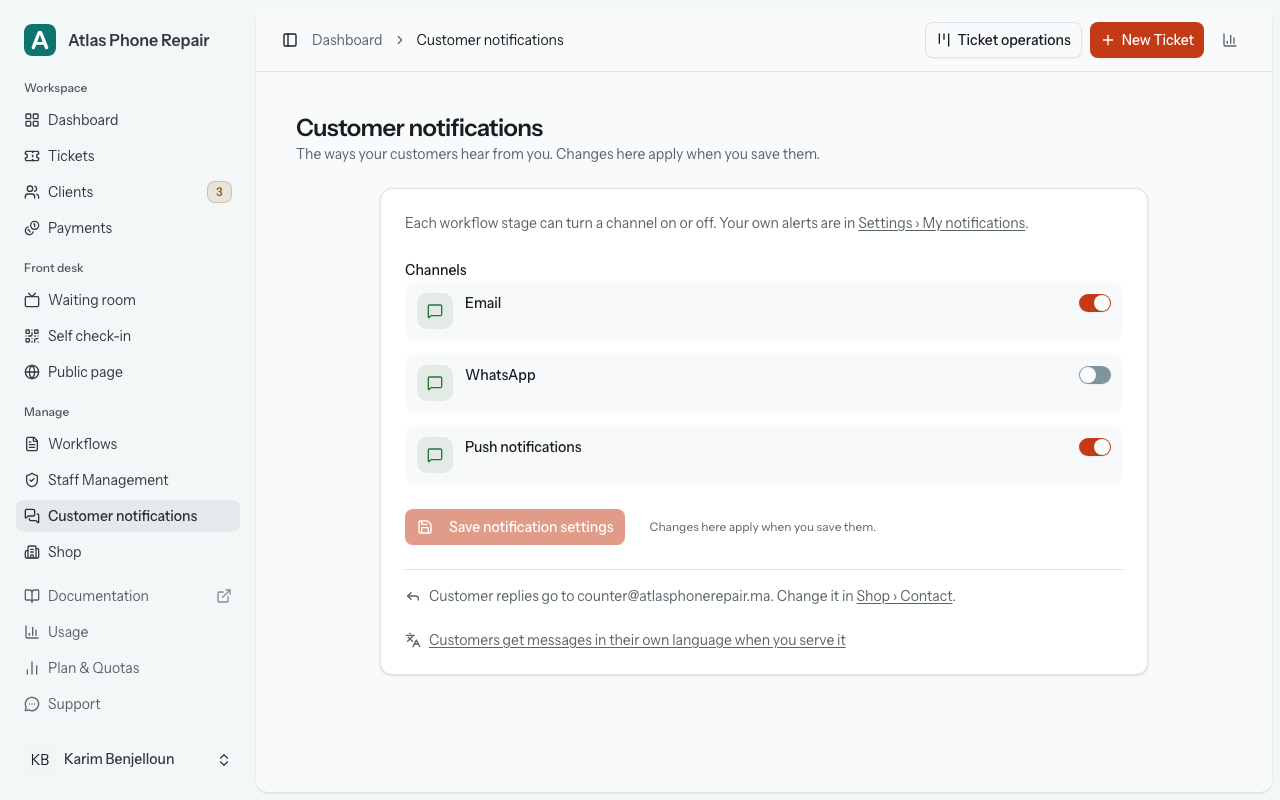
Customer notifications is a page of its own under Manage. It lists every channel with a switch. A new shop starts with Email and Push notifications connected and WhatsApp not, so WhatsApp is a switch you turn on deliberately. Unlike the other settings pages, which save as you go, the channel switches are saved with the Save notification settings button underneath them. At the top of the page, a line links to Settings › My notifications, which is about your own alerts, not your customers'.
The second switch lives on each stage of a workflow. Open a workflow, edit a stage, and tick the channels it should notify on. A stage you add now starts with your connected channels already ticked, so the usual mistake, a workflow that quietly notifies nobody, takes a deliberate untick. Each stage card shows a chip naming the channels it notifies on, and if your workflow has stages set to notify while no channel is connected to your shop, the workflow page says so at the top with a link to fix it.
There is a fourth condition that is not a switch: this month's allowance for the channel. With all three switches on and the allowance used up, nothing goes out. See "When the allowance runs out" below.
Who will hear about this ticket
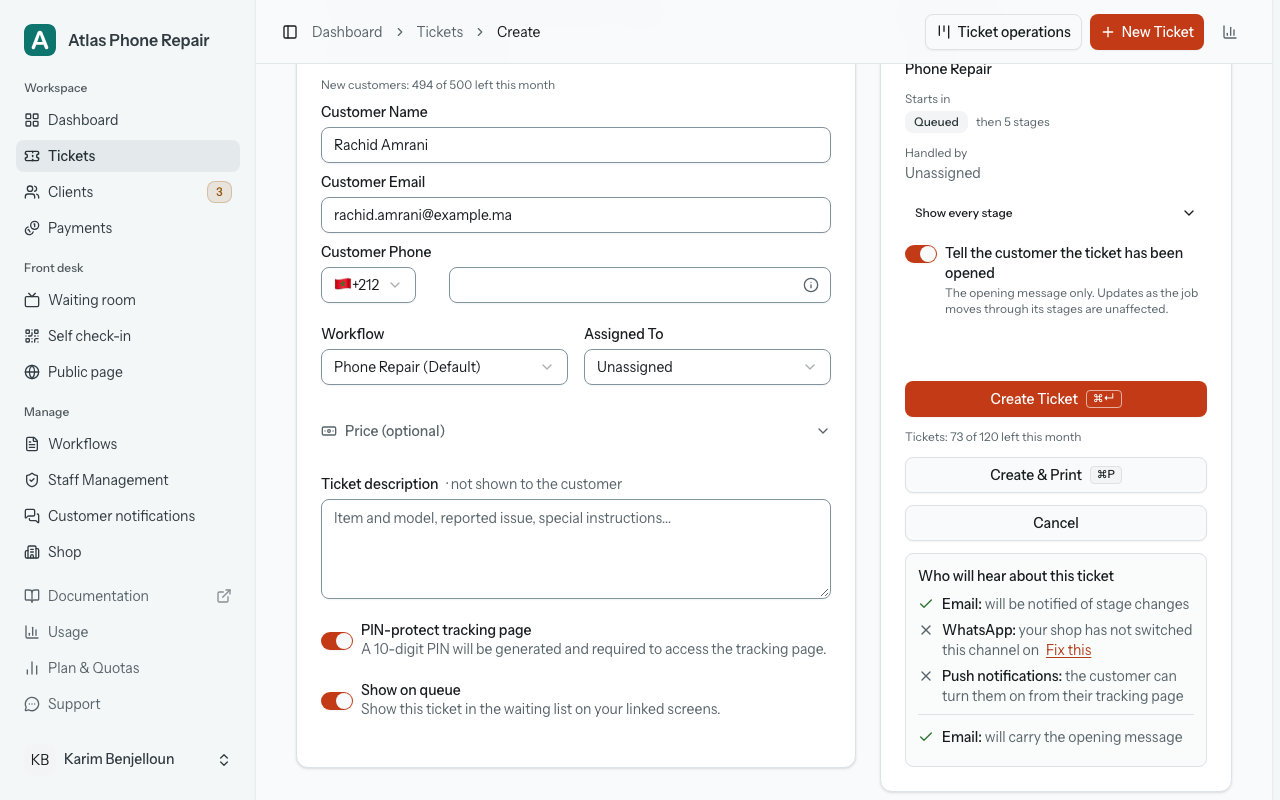
You do not have to work the three switches out in your head. The new-ticket form carries a panel headed "Who will hear about this ticket" that answers it before you save. It refreshes as you choose a workflow and fill in the customer's details, and gives each channel either a tick ("will be notified of stage changes") or a cross with the one thing stopping it.
The reasons are the actual gates, in the words the panel uses:
- "your shop has not switched this channel on". Fix this opens Manage › Customer notifications.
- "no step of this workflow notifies on this channel": Fix this opens that workflow, ready to tick a stage.
- "this customer has no email address": there is no link for this one; add the address to the customer.
- "this customer has no phone number": the same. It is fixed on the customer, not in settings.
- "the customer can turn them on from their tracking page". This is not a fault: push starts once the customer turns it on, so a new ticket always shows this line for push.
- "this month's allowance for this channel is used up": Fix this opens your plan.
Only one reason is shown per channel, and the allowance is asked about last: a shop with WhatsApp switched off is told about the switch, not about its WhatsApp allowance. When every channel carries a cross the panel says so in as many words at the top ("No one, as things stand") rather than leaving you to add up a column of crosses.
Before you have chosen a workflow the panel cannot know which stages notify, and says "Pick a workflow to see which steps notify this customer" instead of guessing.
What the message says
You do not write these messages. Each one is built from the ticket and carries:
- The stage the job has just reached, with whatever description you gave that stage, your shop's name and the ticket number. The email's subject names the stage too, so the customer's inbox reads as the job's progress.
- The tracking link and, when the ticket is PIN-protected, the PIN it will ask for, so the customer is not sent to a locked door without the key.
- The estimated ready window, when the stages have durations to calculate one from. Not on the stage the job ends on: that email drops the estimate and the promise of a next update, and says instead that the job is ready to collect at your shop, followed by your address and phone number when your shop profile has them. That is the first stage in the workflow marked done; a done stage after it, such as Collected or Delivered, says only that the job is complete, with the same address and phone line.
- On the ready-to-collect message, one more line, "Balance due: 320 MAD.", and only when four things hold at once: your shop shows prices to customers, the balance is above zero, the amount was agreed by the customer or at the counter, and the ticket has no PIN. A figure in an email subject or on a lock screen would go around the PIN, so a protected ticket's message says nothing about money. The lines of the quote are never in any message; they are on the page.
- The newest note on that stage set to "Customer can see". A note set to "Team only" never travels.
The message is written in the customer's own language. Every customer has one (it starts as your shop language, and a choice the customer makes on the tracking page is kept), and the stage's text comes from that language's tab in the workflow editor, with the shop-language text where a tab is still empty. Each delivery row says "Sent in {language}", so you can see what a customer actually received.
Ticket emails say how to reach the shop. They end with "Reply to this email to reach {shop}." when your shop has a contact email (replies go to it), or with your shop's phone number, or "Questions? Contact {shop} directly." The promised-date email also says how to stop these updates: "Don't want these updates? Reply to this email and ask {shop} to stop them."
The one message you choose
Every message above is decided by the switches. The question you ask a customer yourself ("Ask the customer", on the ticket) is the exception: you pick its channels at the moment you send it. The dialog lists only the channels that can actually reach this customer right now, all ticked, and you untick what you do not want.
Untick everything and the button becomes "Ask without notifying". The question is still put on the customer's tracking page, and the card on the ticket says "Not notified: no message went out for this question, so tell the customer yourself" so nobody later assumes a message went. That is the right choice for a customer standing in front of you, and the wrong one for a customer who has gone home.
A question that is sent costs the same as any other message on that channel and appears in the same delivery lines, labelled "Question to the customer". Withdrawing the question afterwards stops the customer answering it; it does not reach into their inbox and take the message back.
A quote you send for approval is the other message you choose. Its dialog offers the same channel chips as a question, all ticked, and the same honest ending when you untick them all: "Quote recorded. The customer was not notified. It is on their tracking page." Sent, the email is headed "Your quote for ticket T-1042: 420 MAD" and says "Please approve or decline it on your ticket's page." with a button that opens it, and WhatsApp carries the same over an approved template; on a PIN-protected ticket neither names the amount, and the subject reads "A quote for ticket T-1042". It costs one message on each channel, appears in the same delivery lines, and, as with a question, withdrawing the quote afterwards does not reach into an inbox. Prices and payments covers what the customer does with it.
Whether it arrived
Open a ticket and look at its stage history. Under each stage the ticket entered, a "Customer notifications" block lists one line per channel: the channel's name, the address or number it went to (for push, how many devices), and what became of it. The states are Sending…, Still trying, Sent, Delivered, Read, Not confirmed, "Sent, but didn't arrive", Not sent, Skipped and Reported as spam. Sent means the messaging service accepted the message from us. Delivered and Read are only ever shown when the other end reported them, and a line under the state always says who did: "Confirmed by WhatsApp at …", "Accepted by the recipient's mail server at …", or for push, "Reached the customer's device at …". Read comes from WhatsApp; for push, the line under it says "Opened by the customer", which means they tapped the notification. Email never tells anybody whether it was opened, so an email never reads Read.
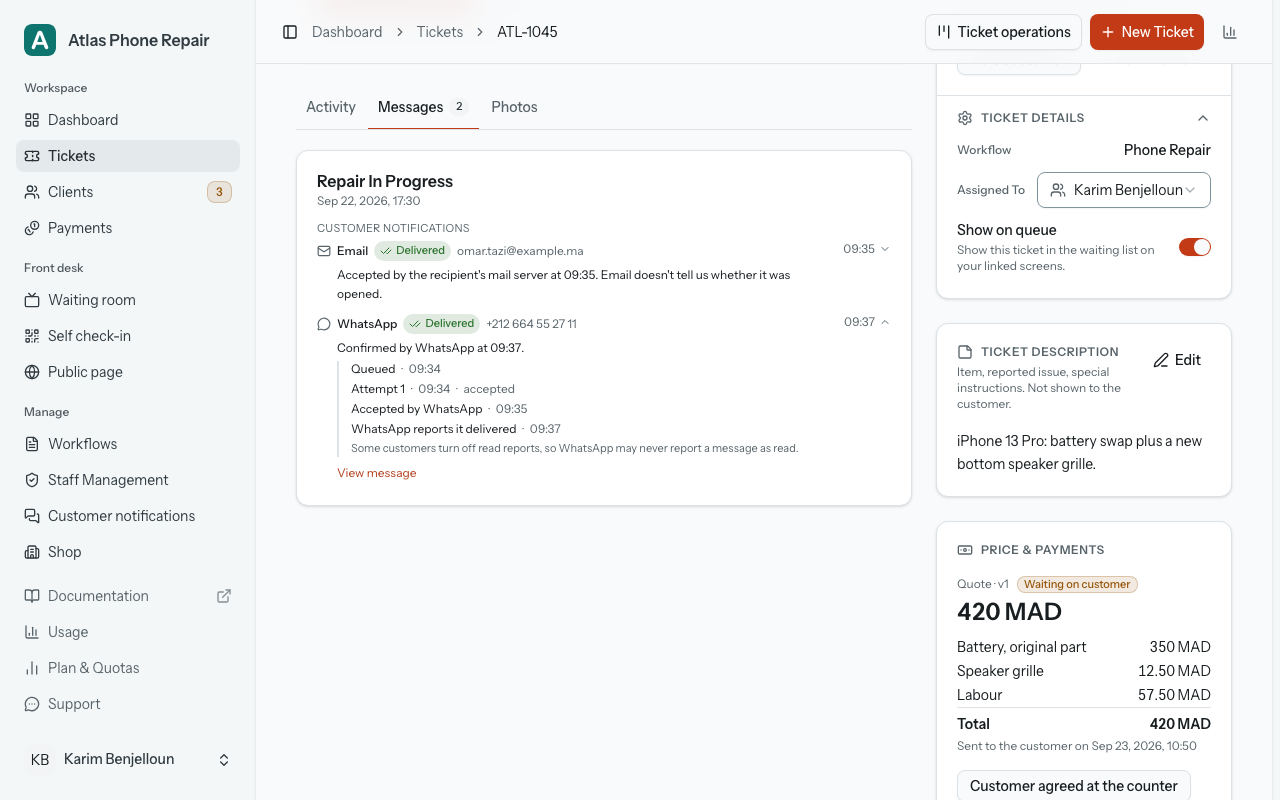
A message that did not go out says why, in plain words, with what you can do about it underneath. Where it helps, the messaging service's own words or code follow as a smaller line. A send that does not go through at first is tried again, roughly half a minute and then two minutes apart; while that happens the line reads Still trying, with the number of attempts. If it never goes through, the line reads Not sent and the allowance it had taken is handed back to you. A message that was accepted and then bounced later is a different outcome: "Sent, but didn't arrive". That one keeps its allowance, because the messaging service did take it. Not confirmed is the honest middle: the message may or may not have reached WhatsApp, we could not tell, and it is never sent twice. Skipped means we did not try, and says why, for example no phone number on the customer.
A customer with neither an email address nor a phone number can never be reached, and the ticket says so rather than letting you find out from the customer: under their details on the ticket sits the line "Notifications can't reach this customer.", with the button to edit them directly below.
"View message", on each line, opens the exact text the customer received: the email's subject and text, the WhatsApp message with its details filled in, or the push notification as it was sent. A PIN in it is hidden. Message records are kept for 180 days, so an older ticket may show fewer lines, and a note on the ticket says so.
When an email address stops working
Email addresses go bad. A customer dictates one over a counter, a digit is transposed, a company closes a mailbox. Until recently HoopoTrack could not tell the difference between a message that arrived and one that came straight back: both read as Sent, and the first anyone knew about it was a customer asking why nobody had called.
Now the mail service tells us. If a message bounces for good (the mailbox does not exist, the domain does not exist), that line on the ticket reads "Sent, but didn't arrive" with the receiving server's own explanation underneath it, and the customer's address is marked unreachable. If a customer reports one of your messages as spam, the address is marked the same way for a different reason: it works, and we stop writing to it anyway.
A marked address changes what happens next. No further email is sent to it, and the mark is not hidden in one corner of the app: the same "Email unreachable" chip appears on the customer's row in Customers, on their own page, beside their email address on any ticket of theirs, and on their cards on the counter board, where the strip along the top also counts how many open jobs are in that position and takes you straight to them. The ticket form says "this customer's email address is unreachable" in the panel that lists who will hear, with a link that opens the customer ready to edit, and their edit form explains which of the two it was. Nothing else about the customer changes: if they have a phone number and your shop has WhatsApp switched on, WhatsApp carries on normally.
The fix is the address itself. Open the customer, correct the address, save. The mark is cleared by the change and email starts going out again on the next stage the ticket reaches. There is nothing else to reset, and nobody to ask. A typo is the usual cause, so the address is worth re-reading against whatever the customer wrote down rather than saved again unchanged. One thing to know while an address is marked: a tracking PIN only ever travels by email, so sending one to that customer is refused by name until the address is corrected. Until then the printed slip is how they get it.
Push notifications
Push is the third channel, and it works differently from the other two. You do not need the customer's address or number. On their tracking page, the customer taps "Turn on updates", allows notifications when their browser asks, and from then on each stage the ticket reaches arrives on that device as a notification, even with the page closed. They can turn it off on the same card. On an iPhone or iPad, the page has to be added to the Home Screen first; the tracking page shows the steps. Customer pages explains what the customer sees.
Push is part of every plan unless yours says otherwise, the Usage page counts how many went out this month, and it never runs out. It follows the same stage switches as email and WhatsApp, and a stage that already notifies has it ticked. A notification carries the shop's name and the stage, never a PIN, a phone number, an email address, a price or the text of a question you asked.
Push is also how you and your team get alerts. That part is about you, not your customers, and it lives in Settings › My notifications, on each person's own account: turn notifications on for the device you are using, choose what to be alerted about (a customer approving or declining a stage or a quote, or answering a question, asking to be contacted, leaving a rating, a ticket assigned to you, a message to a customer that could not be sent, and, for the owner, an assistant waiting for your OK or an allowance running low), and see your other devices with a Remove button beside each. Staff are alerted about tickets assigned to them and, if they can update stages, about unassigned ones, and only when you have turned on "Keep this person informed about the shop's work" on their account (see Team and clients).
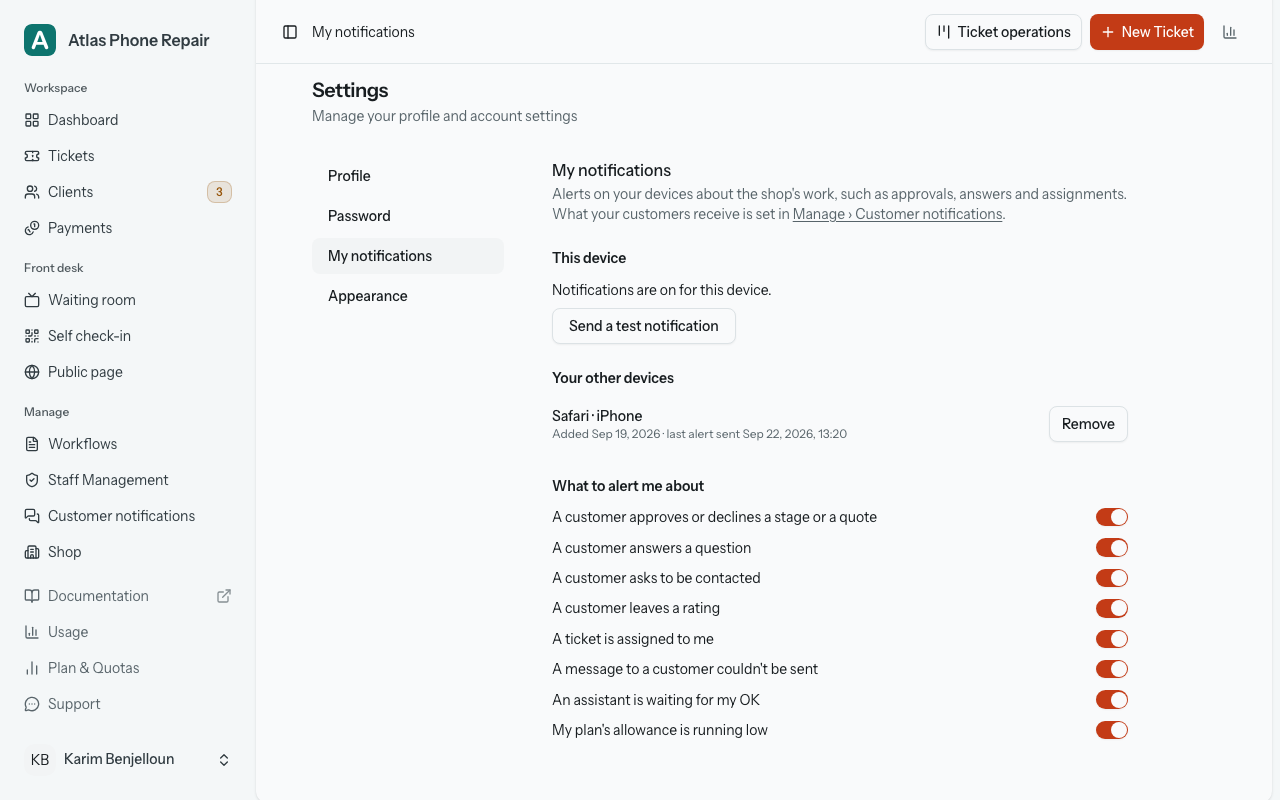
Until this device is set up, a "Notifications off" chip sits in the top bar; it opens the steps. "Send a test notification" sends one to the device you are on. If the test is sent but nothing appears, the computer itself may be blocking the browser's notifications, and the page says where to look: on a Mac, System Settings › Notifications; on Windows, Settings › System › Notifications.
When a customer asks to stop
A customer can stop WhatsApp updates by replying STOP to one of the messages, and only they can turn them back on, by replying START. A STOP covers every shop that messages from HoopoTrack's WhatsApp number, not only yours, and email, device alerts and the tracking page keep working. You may see "WhatsApp is off for this number: they replied STOP." on a customer you never touched.
When a customer tells you in person or by phone, open their page and press "Customer asked to stop messages", then "Stop updates". Every channel to that customer stops, for every ticket and stage, and their tracking page keeps working. Their page reads "Updates stopped · since {date} · {source}". Only you can turn updates back on, with "Customer asked to receive updates again" and then "Turn updates on", and only if they ask; that never overrides a customer's own WhatsApp STOP.
A message planned before the customer asked to stop is not sent: its delivery row says "Not sent: {name} asked to stop updates." Correcting a customer's email or phone does the same for messages still queued for the old one: the save says how many were stopped, and each stopped message offers "Send to the new email" (or "Send to the new number") on the ticket. The same happens when you move a ticket to another customer.
When the allowance runs out
Every email and WhatsApp message to a customer counts against your plan's monthly allowance for its channel. When it is gone, the send is not made: nothing is queued and nothing is retried later. The ticket's history still shows a Not sent line for it, saying the allowance was used up, so you can see who missed out. The ticket itself moves normally. Only the message is dropped. Push notifications are counted but never limited, so they never run out. Mail that HoopoTrack sends to you rather than to a customer is outside all of this: when a customer escalates a late job, or approves or declines a stage or a quote, you are emailed about it in your shop's language, and so is each staff member you chose to keep informed. That email is never queued behind an allowance, never skipped when one runs out, and never counted against one.
That is why the panel on the ticket form is worth reading: an exhausted allowance is one of the reasons it names, before you take the job in and expect the customer to be told. The same thing happens while a shop's subscription is restricted: an expired trial or a lapsed payment stops customer messages along with everything else that costs something.
How the monthly allowances are counted, and how to raise them, belongs to Plans and quotas.