
Customer pages
Two pages face your customers, and neither needs an account: the tracking page for one job, and the queue board for the whole shop. This is what they show, what a customer can do on them, and where the answers land back on your side. The self check-in form and your shop's public page on hoopo.app face customers too, and each has a section of its own.
The tracking page
Every ticket has its own public page. The link and its QR code sit on the ticket, on the Tracking & Sharing card: message the link, print it on the receipt, or let the customer photograph the code at the counter. Anyone holding it can open the page: no account, no sign-in, and it works on a phone.
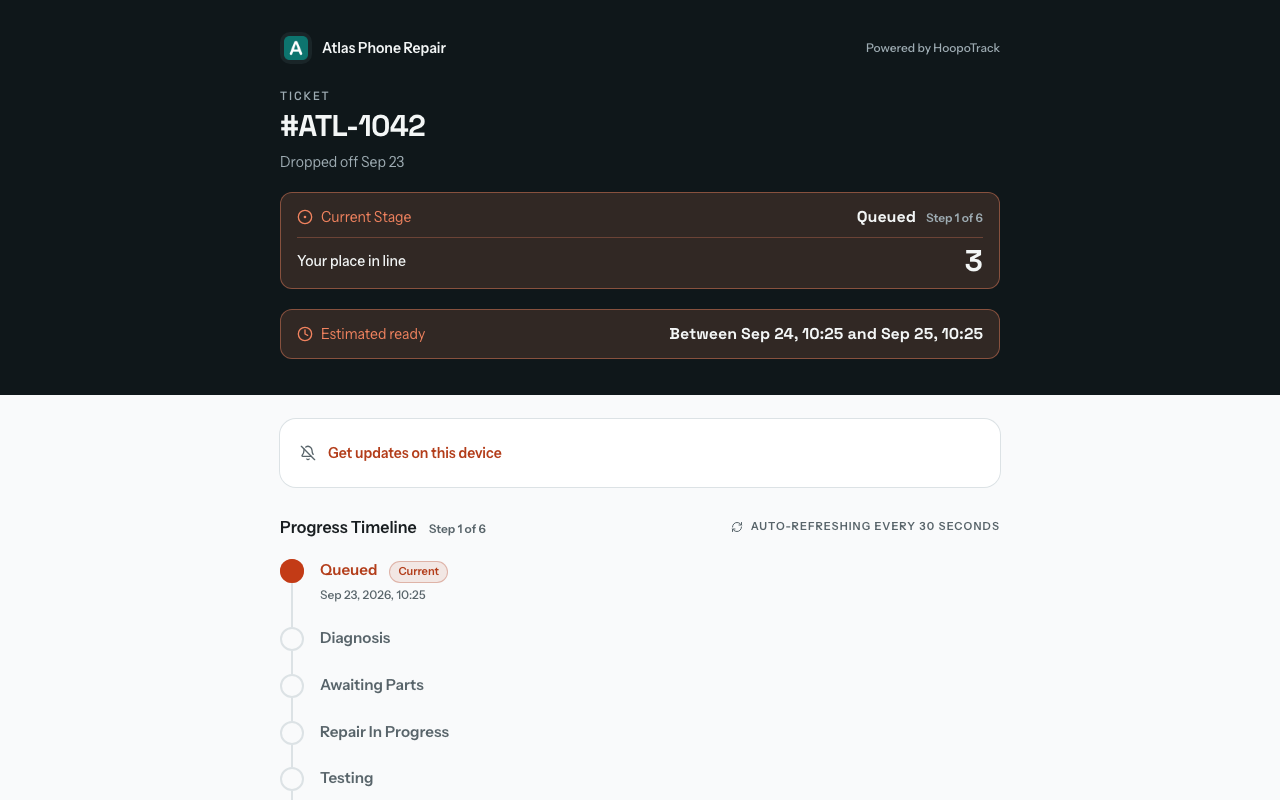
The page is one column read top to bottom: your shop's name, the ticket number, the day the item was dropped off, and the promise. Below that:
- A timeline of every stage: what is done, the one it is on now, and what is still to come, with "Step 2 of 6" rather than a percentage.
- The estimated ready window, added up from the durations you set on the stages still ahead of the job and recalculated every time you move the ticket. Once that window has passed the strip turns red and says how many days late the job is.
- Your notes: the ones you set to "Customer can see" when you wrote them. Notes set to "Team only" never appear here.
- Any photos you attached to a stage, opening full size when tapped.
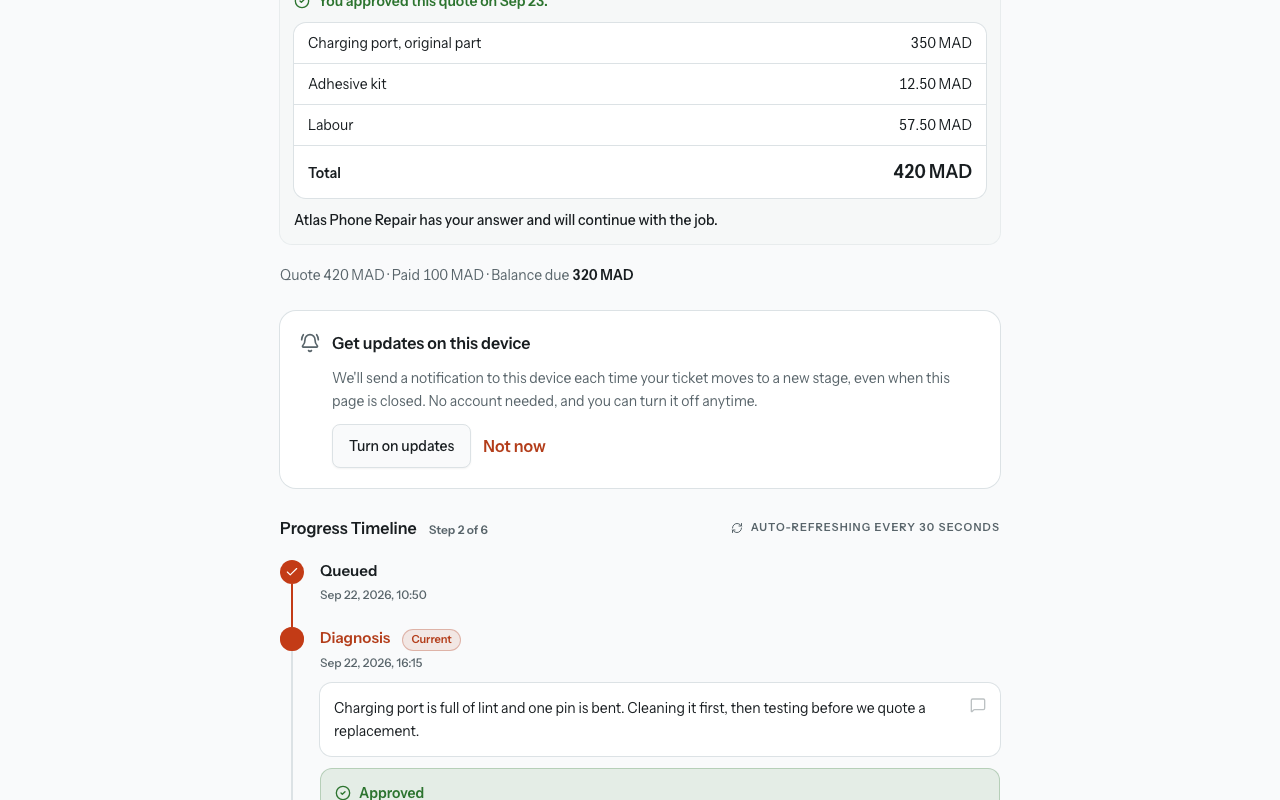
- One quiet line of money, when your shop shows prices to customers and the job has a quote the customer agreed to or was sent: "Quote 420 MAD · Paid 100 MAD · Balance due 320 MAD", or "Paid in full." once nothing is left. While the quote is only sent, the line carries what was paid and no balance. When the job is ready to collect, the balance also joins the band at the top, "Balance due at pickup: 320 MAD". There is nothing to press: the customer pays at your counter, and Prices and payments explains what they see and why.
- Buttons to call you, email you and open directions to your address. Each one only appears if that detail is filled in on your shop profile.
The page refreshes itself every 30 seconds, so a customer who leaves it open sees the job move without touching anything. While your waiting room is on and the ticket is set to "Show on queue", the page also says where the job stands in the room. On a waiting stage it reads "Your place in line" with a number: the job's place among the waiting tickets your board shows, in the board's own order, so a ticket kept off the board is never counted. First in line, it reads "You're next" instead, with no number. On a work stage it reads "Being worked on", and on the stage that means ready to collect, until the job is handed over, "Ready for pickup", with no number. With the waiting room off, or the ticket kept off the board, the line does not appear.
When your shop serves more than one language, the tracking page carries a language switcher and remembers the customer's choice in that browser. Otherwise the page, the PIN screen and the messages come in the language set for that customer, which starts as your shop language. A PIN-protected page does not give away the customer's stored language before the PIN is entered: it follows the browser's choice, then the shop language. Times on the page are on the 24-hour clock in English and French.
Updates on the customer's own device
Above the timeline, a card headed "Get updates on this device" offers push notifications. The customer taps "Turn on updates", allows notifications when the browser asks, and gets a short confirmation. From then on, each stage the ticket reaches arrives as a notification, even with the page closed. The card then reads "Updates are on for this device." with a Turn off button beside it. No account is needed, and it applies to this ticket on this device only.
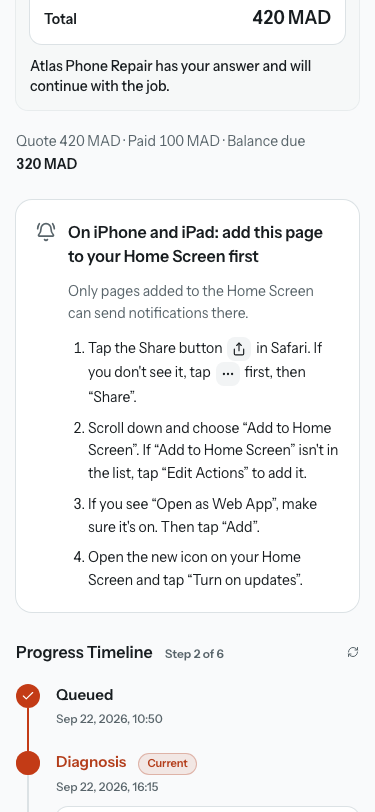
On an iPhone or iPad, a page can only send notifications once it is on the Home Screen, so the card shows the steps instead: tap the Share button in Safari, choose "Add to Home Screen", keep "Open as Web App" on if it appears, tap Add, then open the new icon and tap "Turn on updates". A ticket with a PIN asks for it once more there. If the browser has notifications blocked for the page, the card says how to allow them and offers "Check again".
A notification says which stage the job reached and names your shop. It never shows the PIN, a phone number, an email address, a price or the text of a question, because a lock screen is not private.
That page is protected by default. Every new ticket is created with a 10-digit PIN, and the page asks for it before showing any detail; after five wrong tries it stops accepting attempts for ten minutes. Approving, escalating and leaving feedback all sit behind the same gate, which is the reason the lock is on: the tracking page is not only something to read, and a link that has been forwarded is a link somebody else is holding. From the second wrong PIN the page says how many tries are left; during a lockout it counts the minutes down and opens the form again on its own when they run out, and it shows your shop's phone and email so a customer without their PIN can reach you. A link to a ticket you have deleted opens a short page in your shop's language saying the ticket is no longer available, with the same phone and email.
You can unlock a single job from its own ticket (the Tracking & Sharing card's "PIN Protected" switch), and the create form says what it costs before you save. To unlock every new job instead, turn off "PIN-protect new tracking links" on the Profile tab of Manage › Shop. That switch asks first, and what it asks is specific to your shop: it names the workflows of yours that ask customers to approve costs, mentions your ticket photos if you have any, and says plainly that whoever holds the link can leave the review on a finished job. Either way, nothing changes for tickets that already exist: a customer holding a link today keeps the access that link has always had, because locking it afterwards would meet them with a passcode box and no PIN.
The PIN reaches the customer two ways, and it is worth knowing both. It travels by email (in the message that goes out with a new ticket, or on its own from the Tracking & Sharing card) and never by WhatsApp, because a WhatsApp message is forwarded with one tap and the PIN would travel with the link it protects. And it is printed on the customer's half of the paperwork: the tear-off claim ticket on the A4 intake sheet carries it as the largest thing on the slip, and so does the 80mm receipt. So a customer with no working email address still leaves with their PIN, as long as you hand them something printed. The shop's own internal receipt carries neither the PIN nor the QR code. A customer with no email address still gets the shop's WhatsApp updates, without the PIN, and the new ticket form says so: "No email, so the PIN isn't sent. Give it to the customer at the counter or on the receipt."
Approvals
A stage can be marked as requiring the customer's approval. When a ticket enters it, the job effectively waits there: the tracking page raises a card headed "This stage needs your approval", carrying the question being asked, with Approve and Decline beneath it. That question is whatever customer-visible note you wrote on the step as you moved the ticket in (your words for this particular job) and, if you wrote nothing there, the stage's own "Approval question". If the customer scrolls past the card, a small bar follows them down the page so the answer is always one tap away. The customer is sent the same question by email and WhatsApp, where those reach them, with a button to approve or decline, instead of the usual stage message. If they decline and you ask again, they are sent it again with the new terms you wrote.
Either answer can carry a note, and either one is final: the page accepts one answer per stage and no way to change it afterwards. HoopoTrack emails your shop the moment it arrives: the answer, the customer's note, and in the case of a decline a subject line that says work is on hold, so the inbox list alone is enough to know to stop. The answer is then part of the record: a green Approved or a red Declined on that stage, with the customer's note underneath, on the customer's timeline and on your own.
The gate is only open while the stage is genuinely the one the ticket is on. An approval cannot be given on a stage the ticket has already left, or on a job that is finished.
A shop can also ask a question no stage asks ("the zipper is worn through as well, another 20, shall I?") from the ticket page at any point while the job is open. The customer meets it on the same tracking page, in a card of its own headed "Your shop has a question", with the same Approve and Decline and the same optional note; pressing either one shows them your question again inside the confirmation, so nobody agrees to a sentence they have stopped reading. It can appear on a job standing in a perfectly ordinary stage, because it belongs to the ticket rather than to any step. One answer, and it is final in the same way.
A question makes the whole page say so, not just the card. The browser tab reads "Action needed" with your shop's name, a band across the top of the page says the same and names what is being asked, and once the card has scrolled out of sight a small bar follows the customer down the page with the answer one tap away. The calm "here is where your job is" strip stands down while something is waiting on them. If a stage is asking for approval at the same time, the stage goes first.
Afterwards the question and the answer stay on the page, gathered under a heading that reads "From" and your shop's name, each with a quiet chip reading "You approved this" or "You declined this" and the day they answered, so the customer keeps a record of what the work grew to include. Two things end a question without an answer, and they look the same from outside: a question the shop withdraws before it is answered simply disappears from the page, and a job that is finished while a question is still out withdraws it too. In that second case the question stays visible as part of the record and the buttons go, because the job is over and there is nothing left to decide.
A quote is asked the same way. When you send one from the ticket, the customer meets a card headed "Your shop sent you a quote", with the lines and total exactly as you sent them (or the "What it covers" line for a single figure), "Waiting for your approval before the work goes ahead.", and two buttons: "Approve 420 MAD", which carries the amount, and "Decline", with "Want to tell the shop why? (optional)". The band and the tab read "Action needed" as they do for any question, and the confirmation quotes the lines before recording anything. If a stage is asking for approval at the same time, there is one card and one answer: the stage's question sits under the quote's lines, and the customer's "Approve" or "Decline" is recorded on both. Afterwards the card folds into the answered questions as "You approved this quote on 12 Oct." or "You declined this quote. The shop will get back to you." Prices and payments covers sending a quote and what happens to it next.
Escalation
When a job runs late, the customer has a way to say so that does not involve phoning you. An Escalate card appears on the tracking page, but only when all three of these hold:
- The promised ready date has actually passed. A job still inside its promise cannot be escalated, and a job with no promised date at all cannot either.
- The ticket is not yet completed.
- It has not been escalated before. Escalating is a once-per-ticket action, and the confirmation box says so.
The card promises the customer that this notifies you, and it does: an email goes to your shop's contact address (or to the owner's, if you have not filled one in), naming the ticket and how far past its promised window it is, written in your shop's language. It is addressed to you rather than to a customer, so it costs nothing against your monthly message allowance. Once escalated, the ticket also carries a red Escalated badge on the customer's page and on yours. Your dashboard counts escalated tickets and links straight to them, the ticket list marks them and can filter down to them, and the ticket itself raises an alert naming the date, with a Resolve Escalation button to clear the flag once you have dealt with it. The customer's page says so too: after the badge, a line naming your shop and the date and time it was alerted. An approval or an answer to a question gets a line of its own the same way: that you have the answer and will carry on, or that you will be in touch about the options.
Feedback and Google reviews
When a ticket is completed, the tracking page turns into a short feedback form: five stars, and a comment box that appears once a rating is picked. The rating is required, the comment is optional, and it can be left once. After that the page shows the stars back rather than asking again.
Whatever the rating, the customer is then invited to review you on Google. That is deliberate: inviting only the happy customers is review gating, which Google's program policies prohibit. The invitation appears only after feedback has been left, which keeps your own form first: a complaint reaches you before anyone is pointed at a public page. And the button is shown only if you have filled in the Google review link on that same tab; with no link there, no invitation is offered.
The stars and the comment come back to you on the ticket, in a Customer Rating and Customer Feedback block on the completed-job card. A completed ticket nobody has rated says "No feedback yet" rather than leaving the space blank.
The waiting-room board
The waiting-room board is the screen for the waiting room: one board for the whole shop, meant to be left running on a TV or tablet. It shows only on screens linked to your shop with a one-time code: it has no public address and no PIN. Shop settings explains how to link a screen, under Waiting room. The board is off until you turn it on, on Front desk › Waiting room, with the "Queue is live" switch.
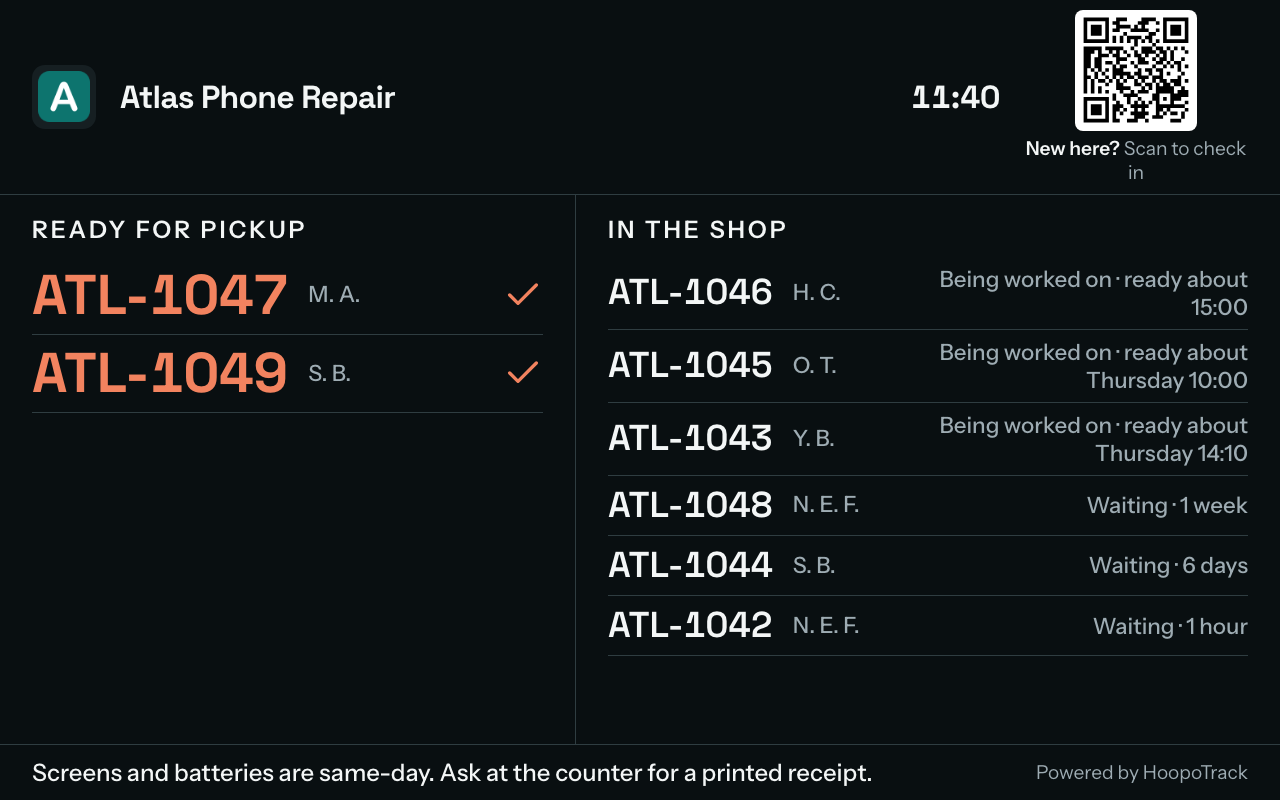
There are two panes, not three. "In the shop" holds everything being worked on or waiting to be, each row carrying a pill with your own stage name, and "Ready for pickup" holds the finished work: bigger numbers, because that is the column people are looking for. Which pane a ticket lands in comes from the queue category you gave the stage: waiting, in progress, or done. A stage with no category set puts its tickets on no board at all.
A ticket is identified by its ticket number. Customer names are hidden unless you switch them on, and while they are hidden the board tells the room so: "Names are hidden. Find your ticket number on your receipt". Two more switches decide whether a waiting row shows how long it has been waiting and whether an in-progress row shows its estimated completion. The ready pane clears itself daily: it lists only work completed today, and says so at the bottom. Any single ticket can also be kept off the board from the ticket itself. The names switch has an "Initials only" option that shows "M. A." instead of the full name: anyone in the waiting room can read what the board shows.
The board is built to be left alone. It refreshes every 30 seconds, plays a short chime when a number joins Ready for pickup, and has a fullscreen button, a sound button, a light and dark switch, a clock, and your announcement line if you have written one. It also knows when it has run out of room: a pane holding more work than the screen can show stops being one long list and becomes pages the height of the screen, turning every few seconds in the same order, with a row of small dots beside the pane heading for how many pages there are and which one is up. Nobody has to touch the board: a ticket that is not on screen now comes round within one rotation. A pane whose work already fits does none of this, and on a phone, where the page scrolls under a thumb, neither pane does. Browsers do not let a page make a sound until somebody has touched it, so until then the chime button reads "Tap to enable sound" rather than claiming the sound is on; one tap on the screen and it is. Whether the sound is on, and the light or dark choice, are remembered on that device, so a board that restarts overnight comes back as you left it.
A screen shows the board only while it is linked. One that is not linked, or has been unlinked, shows "Link this screen" with a code instead, and no queue. Each plan allows a number of linked screens: one, unless your plan says otherwise. If your shop moves to a plan with fewer screens than it has linked, the screens linked first keep showing the board; the others show "This screen is over your plan's limit", with no queue on them, and come back by themselves when a screen is unlinked or the plan allows more. Nothing is unlinked for you. While your subscription is not active, linked screens keep showing the board and can still be unlinked, but no new screen can be linked. For 10 minutes after it is linked, a screen also shows "Linked to {shop}. Not your shop?" along its bottom edge, with "Unlink this screen", in case its code was typed in the wrong shop.
A linked screen opens the board in TV mode, a room display: always dark, large type, "Ready for pickup" and "In the shop" side by side, pages that turn by themselves and the announcement as a ticker. Rows say "Waiting", "Being worked on" or "Ready", never your stage names, and with estimates switched on a row reads "Being worked on · ready about 14:30". With nothing to show, the screen says "Jobs being worked on or ready for pickup will show here." under the clock. "Exit TV mode" appears when the mouse moves, and a "TV mode" button beside the sound and fullscreen buttons takes the screen back in; the screen remembers the choice. The first click turns sound on, unless the screen was muted on purpose. Outside TV mode the board follows light or dark and has a switch for it. On Front desk › Waiting room, the live preview shows the board as your screens show it.
When your shop uses self check-in, every linked screen in TV mode also carries its QR code while check-in is open, captioned "New here? Scan to check in". While check-in is closed and the next opening is known, that place reads "Check-in opens {day} {time}" instead. There is no PIN in front of the check-in form: anyone with its link can check in. Self check-in covers the rest.
When you switch the waiting room off, your screens stay linked and show your shop's name and logo with one line, in your shop's language: "{shop} isn't showing its waiting list online right now. Please ask at the counter." They check back every 30 seconds and show the board again once you switch it on. A screen you unlink goes back to showing a code at its next refresh, and says it was unlinked.