
Getting started
Everything a new shop does on its first day, in order: open an account, build a workflow, take in one job, and hand the customer a link they can check for themselves. Allow about ten minutes.
Create your account
The sign-up form asks for four things: your own name, your shop's name, the email address you will sign in with, and a password. Accepting the terms is required; the box offering onboarding tips is optional.
There is no separate "create your shop" step. Your shop is created alongside your account, with its own public address, its language and a free trial, and you are signed in and taken straight to the dashboard. A link to confirm your email address is emailed to you, and nothing waits on it: until you follow it, a banner reads "Confirm your email" with the address the link went to, and offers "Send it again" and "Wrong address? Change it". "Hide for now" puts it away on that device for 7 days.
Signing in is guarded in plain ways. A password that is too common is refused ("This password is too common and easy to guess. Try a short sentence or a mix of words only you would pick."). After repeated wrong passwords, sign-in pauses for a short while and says how long, for example "Too many attempts. Try again in 5 minutes, or reset your password."; resetting the password lifts the hold on the account. Changing your email on your Profile page waits for the new address to confirm it: Profile reads "Waiting for confirmation" with the new address and offers "Send the link again" and "Cancel the change", and your email stays as it was until you follow the link.
A few forms run a bot check: sign-up, sign-in, forgot password, reset password, New ticket and New client. It is usually invisible; when it needs a tap, a checkbox appears on the page, and a refusal says "We couldn't check that you're not a robot. Reload the page and try again." Nothing else in the app waits on one, so moving a ticket, writing a note or recording a payment never stops for it.
Work through the dashboard checklist
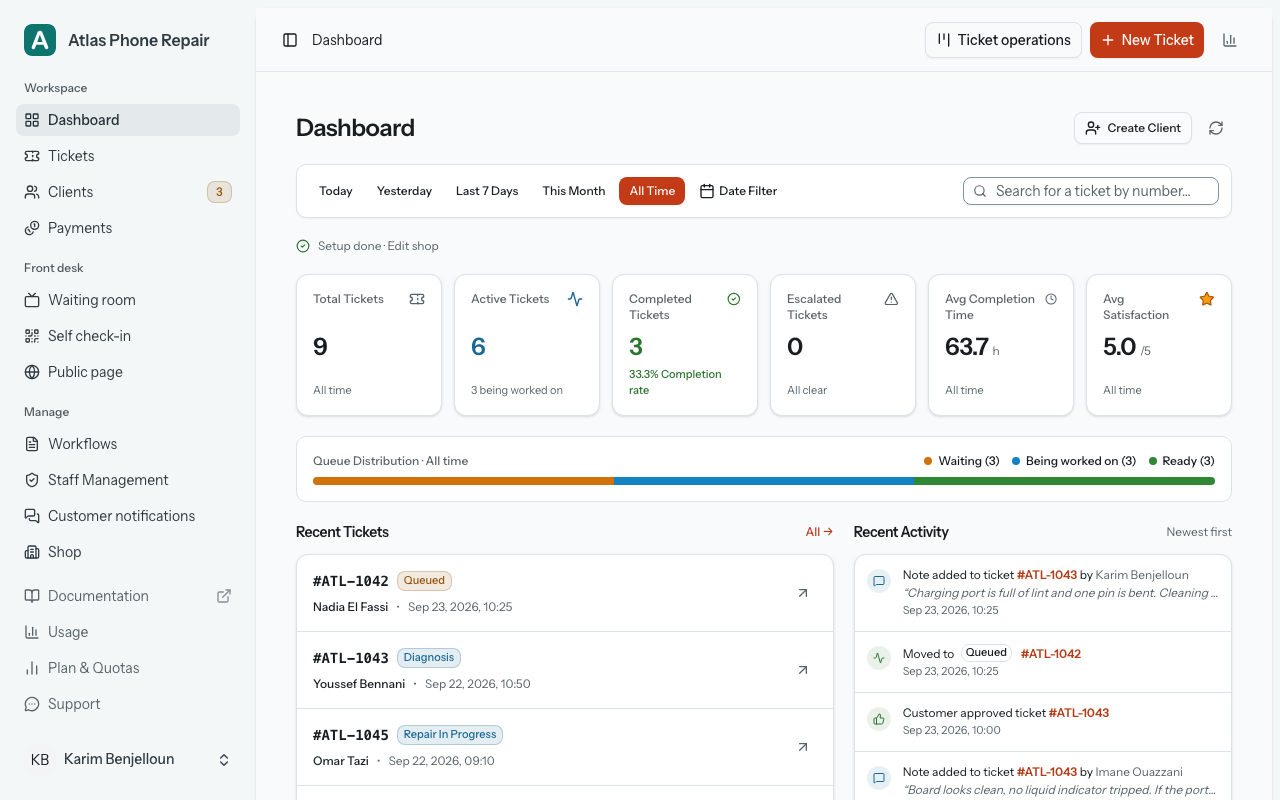
The dashboard opens on a Getting Started card holding three steps. Each one is a link to the screen that completes it, and each ticks itself off:
- Shop Profile: ticked once your shop has a contact detail, an email address or a phone number.
- Service Workflows: ticked once you have a workflow with at least one stage.
- First Ticket: ticked once you have taken in one job.
When all three are ticked, the card reads "You're ready to take jobs." and offers the recommended extras: your time zone, a notification channel, your logo and your Google review link. Each carries "Recommended", "Not now" skips one for good, and "Hide this" puts the card away. Only the shop owner sees it; staff accounts never do.
Build your first workflow from a template
A workflow is the ordered set of stages a job passes through: what a ticket moves along, and what the customer watches on the tracking page. You need one before you can take work in, so do this before anything else.
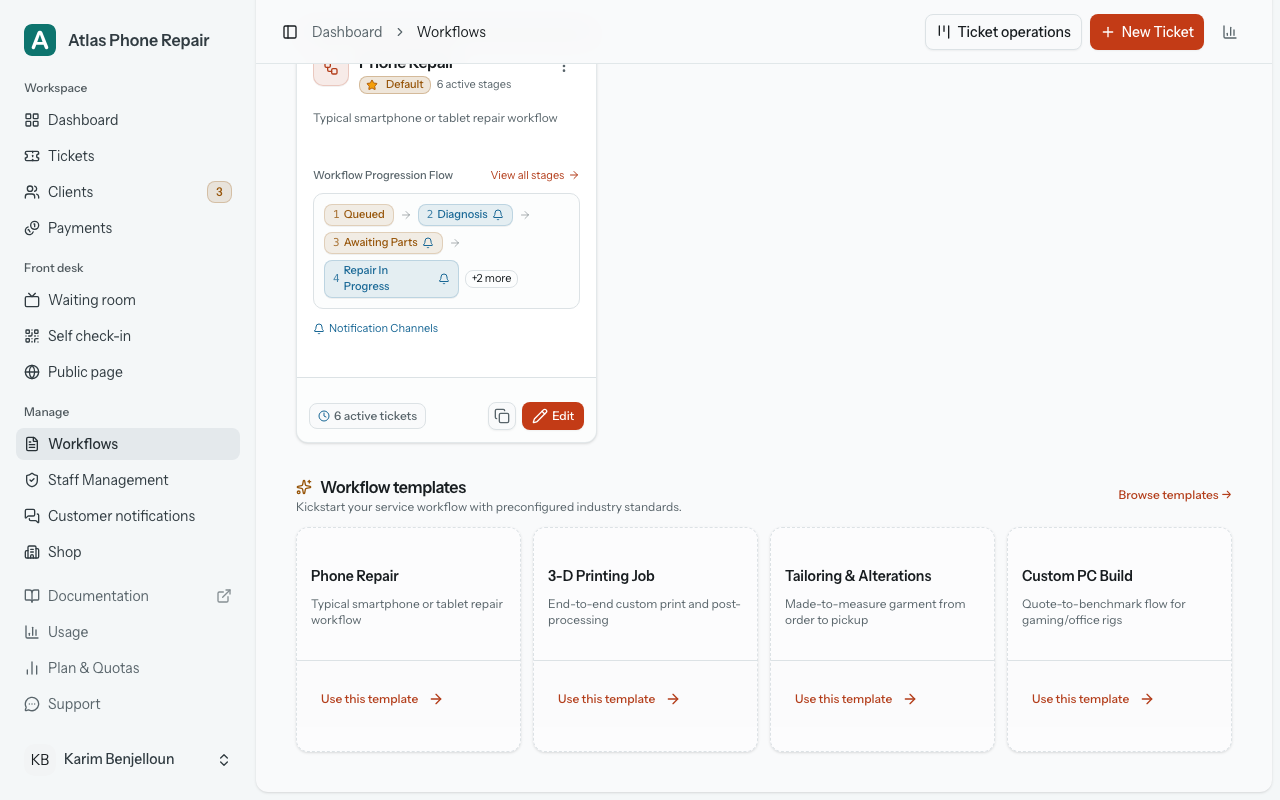
The Workflows page carries a rack of ready-made templates for common trades. "Use this template" opens the workflow form with that template already chosen: its name and description are filled in, the choose-a-type step is skipped, the button at the bottom reads Apply template rather than Create Workflow, and the stages it will create are listed in order on the form under "What this template creates", so you see the workflow before you commit to it. "Browse templates" opens the same picker with nothing chosen yet, if you would rather read through the whole list first.
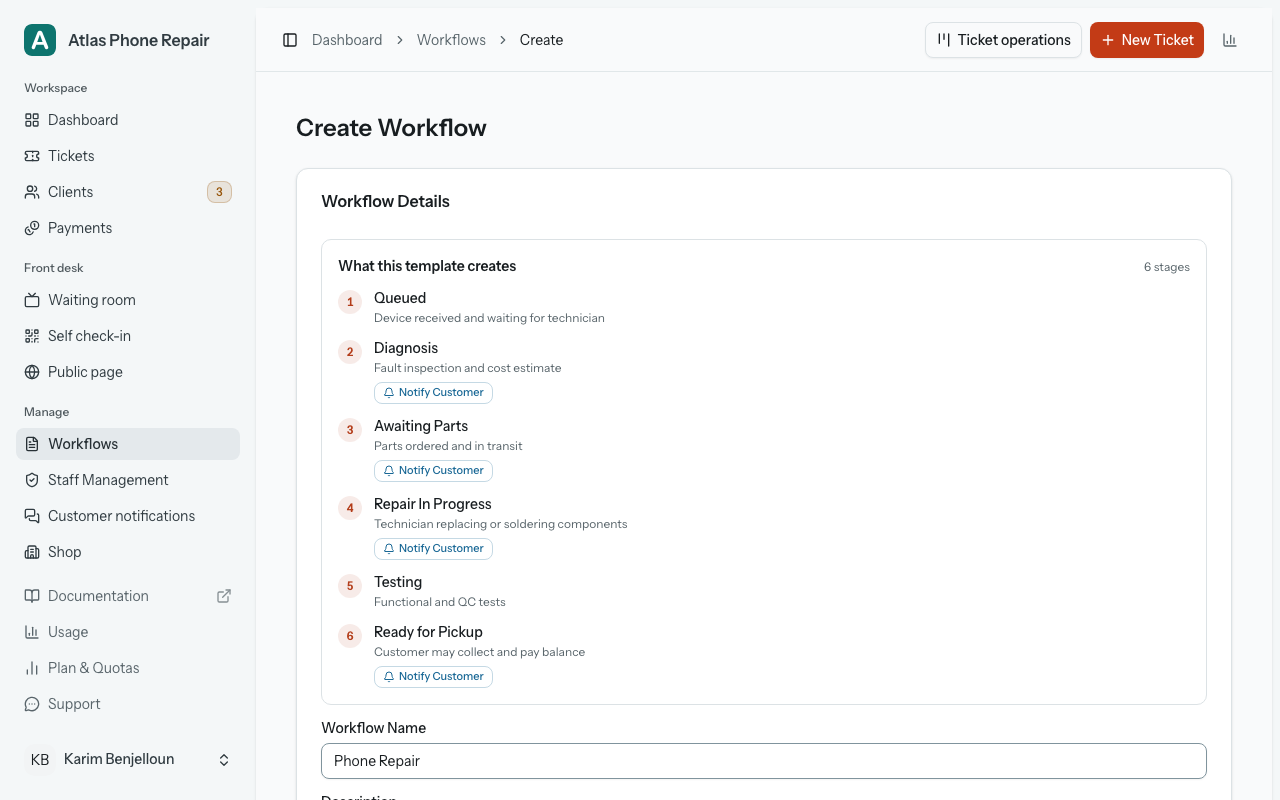
Your first workflow becomes the default for new tickets automatically. The "Set as default workflow" switch is on and locked, with a note explaining why: nothing else exists yet for a ticket to fall back on. Once you have a second workflow, you can move the default to it.
Take in your first ticket
Until a workflow exists, the ticket form is replaced by a screen headed "Create a workflow first" with a New Workflow button on it. A ticket has nothing to follow without one. With a workflow in place, the form opens normally.
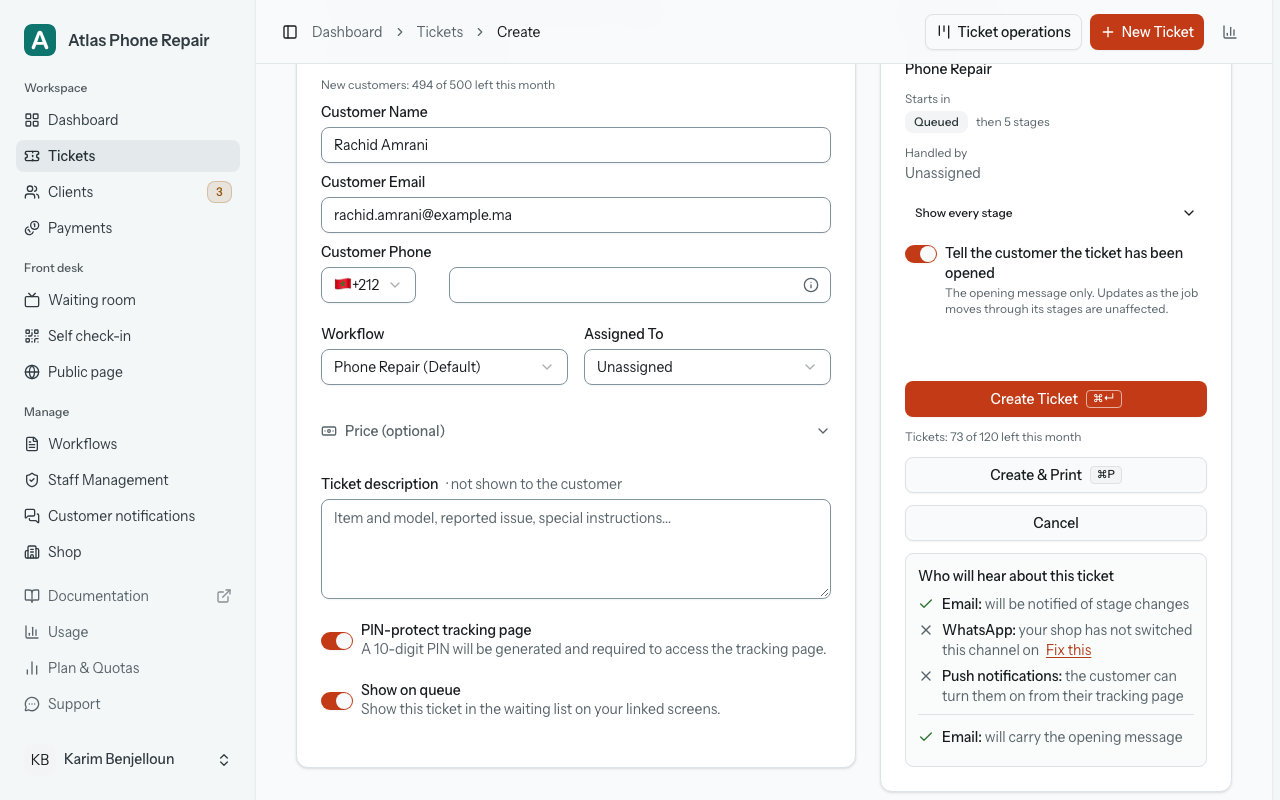
Every ticket belongs to a client, and one field covers both cases: "Name, phone or email (existing or new)". Type two characters or more and it searches your client book; a search that matches nobody offers to create what you typed as a new customer, name and all. "New client", beside the field, goes straight to the new-customer fields, which say "This customer will be added when the ticket is created." A shop with an empty client book opens on those fields, because a search across no records helps nobody.
Beside the form (below it on a phone) sits a panel headed "This ticket", and at the foot of it "Who will hear about this ticket". It refreshes as you pick a workflow and fill in the contact details, and for each channel it says either that the customer will be notified of stage changes, or the single thing stopping it: your shop has not switched that channel on, the customer has no email address, the customer has no phone number, this month's allowance for the channel is used up, or no step of this workflow notifies on it. Each blocked channel carries a "Fix this" link to the screen that puts it right, and if nothing at all can reach the customer the panel says so in as many words rather than staying quiet.
Hand the customer the tracking link
Saving takes you to the ticket. Beside it is a "Tracking & Sharing" card holding a QR code, the public link, a button that copies the link, and a button that opens it in a new tab.
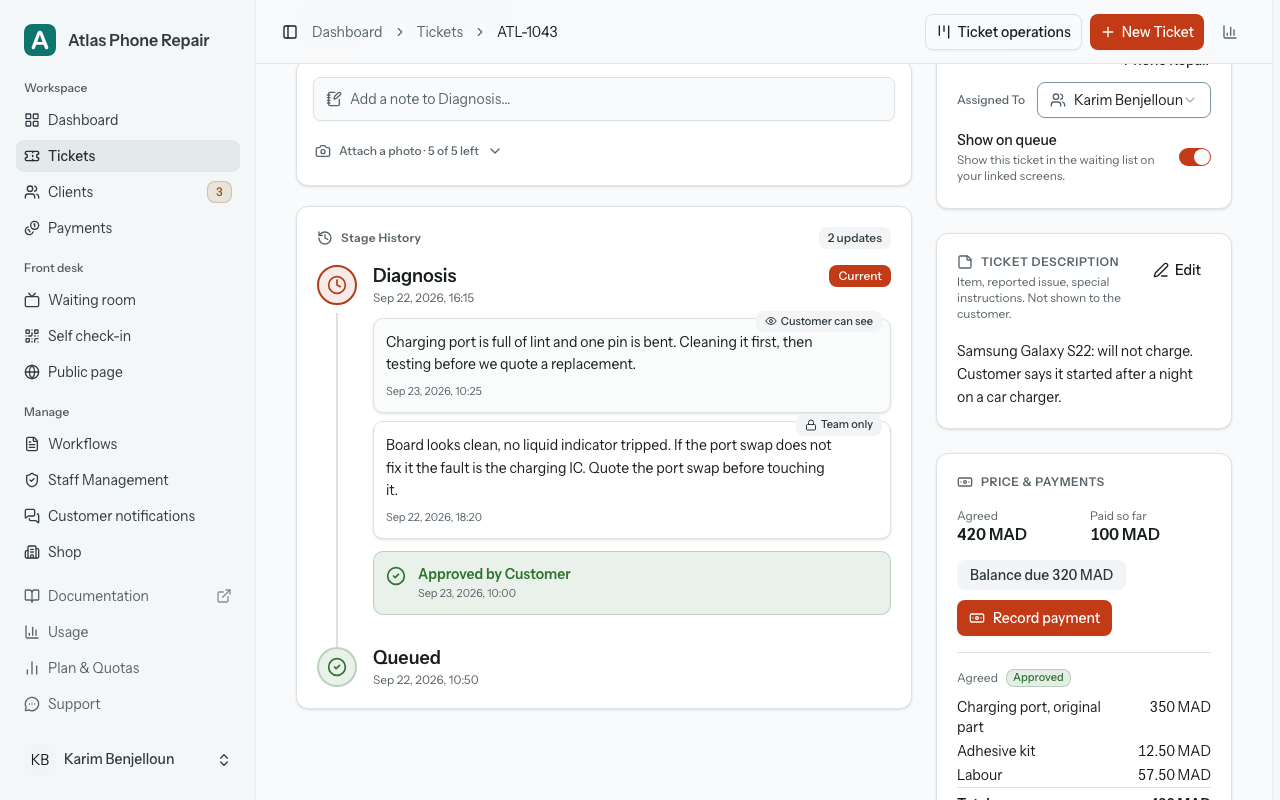
The link is of the form /track/ followed by the ticket's own code. Anyone holding it can open the tracking page (no account, no sign-in) and read the timeline of stages: what is done, where the job is now, and what is still to come. Message it, print it on the receipt, or let the customer photograph the QR code at the counter.
That link is locked by default. Every new ticket is created with a 10-digit PIN, and the tracking page asks for it before showing any detail. The PIN goes out in the message that accompanies a new ticket, it is printed on the customer's half of anything you print, and it can be emailed again from the same card. If you would rather leave a particular job open to anyone holding the link, the card's switch turns the PIN off for that ticket. See Customer pages for the shop-wide setting.
What to do next
That is the whole loop: a workflow describes the work, a ticket follows it, and the customer watches from a link. With your first ticket moving, the last thing worth doing today is the recommended steps the dashboard card offers: your time zone and logo in Manage › Shop, and a notification channel in Manage › Customer notifications. Skip any of them with "Not now".
Two more things sit under Front desk, for when you are ready. Self check-in puts a QR poster at your counter, so customers type in their own details before you take their job. Public page puts your shop online at hoopo.app, with your services, prices, opening hours and photos. Each has a section of its own.